Robots.txt for Small Business Websites: What to Block, What to Allow, and What Silently Breaks Your SEO
A misconfigured robots.txt file can block Google from crawling your entire site without triggering a single error alert. This guide covers the exact directives small business websites should use, the configurations that silently kill rankings, and how to verify everything in Google Search Console.
Quick answer
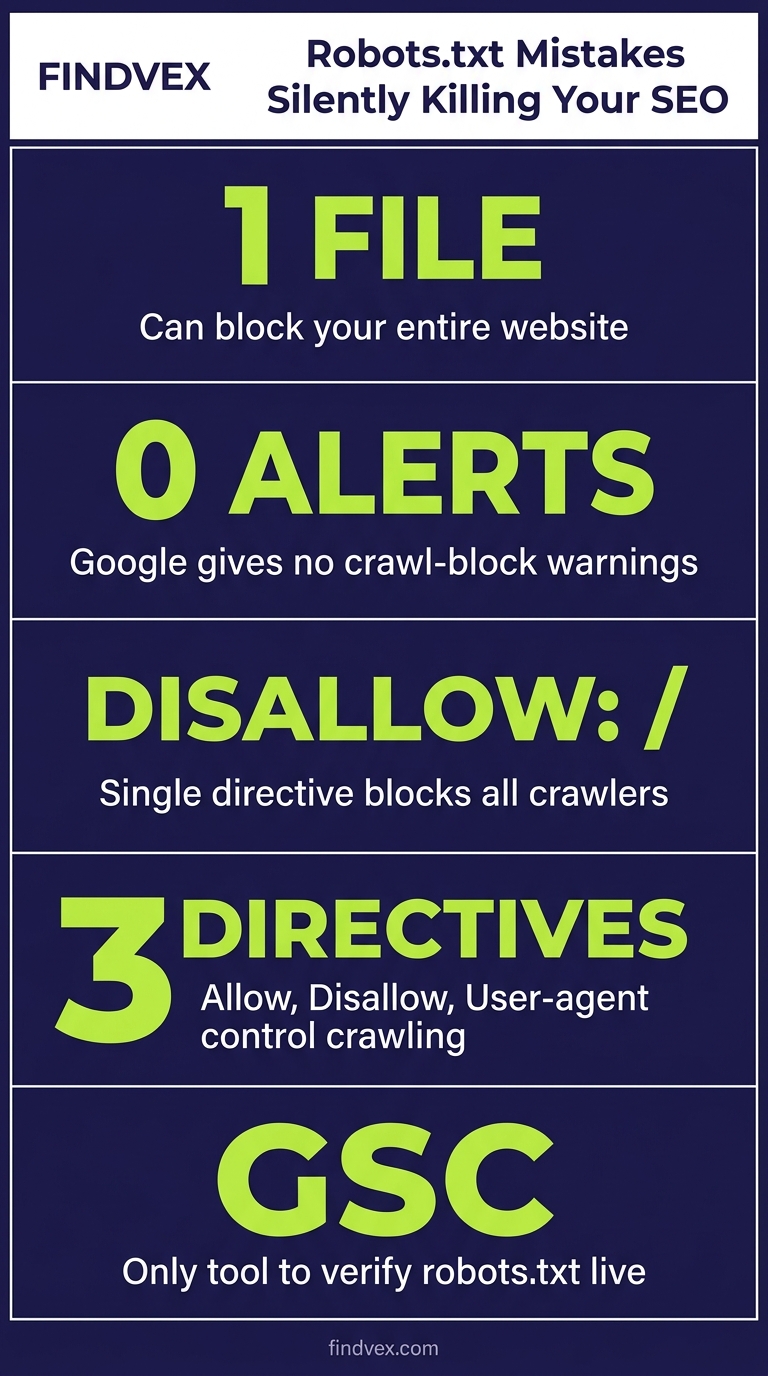
Your robots.txt file tells search engine crawlers which pages to visit and which to skip. For most small business websites, the safest configuration allows all major search engine bots, blocks admin URLs, staging directories, and internal search results pages, and explicitly permits access to CSS, JavaScript, and image files. The single most dangerous mistake is accidentally disallowing Googlebot from your entire site — an error that can suppress all rankings within days and is invisible unless you check Google Search Console's Coverage or Crawl Stats reports.
What Robots.txt Actually Does (and What It Cannot Do)
Robots.txt is a plain-text file sitting at the root of your domain — always at yourdomain.com/robots.txt. When a crawler visits your site, it reads this file first to understand which URLs it has permission to fetch. The protocol is called the Robots Exclusion Standard.
What it does: Robots.txt controls crawl access. It tells bots whether they can request a URL at all. When a URL is disallowed, a well-behaved crawler will not fetch the page content.
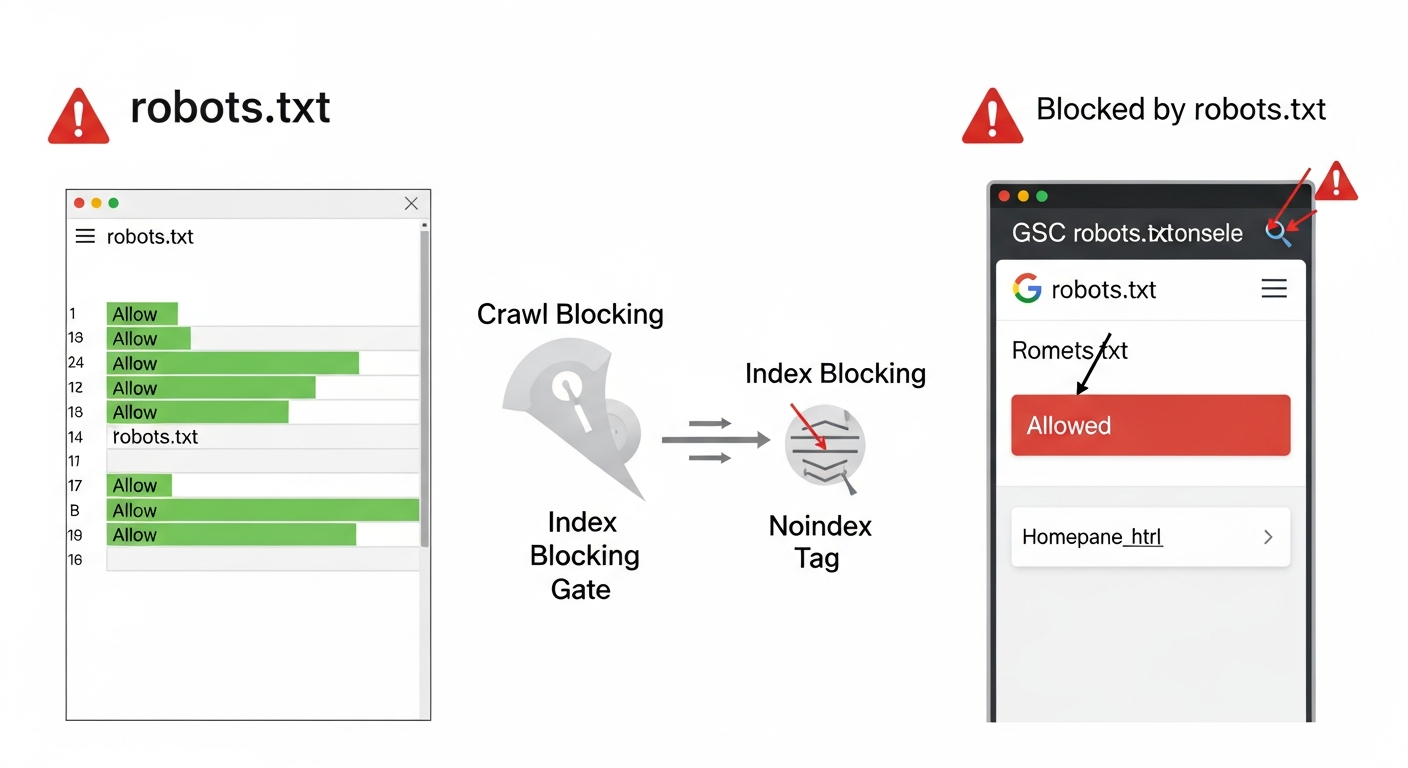
What it cannot do: Robots.txt does not prevent a page from being indexed. This surprises a lot of business owners. If another site links to a page you've disallowed in robots.txt, Google can still index that URL — it just won't have read the content. The result is a thin, content-less listing in search results with no title or description. To prevent indexing, you need a noindex meta tag or X-Robots-Tag header on the page itself, not a robots.txt disallow.
Understanding this distinction matters because it changes the fix you apply. Robots.txt is a crawl gate, not an index gate. Conflating the two is one of the most common — and costly — technical SEO errors on small business sites.
Robots.txt Syntax: The Minimum You Need to Know
The file uses a simple directive structure. Each block starts with a User-agent line identifying which crawler you're addressing, followed by Allow or Disallow lines.
User-agent: * applies to all crawlers. User-agent: Googlebot applies only to Google. User-agent: GPTBot applies only to OpenAI's training crawler. You can stack multiple user-agent blocks in one file.
A Disallow: / line (a single forward slash) blocks the entire site for that user-agent. A Disallow: line with nothing after it means 'disallow nothing' — i.e., allow everything. These two look almost identical and have opposite effects. This is the typo that has crashed rankings for sites that were never aware anything was wrong.
- User-agent: * — targets all bots
- Disallow: /admin/ — blocks the /admin/ directory
- Allow: /admin/public-page — re-allows a specific path inside a blocked directory
- Sitemap: https://yourdomain.com/sitemap.xml — declares your sitemap location
- # This is a comment — ignored by crawlers, useful for your own documentation
“AI agents do in hours what teams used to do in weeks. The advantage compounds.”
What Small Business Websites Should Always Allow
The default state of a robots.txt file for most small business sites should be permissive — allow almost everything and only block specific paths that create real problems. Here's why: Google needs to fetch your CSS and JavaScript files to render your pages correctly. If it cannot access them, it may see a broken, unstyled version of your site and misread your content, your layout, and your structured data.
Many WordPress sites block /wp-content/ by default in older configurations. This is almost always wrong. Your theme files, plugin scripts, and images live there. Block it and Google may rank a text-only version of your pages while your competitors' sites look fully designed to the crawler.
- All CSS files — Google uses these to understand page layout and rendering
- All JavaScript files — critical for sites using React, Vue, or heavy theme frameworks
- All image directories — Google Image Search and visual rendering both require access
- Your XML sitemap(s) — must be reachable by crawlers
- Your main content URLs — blog posts, service pages, location pages, product pages
- Schema markup endpoints — if your structured data is loaded dynamically
What to Block: The URLs That Waste Crawl Budget and Cause Duplicate Content
Blocking the right URLs protects your crawl budget and prevents duplicate content from diluting your indexing. Crawl budget is a finite resource — Google's crawlers won't spend unlimited time on your site, especially if it's small or low-authority. Every request they spend on an admin page or a URL with a tracking parameter is one fewer request for your actual content.
The categories below are safe to block for almost all small business websites. Review each one against your own site architecture before implementing — there are edge cases in every CMS.
- /wp-admin/ — WordPress admin dashboard (always block; this should also be password-protected at the server level)
- /wp-login.php — WordPress login page
- /?s= and /search/ — internal site search results create near-infinite duplicate URLs
- /cart/ and /checkout/ — e-commerce checkout pages have no ranking value and may expose session data
- /staging/ or /dev/ — any staging subdirectory (better handled with a separate staging domain or password protection)
- /feed/ — RSS/Atom feeds (optional; they rarely rank but consume crawl budget)
- /?add-to-cart= and similar parameter URLs — shopping cart action parameters generate duplicate product page variants
- /wp-json/ — WordPress REST API endpoint (no ranking value; can expose user data)
- /trackback/ — obsolete WordPress trackback endpoints
- Print-only page variants — URLs like /page/?print=1 or /print/page/ create duplicate content
Robots.txt and AI Crawlers: A Decision You Need to Make Deliberately
In 2026, robots.txt has a new strategic dimension: AI training and AI search crawlers. Bots like GPTBot (OpenAI), ClaudeBot (Anthropic), Google-Extended, and OAI-SearchBot now visit sites regularly. These are separate user-agents from Googlebot and Bingbot, and they respect robots.txt directives.
The decision to block or allow AI crawlers is not straightforward, and it involves a real tradeoff. If you block GPTBot, your content won't be used in OpenAI's training data — but OAI-SearchBot (used for ChatGPT's live search feature) is a different bot. Block the wrong one and you may lose citation visibility in ChatGPT Search while still having your content used in model training. Block both and you remove yourself from one of the fastest-growing discovery surfaces for local businesses.
Our article on the AI crawler protection paradox covers this tradeoff in depth. The short version: blocking AI training crawlers while allowing AI search crawlers is a legitimate middle-ground strategy — but you need to target the correct user-agent strings to make it work.
For most small business sites that want visibility in AI search results, the practical recommendation is to allow OAI-SearchBot and PerplexityBot (the search-facing bots) while making a deliberate choice about GPTBot and Google-Extended (the training-facing bots) based on your content sensitivity and brand strategy.
- GPTBot — OpenAI training crawler (block to opt out of training data)
- OAI-SearchBot — OpenAI's live search crawler (block this and you disappear from ChatGPT Search)
- ClaudeBot — Anthropic's crawler (training and research use)
- Google-Extended — Google's AI training crawler, separate from Googlebot
- PerplexityBot — Perplexity AI's search crawler
- Applebot-Extended — Apple's AI/ML training crawler
Diagnosis Checklist: 10 Robots.txt Problems to Check Right Now
Run through this checklist against your own robots.txt file (visit yourdomain.com/robots.txt in a browser). Each item includes a symptom, the likely cause, and the fix.
- SYMPTOM: Site traffic dropped suddenly with no content changes. CAUSE: Disallow: / applied to Googlebot or all bots. FIX: Remove or correct the directive immediately; recovery can take 1–4 weeks. RISK LEVEL: Critical.
- SYMPTOM: CSS/JS files not accessible in Google Search Console's URL Inspection tool. CAUSE: /wp-content/ or /assets/ blocked. FIX: Remove the block or add explicit Allow directives for CSS and JS subdirectories. RISK LEVEL: High.
- SYMPTOM: Thousands of URLs indexed with no content (blank titles in GSC). CAUSE: Page disallowed in robots.txt but linked from external sites — Google indexed the URL shell without the content. FIX: Add noindex tag to the page AND consider whether it should remain disallowed. RISK LEVEL: Medium.
- SYMPTOM: Internal search pages appearing in Google index. CAUSE: Search result URLs (/?s=) not blocked. FIX: Disallow: /?s= and Disallow: /search/?q= — adjust for your CMS. RISK LEVEL: Medium.
- SYMPTOM: Staging content appearing in search results. CAUSE: Staging accessible at a path on the main domain and not blocked. FIX: Block the staging path AND add noindex; better long-term solution is a separate password-protected domain. RISK LEVEL: High.
- SYMPTOM: Robots.txt returns a 404 or 500 error. CAUSE: File missing or server misconfiguration. FIX: Create the file and place it at the root. A missing robots.txt is not catastrophic but Google recommends having one. RISK LEVEL: Low.
- SYMPTOM: Sitemap not being crawled. CAUSE: Sitemap URL not declared in robots.txt and not submitted in GSC. FIX: Add Sitemap: https://yourdomain.com/sitemap.xml directive. RISK LEVEL: Medium.
- SYMPTOM: Crawl rate much lower than expected for site size. CAUSE: Too many low-value URLs being crawled. FIX: Block parameter URLs, pagination dead-ends, and faceted navigation variants. RISK LEVEL: Medium.
- SYMPTOM: Admin pages showing in Google search results. CAUSE: /wp-admin/ or /admin/ not blocked. FIX: Add Disallow: /wp-admin/ immediately — also a security concern, not just an SEO one. RISK LEVEL: High.
- SYMPTOM: You don't know what your robots.txt currently contains. FIX: Navigate to yourdomain.com/robots.txt right now. RISK LEVEL: Unknown until checked.
What to Check in Google Search Console
Google Search Console has two primary places where robots.txt issues surface. Check both, because they tell different parts of the story.
The robots.txt Tester (under Settings > robots.txt) lets you paste a URL and see whether Google's crawler would be blocked or allowed. This tool also shows the current cached version of your robots.txt that Google has on file — which may differ from your live file if you've recently made changes.
The Coverage report (under Indexing > Pages) shows you URLs that are 'Blocked by robots.txt.' If you see important pages in this list — service pages, location pages, blog posts — your robots.txt is blocking content that should be indexed. This is one of the most common sources of silent ranking loss on small business websites.
Crawl Stats (under Settings > Crawl Stats) shows the response codes Google receives when crawling. If you see high numbers of 4xx responses on resources Googlebot is trying to fetch, some of those may be CSS or JS files blocked by robots.txt causing rendering failures.
URL Inspection is your single-page diagnostic tool. Enter any URL, scroll to 'Coverage,' and check whether it was crawled and whether the page was rendered correctly. The 'View tested page' option shows you a screenshot of what Googlebot actually saw — if it looks broken or unstyled, a blocked resource is usually the cause.
- Settings > robots.txt — test specific URLs, view Google's cached version of your file
- Indexing > Pages > 'Blocked by robots.txt' tab — lists crawled pages that were blocked
- Indexing > Pages > 'Excluded' filter — shows pages not indexed and why
- Settings > Crawl Stats > 'By response' — high 4xx rates may indicate blocked assets
- URL Inspection > 'View tested page' screenshot — reveals rendering failures from blocked CSS/JS
A Safe Starting-Point Robots.txt for Most Small Business Websites
The following example is a reasonable default for a WordPress-based small business site. It is not a copy-paste solution — your site's specific CMS, plugins, and architecture may require adjustments. Have your developer or SEO agency review it before deploying.
Note: This configuration allows all Google crawlers and Bing, blocks WordPress admin infrastructure, blocks internal search result URLs, and makes an explicit choice to allow AI search crawlers while blocking training-only crawlers. Adapt the AI crawler section based on your own policy decision.
---
# Allow all search engine crawlers
User-agent: Googlebot
Allow: /
User-agent: Bingbot
Allow: /
# Block WordPress admin and system paths for all bots
User-agent: *
Disallow: /wp-admin/
Disallow: /wp-login.php
Disallow: /wp-json/
Disallow: /xmlrpc.php
Disallow: /?s=
Disallow: /search/
Disallow: /cart/
Disallow: /checkout/
Disallow: /my-account/
Disallow: /feed/
Disallow: /trackback/
# Allow AI search crawlers (optional — review your policy)
User-agent: OAI-SearchBot
Allow: /
User-agent: PerplexityBot
Allow: /
# Block AI training crawlers (optional — review your policy)
User-agent: GPTBot
Disallow: /
User-agent: Google-Extended
Disallow: /
# Sitemap declaration
Sitemap: https://yourdomain.com/sitemap.xml
---
Important: The Allow: / lines for Googlebot and Bingbot at the top are redundant if you have no block for them elsewhere — but they make intent explicit and reduce the chance of accidental overrides from a wildcard block.
Developer Handoff Notes: How to Implement and Verify Changes
If you're handing this to a developer or web agency, here's what they need to know to implement changes safely without breaking live search performance.
Location: The robots.txt file must be accessible at the exact root of your domain — https://yourdomain.com/robots.txt. It cannot live in a subdirectory. If your site uses a subdomain for a blog (blog.yourdomain.com), that subdomain needs its own robots.txt.
CMS-managed vs. manual: Most modern CMSs manage robots.txt through their admin interface. In WordPress, you can edit it via Settings > Reading (if the SEO plugin — like Yoast or Rank Math — exposes this UI) or directly via your SEO plugin's tools section. Do not create a physical robots.txt file AND manage it through a plugin — one will override the other, usually unpredictably.
After any change, request indexing on 3–5 key pages in Google Search Console's URL Inspection tool to confirm Googlebot can still reach them. Wait 24–48 hours and check the Coverage report for any new 'Blocked by robots.txt' entries.
Version control: Keep robots.txt in your site's Git repository or document every change with a date and reason. When a ranking drop occurs and you're troubleshooting, knowing what changed in robots.txt and when is extremely valuable.
- Risk level of editing robots.txt: HIGH — a single character error can block your entire site
- Who should own this: Developer or SEO agency, not a marketing coordinator without technical training
- Testing tool before going live: Google's robots.txt Tester in GSC, or use the free Robots.txt Validator at various SEO tool providers
- Change freeze window: Avoid changes during your highest-traffic periods or immediately before major campaigns
- Rollback plan: Keep the previous version saved so you can revert within minutes if something breaks
CMS-Specific Gotchas: WordPress, Shopify, and Squarespace
Different platforms handle robots.txt differently. Knowing your platform's behavior prevents configuration conflicts.
WordPress: If you have an SEO plugin installed (Yoast, Rank Math, All in One SEO), it generates a virtual robots.txt dynamically. This means changes made to a physical robots.txt file on the server may be overridden by the plugin. Check which system is in control by deactivating your SEO plugin temporarily and refreshing yourdomain.com/robots.txt. The two files' contents will differ if there's a conflict. Yoast SEO's robots.txt editor is under SEO > Tools > File editor.
Shopify: Shopify controls its robots.txt file through a Liquid template (robots.txt.liquid) available in the theme's template files. You cannot edit it via a plain text file upload. As of recent Shopify updates, you can customize this template, but Shopify applies default rules to protect checkout flows and admin paths — these are generally correct and should not be overridden without a clear reason. Our technical SEO guide for Shopify covers platform-specific crawl issues in more detail.
Squarespace: Squarespace auto-generates robots.txt and does not allow full manual editing. You can add custom directives through the platform's SEO settings panel, but you do not have root-level file access. This limits your control — if you need granular robots.txt management, this is one of the arguments for migrating to a more flexible platform.
Wix: Wix manages robots.txt automatically and allows some customization via the SEO Settings panel. Direct file-level access is not available. For most small local business sites on Wix, the default configuration is acceptable, but AI crawler management is limited.
How Robots.txt Connects to Your Broader Crawl and Indexing Health
Robots.txt is one layer in a larger crawl and indexing system. It works alongside canonical tags, noindex directives, XML sitemaps, and internal link structure. Getting robots.txt right matters, but it won't fix an indexing problem caused by incorrect canonical tags or pages being orphaned from internal navigation.
A practical rule of thumb: use robots.txt to control what Google fetches, use noindex to control what Google stores in its index, and use canonical tags to consolidate link equity across URL variants. If you've been using robots.txt to handle duplicate content — blocking one version of a URL instead of canonicalizing it — you may have link equity fragmentation without realizing it.
For a more complete picture of crawl and indexing health, our indexing issues guide walks through diagnosing and fixing the most common problems in Google Search Console, and our technical SEO audit checklist covers the full range of factors that affect how Google navigates your site.
FAQs
Can a robots.txt mistake cause my site to disappear from Google?
Yes. A Disallow: / directive under User-agent: * or User-agent: Googlebot will block Google from crawling your entire site. Your existing pages may remain indexed for a short period, but as Google recrawls and finds it cannot fetch content, rankings typically collapse within days to weeks. Recovery after fixing the directive can take one to four weeks. This is one of the highest-risk configuration errors in technical SEO.
Does blocking a page in robots.txt remove it from Google's index?
No. Robots.txt controls crawl access, not indexing. If a blocked page has external links pointing to it, Google may index the URL without reading the content — creating a low-quality listing with no title or meta description. To prevent a page from being indexed, you need a noindex meta tag (or X-Robots-Tag header) on the page itself. Use robots.txt to stop crawling, noindex to stop indexing — they serve different purposes.
How do I check if my robots.txt is blocking Googlebot right now?
Visit Google Search Console, go to Settings > robots.txt, and use the built-in tester. Enter specific URLs — your homepage, your main service pages, your sitemap — and check whether the tester shows 'Allowed' or 'Blocked.' Also check Indexing > Pages and look for the 'Blocked by robots.txt' section to see if important pages have already been affected.
Should I block AI crawlers like GPTBot in my robots.txt?
This depends on your goals and content type. There are two categories of AI crawlers: training crawlers (GPTBot, Google-Extended, ClaudeBot) and search crawlers (OAI-SearchBot, PerplexityBot). If you want your content to appear in ChatGPT Search or Perplexity's answers, you should allow the search-facing crawlers. If you're concerned about your content being used in AI model training without compensation, you can block training crawlers. Blocking both categories removes you from AI search results entirely, which is increasingly significant for local business discovery.
How often should I review my robots.txt file?
Review it after any major site change: platform migration, new CMS plugin installation, adding a checkout flow, launching a new subdirectory, or switching SEO plugins. Also review it if you notice unexplained drops in organic traffic or crawl rate. For most stable small business sites, a quarterly review is sufficient. Always test in Google Search Console's robots.txt tester after any changes.
My site is on WordPress and I have Yoast SEO installed. Where do I actually edit robots.txt?
In WordPress with Yoast SEO active, edit robots.txt from within Yoast: go to SEO > Tools > File editor. Changes made here override the physical file on the server. Do not edit both — pick one system and stick to it. If you're using Rank Math instead, the equivalent is found under Rank Math > General Settings > Edit robots.txt. Confirm your edits are live by visiting yourdomain.com/robots.txt in a browser immediately after saving.
Does my XML sitemap need to be listed in robots.txt?
It's not strictly required — you can also submit your sitemap directly in Google Search Console — but listing it in robots.txt is a best practice. The Sitemap: directive makes the sitemap discoverable to any crawler that reads your robots.txt file, including crawlers you haven't manually submitted to. Use the full absolute URL: Sitemap: https://yourdomain.com/sitemap.xml.
Related reading
- crawl budget seo — Crawl Budget SEO: Why Google Skips Pages on Small Business Sites (and How to Fix It)
- openai crawl activity tripled since gpt-5 — OpenAI Crawl Activity Tripled Since GPT-5: What It Means for Your Website
- AI crawler blocking strategy — The AI Crawler Protection Paradox: Why Brands Block Bots Then Pay to Be Seen
- duplicate content seo — Duplicate Content SEO: What Google Actually Penalizes vs. What It Silently Handles
- xml sitemap best practices — XML Sitemap Best Practices: 9 Rules That Keep Google from Ignoring Your Pages
- technical seo audit checklist — Technical SEO Audit Checklist for Small Business Websites
- what is a technical seo audit — What Is a Technical SEO Audit? The 7 Areas That Actually Determine Whether Google Can Rank Your Site
- google business profile audit — Google Business Profile Audit Checklist: 23 Things That Actually Affect Your Local Ranking
- technical seo for shopify — Technical SEO for Shopify Stores: A Practical Guide
- seo news — Tracking Parameters in Internal Links Are Hurting Your SEO — Here's How to Fix Them
Marcus Chen
Head of Technical SEO · Findvex
Marcus Chen heads technical SEO at Findvex. He writes about Core Web Vitals, indexing, schema, and JavaScript SEO — translating Google’s documentation into checklists small business owners can actually act on.
Expertise: Core Web Vitals · Indexing & crawlability · Schema / structured data · JavaScript SEO
Related reads
Google TurboQuant and Entity-Driven SEO: What the Compression Breakthrough Actually Means for Your Site
TurboQuant is a vector quantization algorithm from Google Research that dramatically compresses the mathematical representations AI uses to understand meaning. If it reaches production search infrastructure, it could lower the cost of semantic retrieval at scale — making entity-based content signals more dominant and keyword-match signals relatively less important.
SEO NewsHow AI Is Changing Local Search Visibility: What the SOCi + Google Webinar Revealed
Google and SOCi's joint webinar on local search visibility highlighted a fundamental shift: AI-powered discovery across Google Search, Maps, and Gemini now requires a different optimization playbook than the one most small businesses are running. Here's what changed and what to prioritize.
Strategic Technical SEODuplicate Content SEO: What Google Actually Penalizes vs. What It Silently Handles
Duplicate content rarely triggers a manual penalty. Google usually picks one version and ignores the rest. But the wrong choice by Google can split your ranking signals, waste crawl budget, and suppress pages you actually want ranked. Here's how to diagnose the difference.