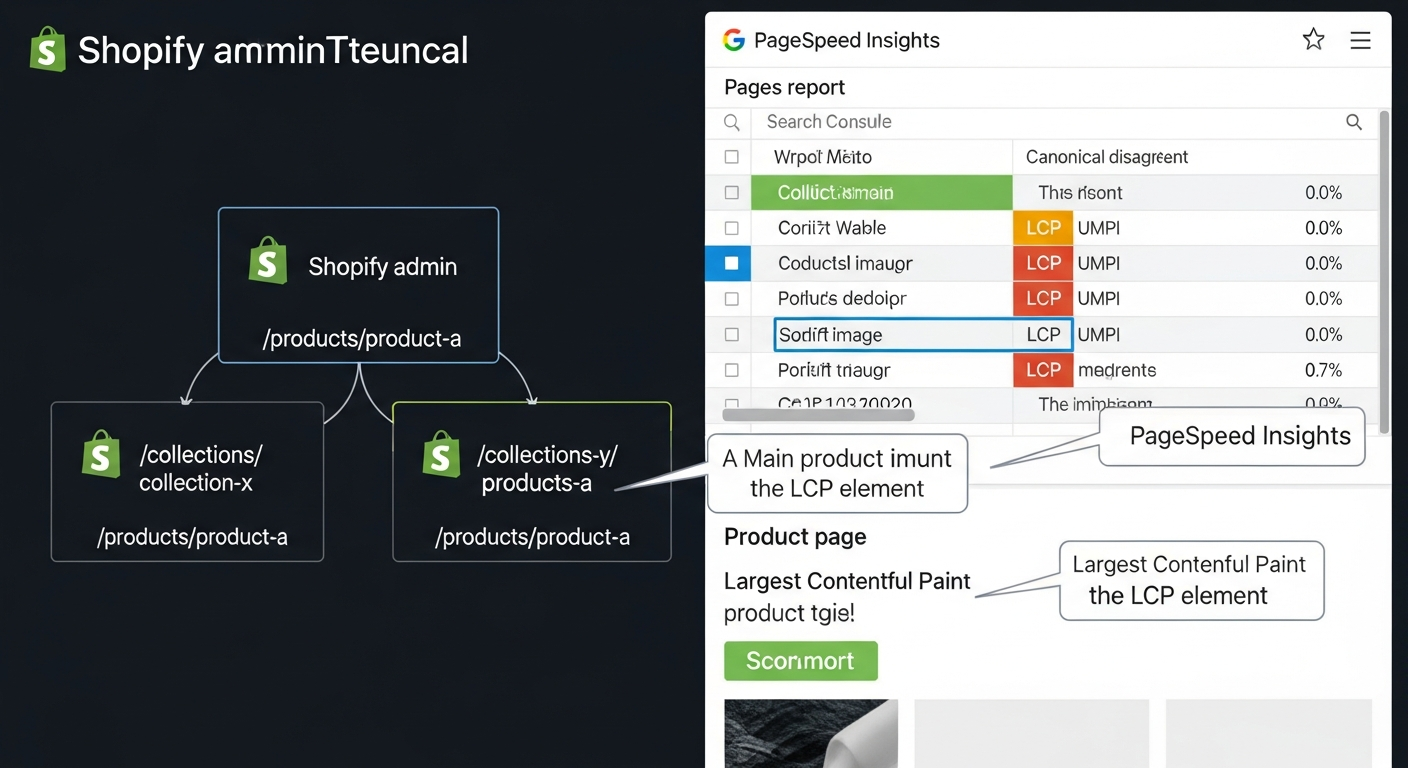
Technical SEO for Shopify Stores: A Practical Guide
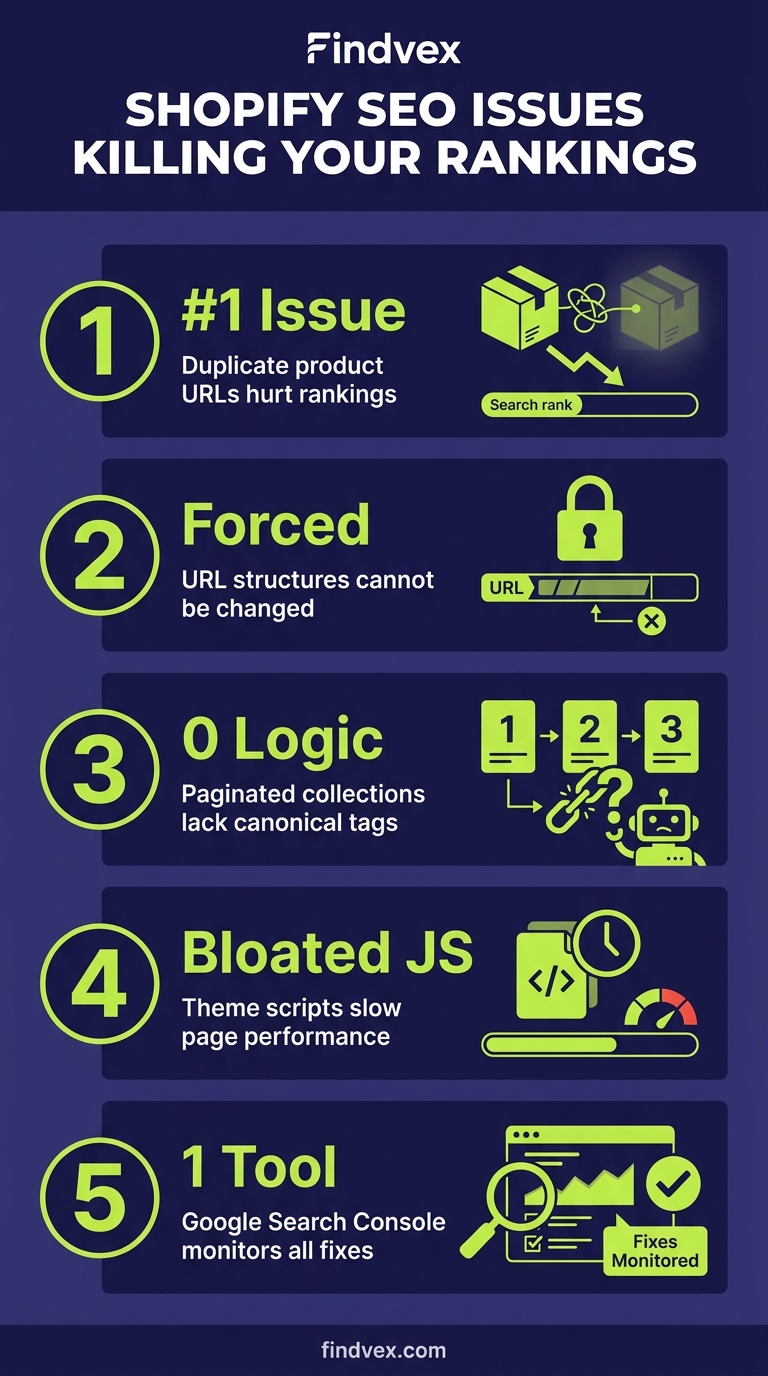
Shopify has solid SEO defaults but ships with structural issues that can quietly suppress your rankings — duplicate product URLs, forced URL structures, paginated collections without canonical logic, and bloated theme JavaScript. This guide shows you exactly what to diagnose, what to fix, who should own each task, and what to monitor in Google Search Console.
Quick answer
Shopify's biggest technical SEO problems are: (1) duplicate product URLs caused by collection-scoped paths, (2) self-referencing canonical tags that Shopify adds automatically but don't always point where you expect, (3) paginated collection pages that may not be handled cleanly, (4) theme JavaScript that delays rendering, and (5) a locked URL structure you can't fully customize. Fix canonicals first, then address speed via theme optimization and app audits, then implement structured data for products and breadcrumbs.
Why Technical SEO on Shopify Is Different
Shopify handles a lot of the technical groundwork for you — HTTPS is automatic, sitemaps are generated, and canonical tags are added by default. That makes it easier to launch. It also makes it easy to assume technical SEO is covered when it isn't.
The platform's constraints are the real challenge. You cannot change the /collections/, /products/, or /blogs/ URL path prefixes. You have limited control over how theme JavaScript loads. And because Shopify generates multiple valid URLs for a single product (one via direct path, others via collection context), duplicate content is a structural feature of the platform, not a bug you introduced.
This guide separates Shopify's technical SEO into five diagnostic areas: crawling and indexing, URL architecture and canonicalization, site speed and Core Web Vitals, structured data, and JavaScript rendering. For each area you'll get symptoms, root causes, the fix, a risk rating, and what to monitor in Google Search Console.
Shopify Technical SEO Diagnosis Checklist
Run through this list before diving into individual fixes. It tells you what you're actually dealing with before you start changing things.
- Run a crawl with Screaming Frog or Sitebulb — check for duplicate URLs under /collections/[handle]/products/[product-handle] vs. /products/[product-handle]
- In Google Search Console → Pages report: compare Indexed count to your actual published product and collection count
- Check GSC → Pages → 'Duplicate, Google chose different canonical than user' — if this number is high, canonical logic needs attention
- Run PageSpeed Insights on your homepage, a collection page, and a product page — note LCP, INP, and CLS scores separately
- Fetch your robots.txt at yourdomain.com/robots.txt — verify /admin, /cart, /checkout, and /account are disallowed
- Check your sitemap at yourdomain.com/sitemap.xml — confirm it's submitted in GSC and that it lists your key product and collection pages
- Identify how many third-party apps are injecting JavaScript — check the Network tab in Chrome DevTools on a product page
- Search site:yourdomain.com in Google — look for /collections/ variants and faceted filter URLs appearing in the index
- Check for orphaned pages: products or collections reachable only via direct URL, not linked from any navigation or sitemap
- Verify structured data using Google's Rich Results Test on a product page — confirm Product schema includes price, availability, and reviews if applicable
“AI agents do in hours what teams used to do in weeks. The advantage compounds.”
Crawling and Indexing: What Shopify Controls vs. What You Control
Shopify auto-generates a sitemap.xml that includes products, collections, blog posts, and pages. This is genuinely useful — but it doesn't mean everything in that sitemap should be indexed, and it doesn't guarantee Google will index everything you want it to.
The most common indexing problem for Shopify stores isn't missing pages — it's too many low-value pages being crawled, which dilutes crawl budget and introduces thin or duplicate content into the index.
- Symptom: Collection filter URLs (/collections/shoes?sort_by=price-ascending) appearing in index — Cause: Shopify doesn't noindex filtered/sorted collection variants by default in all themes — Fix: Confirm your theme adds a canonical pointing to the base collection URL on all filter/sort pages; if not, work with a developer to add it — Risk: Medium
- Symptom: /products/ and /collections/[x]/products/[y] both indexed — Cause: Shopify's collection-scoped product URLs are structurally valid and crawlable — Fix: Shopify adds rel=canonical on collection-scoped product URLs pointing to the canonical /products/ URL — verify this is working correctly in your theme — Risk: Low to fix, high to ignore
- Symptom: Draft products or archived collections appearing in GSC — Cause: These pages may return 200 even after being deactivated — Fix: Audit via GSC Pages report; set to noindex or ensure a 404/410 is returned — Risk: Low
- Symptom: Pagination pages (/collections/shirts?page=2) indexed without canonical — Cause: Shopify generates paginated collection pages and handling varies by theme — Fix: Ensure page 2+ either carries a canonical pointing to page 1 (acceptable for small catalogs) or are accessible via proper rel=next/prev logic — Risk: Medium
What to Check in Google Search Console — Crawling and Indexing
- Pages report → Indexed: Total indexed count should be close to your actual published page count. A large gap in either direction is a signal.
- Pages report → 'Duplicate, Google chose different canonical than user': If Shopify's canonical tags are set correctly, this should be near zero. A high number means Google is disagreeing with your canonical signals.
- Pages report → 'Crawled — currently not indexed': Worth reviewing manually. Often thin collection pages or low-value tag pages.
- Crawl stats → Crawled by Googlebot: Check if crawl requests are concentrated on low-value pages (filtered collections, /cart, /account) which shouldn't be consuming crawl budget.
- URL Inspection Tool: Test a collection-scoped product URL directly — verify the canonical Google sees matches /products/[handle]
URL Architecture and Canonicalization: Shopify's Structural Quirks
This is the area where Shopify causes the most confusion, and also where the most recoverable technical SEO value sits.
When a product belongs to one or more collections, Shopify creates multiple valid URLs for that product: the canonical /products/[handle] path, and one /collections/[collection-handle]/products/[handle] path per collection it belongs to. All of these URLs return a 200 status code and display the same content.
Shopify does handle this — it adds a rel=canonical tag on collection-scoped product pages that points to the /products/ canonical. The problem is that theme customizations, apps, or poorly implemented third-party code can break or override these canonical tags. Always verify the actual rendered HTML, not just the theme code.
- Verify canonical tags are present and correct on collection-scoped product URLs using Chrome DevTools (View Source or Elements panel) — don't rely on theme code alone, since JavaScript can modify the DOM
- Check that internal links from collection pages point to /products/[handle], not the collection-scoped URL — this reinforces the canonical signal through link equity
- Avoid linking to collection-scoped product URLs in email campaigns, social posts, or other off-site references — always use the /products/ canonical URL
- If you use a headless or custom storefront, canonical logic does not come free — your development team must implement it explicitly
- Review your XML sitemap — confirm it lists /products/[handle] URLs, not collection-scoped variants
URL Structure Limitations and How to Work Around Them
You cannot remove /products/, /collections/, or /blogs/ from Shopify URLs. This is a hard platform constraint. Workarounds that involve JavaScript rewrites or redirect stacks to simulate different URL structures create more problems than they solve — don't attempt them.
What you can control: the handle (slug) of each product, collection, page, and blog post. Keep these descriptive and keyword-relevant. Shopify auto-generates handles from titles, but you can edit them. Changing an existing handle after a page has been indexed requires a 301 redirect — Shopify creates these automatically in its URL redirect manager, but verify they're in place before publishing any handle change.
For stores migrating from another platform to Shopify, redirect mapping is the highest-risk technical task. A broken redirect from a high-authority legacy URL to a Shopify product page is permanent ranking loss, not a temporary dip.
Site Speed and Core Web Vitals on Shopify
Shopify stores have a well-documented speed problem that isn't entirely Shopify's fault — it's mostly the result of theme bloat and app proliferation. Every app that injects JavaScript or CSS into your storefront adds weight to every page load, whether you're using that app's features on that page or not.
Before optimizing anything, measure first. Run PageSpeed Insights on your homepage, your highest-traffic collection page, and your highest-converting product page. These three page types have different performance profiles and different optimization priorities.
- LCP (Largest Contentful Paint): On product pages, the LCP element is almost always the main product image. Optimize by: using WebP format, setting explicit width/height attributes to prevent layout shifts, and ensuring the image is not lazy-loaded (it should be eager-loaded as the primary content)
- INP (Interaction to Next Paint): Heavy theme JavaScript and app scripts are the primary culprit. Audit third-party scripts using the Chrome Coverage tab — scripts with high unused byte counts are candidates for deferral or removal
- CLS (Cumulative Layout Shift): Common Shopify causes include images without dimensions, late-loading banner apps, and cookie consent bars that push content down. Set explicit dimensions on all images; load consent banners so they overlay rather than push content
- App audit: For each installed app, check whether it injects scripts sitewide. Apps that only need to function on the cart or checkout page should not be loading scripts on product or collection pages — many do by default
- Theme JavaScript: Shopify's Dawn theme (and themes based on it) are generally well-optimized. Heavily customized themes or older premium themes often load large JavaScript bundles that aren't needed above the fold. A developer can implement code splitting or defer non-critical scripts
What to Check in Google Search Console — Core Web Vitals
- Core Web Vitals report → Mobile: Check which URL groups are failing. Collection pages and product pages often have different failure modes
- Core Web Vitals report → Poor vs. Needs Improvement URLs: Prioritize 'Poor' URLs first — these are actively impacting page experience signals
- Enhancement reports → Shopping (if applicable): If you have Product schema implemented, check for errors or warnings here
- GSC Speed report is being deprecated in favor of Core Web Vitals report — if you see both, use the Core Web Vitals report as the authoritative source
Developer Handoff Notes — Site Speed
If you're passing speed fixes to a Shopify developer or agency, be specific about what needs changing. Generic instructions produce generic results.
- Specific ask: 'Audit all app scripts loading on product pages. For any app that doesn't have visible functionality on product pages, either remove the script or restrict it to the pages where it's needed via Shopify's ScriptTag API or theme.liquid conditional logic.'
- Specific ask: 'Add explicit width and height attributes to all product images rendered by the featured-media snippet. Verify in PageSpeed Insights that CLS score improves.'
- Specific ask: 'Test the LCP element on [product page URL]. If it's the featured image, ensure it has fetchpriority=high and is not wrapped in a lazy-load directive.'
- Specific ask: 'Review render-blocking resources in the PageSpeed Insights Opportunities section for [homepage URL]. Provide a list of which scripts can be deferred and which are critical path.'
- What not to ask a developer: 'Make the site faster.' Give them a specific PSI score target, a specific URL, and the specific metric to improve.
Structured Data for Shopify: Product Schema, Breadcrumbs, and Reviews
Structured data on Shopify serves two purposes: enabling rich results in Google Search (price, availability, star ratings in product listings) and improving entity clarity for AI-powered search features. Both are worth investing in.
Most Shopify themes include basic Product schema out of the box, but the implementation quality varies significantly. 'Basic' often means the schema is present but missing fields that qualify for rich results — particularly offers (price, priceCurrency, availability) and aggregateRating.
Use Google's Rich Results Test on a live product URL to see exactly what Google is reading from your schema. Don't rely on your theme documentation — test the live page.
- Product schema minimum for rich results: name, image, description, sku or mpn, offers (price, priceCurrency, availability, url), brand — verify all are populated with real values, not placeholder text
- AggregateRating: If you display reviews on product pages (via Shopify Reviews, Judge.me, Yotpo, etc.), confirm your theme or the app adds aggregateRating to the Product schema — this enables star ratings in organic results
- BreadcrumbList schema: Add structured data breadcrumbs to collection and product pages — this reinforces site hierarchy for Google and enables breadcrumb rich results in SERPs
- Organization schema on homepage: Add basic Organization schema with name, url, logo, and contactPoint — this establishes entity identity, which matters increasingly for AI Overviews and knowledge panel features
- Do not mark up content that isn't visible on the page — hidden price or availability data in schema that contradicts what the user sees violates Google's structured data guidelines
How to Implement Schema on Shopify Without a Developer
Shopify's theme editor (Online Store → Themes → Edit code) gives you access to the Liquid template files where schema is typically rendered. For most stores, the relevant files are product.liquid or sections/main-product.liquid.
If you're not comfortable editing Liquid, the safest approach is to use a dedicated schema app or to brief a Shopify developer with the specific schema fields you need added. Editing theme files without version control means any theme update can overwrite your changes — use a child theme or a theme version backup before making schema edits.
For stores on Shopify's Online Store 2.0 themes (Dawn and its derivatives), schema is often injected via JavaScript rather than rendered server-side. Google generally processes this correctly, but verify with the Rich Results Test using 'Test Live URL' rather than pasting in HTML.
JavaScript SEO on Shopify: What Google Actually Sees
Shopify storefronts are server-side rendered by default, which means Google receives HTML with content included — not an empty page that requires JavaScript to populate. This is a meaningful advantage over single-page application (SPA) frameworks.
However, several common Shopify patterns introduce JavaScript SEO risks that are worth knowing about.
The first is variant-specific content loaded via JavaScript. If your product has variants (size, color, material) and the price, description, or image changes dynamically when a variant is selected, that variant-specific content may not be in the initial HTML Google crawls. Google will index the default variant's content — if that default is 'out of stock' or shows a higher price than other variants, that's what users see in search results.
The second is infinite scroll and lazy-loaded product grids. Collection pages that load additional products via JavaScript scroll events may not have all products crawlable. Implement traditional pagination with URL changes (or use the Shopify pagination object in Liquid) rather than relying on JavaScript scroll loading for crawlability.
- Test what Google sees: Use URL Inspection in GSC → 'View Crawled Page' → 'View HTML' — this shows the rendered HTML Google actually processed, including JavaScript-injected content
- Headless Shopify (Hydrogen / custom storefronts): If you're running a headless build, server-side rendering (SSR) or static generation is not optional for SEO — client-side-only rendering will cause significant indexing problems
- App-injected content: Reviews, trust badges, and upsell widgets injected by apps after page load are typically not critical for indexing, but verify that any structured data they add is present in the rendered HTML Google sees
- Product variant URLs: Shopify appends ?variant=XXXXXXX to URLs when variants are selected — these are not separate indexable URLs by default and shouldn't be treated as such
Robots.txt and Sitemap Configuration
Shopify's robots.txt is managed through a robots.txt.liquid template (introduced with Online Store 2.0). You can now edit it, which is a significant improvement over older Shopify versions where it was fully locked.
The default Shopify robots.txt disallows /admin, /cart, /orders, /checkouts, and /account — these are correct and should stay disallowed. What the default doesn't handle is site-specific paths you might want to block, such as internal search result pages (/search?q=), filtered collection pages if they're generating excessive URL variants, or app-generated pages that have no SEO value.
- Check your robots.txt at yourdomain.com/robots.txt — confirm the disallow rules are correct and the sitemap URL is listed
- Shopify's sitemap.xml is auto-generated and structured as a sitemap index with sub-sitemaps for products, collections, pages, and blogs — submit the main sitemap.xml to GSC, not the individual sub-sitemaps
- Products removed from Shopify may stay in the sitemap until the next sitemap regeneration — after deleting products, check that 301 redirects are in place if those URLs had inbound links
- The sitemap does not include filtered collection URLs — this is correct behavior; don't add them manually
- If you have a blog, confirm blog post URLs are included in the sitemap and that published posts are indexed — blog content is often underutilized for SEO on Shopify stores
Migrating to Shopify: Technical SEO Risks and Redirect Strategy
Platform migrations to Shopify are a common source of ranking drops that get misattributed to Google algorithm updates. The actual cause is usually broken or missing redirects from old URLs to new Shopify URLs.
Shopify's URL redirect manager (Online Store → Navigation → URL Redirects) handles individual redirects, and you can import them via CSV. For large catalogs, this is a necessary step before going live — not an afterthought.
The highest-priority redirects are: your homepage (if the domain changes), your top-traffic product pages, your top-traffic collection pages, and any URLs with significant inbound links. Use your analytics platform and Google Search Console's Top Pages report to identify these before migration.
- Map old URLs to new Shopify URLs before launch — don't attempt to do this after the site goes live
- Shopify enforces its URL structure — if your old site had /product/blue-widget and Shopify uses /products/blue-widget, the redirect must account for this path difference
- Test redirects after launch with a redirect checker tool — verify 301 (not 302) status codes and confirm the destination URL is the correct canonical
- Avoid redirect chains — old URL → intermediate URL → Shopify URL passes less link equity and adds latency; redirect directly to the final destination
- Monitor GSC → Coverage after migration for a spike in 404 errors — these indicate missed redirects that need to be added immediately
- Risk level: High — migration redirect errors can persist for months and cause lasting ranking loss on high-value pages
What to Fix First: Priority Order for Shopify Technical SEO
Not all technical issues have equal business impact. Here's the order I'd address them in for most Shopify stores, from highest to lowest priority.
- 1. Canonical tag verification (High priority, Low risk): Confirm collection-scoped product URLs carry correct canonicals pointing to /products/[handle]. This is the most common Shopify-specific SEO issue and the lowest-risk fix.
- 2. GSC coverage audit (High priority, Low risk): Identify pages Google has crawled but not indexed, pages with canonical disagreements, and pages returning unexpected status codes. This is diagnostic, not a change — do it before anything else.
- 3. Structured data for product pages (High priority, Low risk): Verify Product schema includes offers and availability. Rich results for products are a meaningful click-through rate signal in competitive categories.
- 4. App script audit (Medium priority, Medium risk): Removing or restricting app scripts can improve performance but may affect app functionality — test in a staging environment before applying to production.
- 5. Core Web Vitals for product and collection pages (Medium priority, Medium risk): Address LCP and CLS before INP — LCP and CLS have more direct user experience impact and are typically more straightforward to fix on Shopify.
- 6. robots.txt and sitemap review (Medium priority, Low risk): Mostly verification rather than changes — low risk, but worth confirming defaults are working correctly.
- 7. Redirect audit (High priority only during or after migration): If you haven't migrated recently, this is maintenance-level. If you have, it's your highest priority.
FAQs
Does Shopify handle technical SEO automatically?
Shopify handles some fundamentals automatically: HTTPS, XML sitemap generation, canonical tags on collection-scoped product URLs, and basic robots.txt configuration. It does not handle everything. Canonical tag correctness depends on your theme implementation, structured data quality varies by theme, app scripts can introduce significant performance problems, and pagination handling is inconsistent across themes. 'Handled automatically' means 'there's a default in place' — you still need to verify that the default is working correctly for your specific store.
Why does Shopify create duplicate URLs for products?
When a product belongs to one or more collections, Shopify creates a valid URL for that product within each collection context: /collections/[collection-handle]/products/[product-handle]. These are in addition to the primary /products/[product-handle] URL. All return 200 status codes and display identical content. Shopify addresses this with canonical tags on collection-scoped URLs pointing to the /products/ canonical — but you need to verify this is working correctly in your theme, especially after theme updates or customizations.
How many apps are too many apps for Shopify SEO?
There's no universal number, but the relevant question is how many apps are injecting JavaScript or CSS into your storefront pages. Every app script that loads on a product or collection page adds to page weight and can delay LCP. Use Chrome DevTools (Network tab, filter by JS) on a product page to count active script requests. If you're loading more than 10–15 third-party scripts per page, investigate which are actually needed on that page type. App consolidation — replacing multiple single-function apps with fewer multi-function apps — is often the most practical solution.
Can I change the /products/ or /collections/ URL structure in Shopify?
No. The /products/, /collections/, /blogs/, and /pages/ path prefixes are hardcoded by Shopify and cannot be removed or changed through any theme or setting. This is a platform constraint. Attempting to mask or rewrite URLs using JavaScript or redirect stacks creates more problems than it solves and is not recommended. Focus your effort on optimizing the handle (slug) portion of each URL, which you do control.
How do I check if my Shopify structured data is working?
Use Google's Rich Results Test (search.google.com/test/rich-results) on a live product URL. Select 'Test Live URL' rather than pasting HTML, so the test sees your fully rendered page including any JavaScript-injected schema. Check that Product schema includes name, image, offers (with price, priceCurrency, and availability), and — if you have reviews — aggregateRating. Then check Google Search Console → Enhancements → Shopping for any reported errors on your indexed product pages.
Why did my Shopify store lose rankings after a platform migration?
The most likely cause is broken or missing redirects from your previous URLs to the new Shopify URLs. Shopify's URL structure differs from most other platforms (adding /products/, /collections/ prefixes), so even if your product names are identical, the paths are different. Check Google Search Console's Pages report for a spike in 404 errors after migration — these represent traffic-eligible URLs that no longer have valid destinations. Add 301 redirects via Shopify's URL redirect manager or import them via CSV for large catalogs.
What's the most important technical SEO fix for a new Shopify store?
Verify your canonical tags are working correctly before you start building backlinks or running paid traffic. Once you have external links pointing to collection-scoped product URLs (the wrong canonical), you've diluted link equity that should be consolidated on the /products/ canonical. This is much harder to recover from than preventing it in the first place. Use URL Inspection in Google Search Console and Google's Rich Results Test to confirm canonical tags on your product pages before promoting them externally.
Sources & Citations
Marcus Chen
Writing about AI, search, and what actually moves the needle for US small businesses.
Related reads
OpenAI Crawl Activity Tripled Since GPT-5: What It Means for Your Website
OpenAI's crawl activity roughly tripled following the GPT-5 launch, with OAI-SearchBot overtaking GPTBot in log-file events. If you haven't audited your robots.txt or server logs for AI crawler behavior recently, now is the time.
seo-newsThe AI Crawler Protection Paradox: Why Brands Block Bots Then Pay to Be Seen
Businesses are simultaneously blocking AI crawlers from scraping their content and paying to appear in AI-generated answers. That contradiction has a name: the protection paradox. Here's what it means technically, and what small businesses should actually do about it.
industry-seo-playbooksReal Estate SEO: A Practical Guide for Small Businesses
Real estate SEO helps agents, brokerages, and property managers rank in local Google searches so buyers and sellers find them first. This guide covers everything from Google Business Profile to IDX optimization and neighborhood content—practical steps you can start this week.