XML Sitemap Best Practices: 9 Rules That Keep Google from Ignoring Your Pages
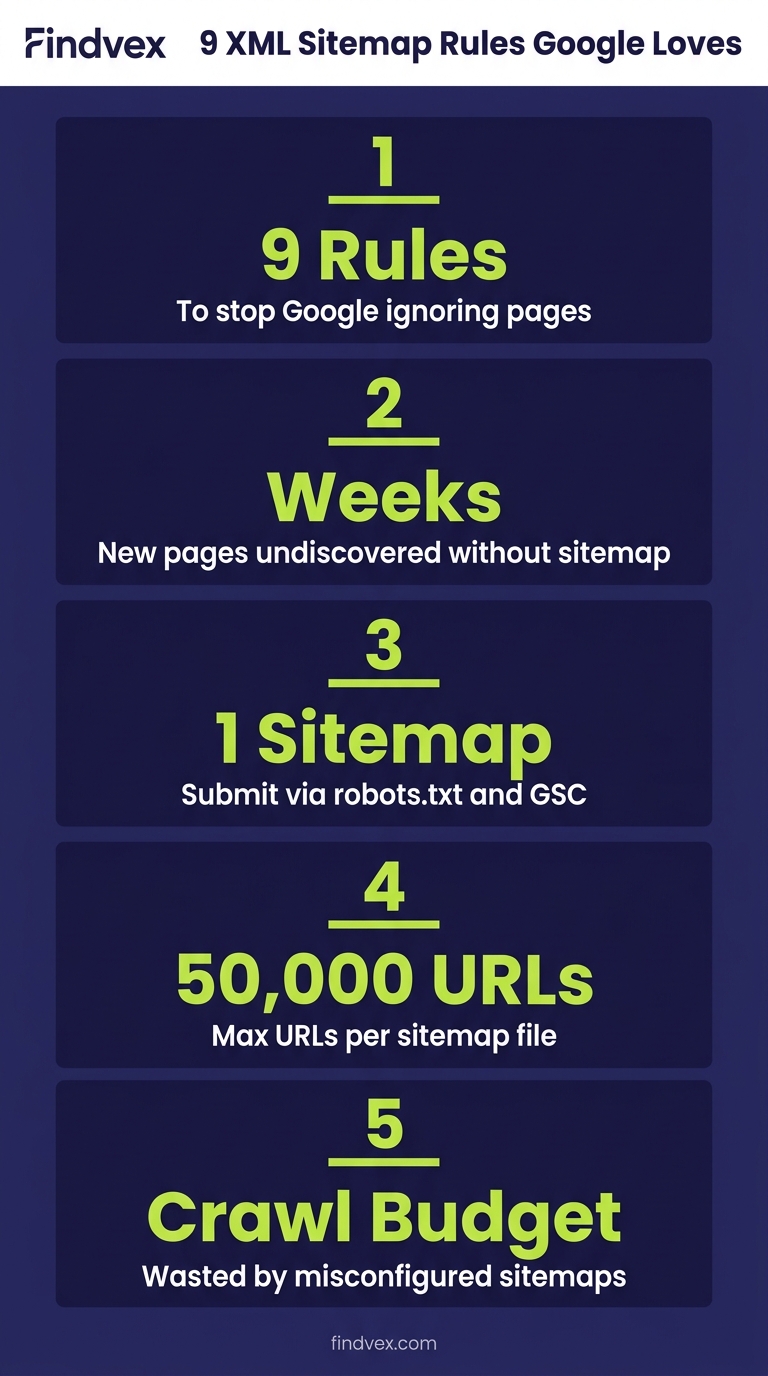
A misconfigured XML sitemap won't tank your rankings overnight, but it will quietly slow down indexing, waste crawl budget, and leave new pages undiscovered for weeks. Here's how to get it right.
Quick answer
XML sitemap best practices for small business websites: only include canonical, indexable URLs; keep the file under 50,000 URLs and 50MB; use a dynamic sitemap that updates automatically; submit via Google Search Console; reference the sitemap in robots.txt; and check GSC's Sitemaps report monthly for errors. The most common mistakes are including noindex pages, listing non-canonical URLs, and never re-submitting after major site changes.
What an XML Sitemap Actually Does (and What It Can't Do)
An XML sitemap is a structured file that tells search engine crawlers which URLs on your site you consider worth indexing. It is not a ranking signal. Google has said clearly that submitting a URL in a sitemap does not guarantee indexing — but a well-maintained sitemap does reduce the chance that important pages get missed, especially on sites with thin internal linking or new content that hasn't yet earned many backlinks.
For small business websites — typically 20 to 500 pages — the sitemap's primary job is crawl efficiency. Googlebot has a finite crawl budget allocated to your site. Every time it wastes a request on a noindex page, a redirect chain, or a URL with tracking parameters, that's a slot it didn't spend on a page you actually care about.
The second job is speed. A new service page or blog post that has no inbound links may take weeks to be discovered by crawl alone. Listing it in a sitemap — and keeping the sitemap fresh — accelerates that discovery window.
XML Sitemap vs. HTML Sitemap vs. Sitemap Index: Know the Difference
These three terms get conflated constantly, and confusing them leads to real configuration errors.
- XML sitemap — a machine-readable file (usually at /sitemap.xml) that lists URLs with optional metadata like last-modified date. This is what you submit to Google Search Console and what crawlers read.
- HTML sitemap — a human-readable page with links to all major sections of your site. Useful for large e-commerce sites or news publishers. For a typical small business site with clear navigation, an HTML sitemap adds minimal SEO value and can be skipped.
- Sitemap index file — an XML file that points to multiple child sitemaps. Used when a single sitemap would exceed 50,000 URLs or 50MB. Most small business sites never need this, but WordPress plugins often generate one automatically, splitting pages, posts, and products into separate child files. That's fine — just make sure the index file is what you submit to GSC, not each child file individually.
“AI agents do in hours what teams used to do in weeks. The advantage compounds.”
9 XML Sitemap Best Practices for Small Business Websites
These are ordered by the impact they have on crawl efficiency and indexing accuracy. Start from the top.
1. Only List Canonical, Indexable URLs
This is the single most important rule. Every URL in your sitemap should be the canonical version of a page you actively want indexed. If a page has a rel=canonical pointing somewhere else, the page with the canonical tag should not be in the sitemap — the destination URL should. Listing non-canonical URLs creates a conflict signal: you are simultaneously telling Google 'this page exists' and 'please use a different version of it.' Google usually resolves this correctly, but you're adding noise to its decision-making.
Pages that should never appear in your sitemap: noindex pages, paginated archive pages beyond page 1 (unless you are intentionally indexing them), tag and category pages if you've noindexed them, thank-you and confirmation pages, admin URLs, and any URL that redirects.
Risk level: High. Including noindex pages in your sitemap is the most common small business sitemap error and causes GSC to report sitemap URLs as 'Excluded by noindex tag,' which clutters your coverage report and obscures real issues.
2. Use a Dynamic Sitemap, Not a Static File
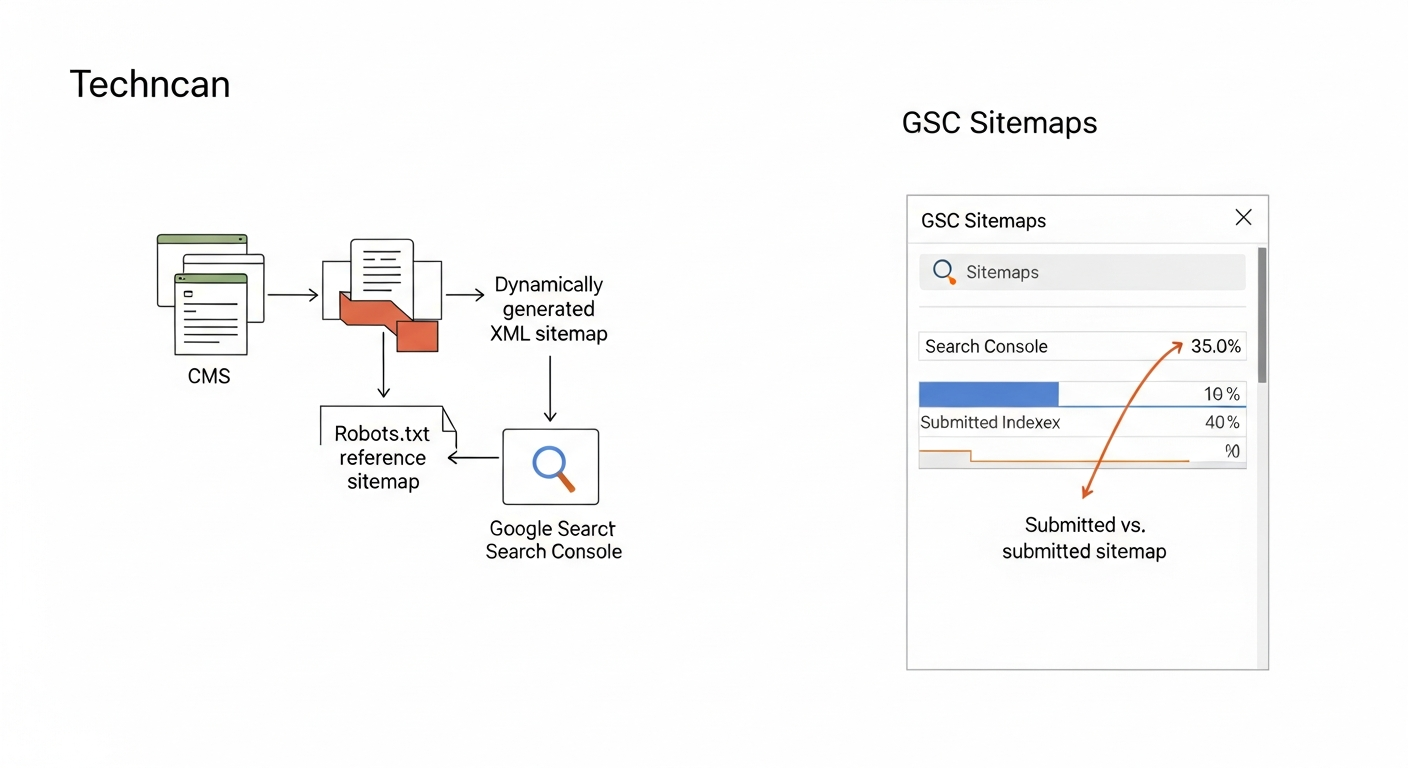
A static sitemap is a manually maintained XML file. Every time you publish a new page, change a URL, or delete content, someone has to update it. That almost never happens consistently. A dynamic sitemap is generated automatically by your CMS or a plugin each time it's requested, so it always reflects the current state of your site.
On WordPress, Yoast SEO, Rank Math, and All in One SEO all generate dynamic XML sitemaps. On Shopify, a sitemap.xml is generated automatically. On custom-built sites, this requires developer configuration — usually a server-side script that queries the database for published, indexable URLs and outputs them in the correct XML format.
If your site is on a custom stack and the sitemap is static, add this to your developer handoff list as a medium-priority fix. Risk level: Medium if your site publishes content regularly; Low if the site rarely changes.
3. Submit to Google Search Console — and Bing Webmaster Tools
Referencing your sitemap in robots.txt (more on that below) is passive discovery. Submitting it directly to Google Search Console is active. In GSC, go to Indexing → Sitemaps → Add a new sitemap. Enter the full URL of your sitemap or sitemap index file. Google will confirm it can access the file and begin processing it.
Do the same in Bing Webmaster Tools. Bing powers Microsoft Copilot's web search, and submitting there takes under two minutes.
After submission, GSC will show the number of URLs discovered versus the number indexed. A significant gap between those two numbers is a diagnostic signal worth investigating — it usually means some of those submitted URLs have quality issues, duplicate content problems, or soft-404 responses. Risk level: Low — this is a setup step, not an ongoing risk.
4. Reference Your Sitemap in robots.txt
Add this line to your robots.txt file: Sitemap: https://yourdomain.com/sitemap.xml. This allows any crawler — not just those you've manually submitted to — to discover your sitemap automatically. It's a one-time addition that costs nothing.
While you're in robots.txt, verify that you haven't accidentally blocked directories that your sitemap references. A common mistake on WordPress sites is having Disallow: /wp-content/ which blocks CSS and JavaScript files Googlebot needs to render pages properly. Risk level: Medium — robots.txt conflicts with sitemap URLs create confusing mixed signals.
5. Use Accurate lastmod Dates — or Leave the Field Out
The <lastmod> tag tells crawlers when a URL was last modified. Google uses this to prioritize re-crawling recently updated pages. But there's a catch: if your CMS sets lastmod to 'today' for every URL every time the sitemap is generated, you've made the signal useless. Google's own documentation notes that it ignores lastmod values it considers unreliable.
The correct behavior: lastmod should only change when the page content itself meaningfully changes — not when a sidebar widget updates, not when a plugin regenerates the file. Most well-configured WordPress plugins handle this correctly, pulling the actual post modified date from the database. Check your sitemap.xml in a browser and verify that different pages show different lastmod dates. If everything shows today's date, your plugin is generating unreliable timestamps.
The <changefreq> and <priority> fields are largely ignored by Google. Don't spend time on them. Risk level: Low — incorrect lastmod reduces crawl efficiency but won't cause pages to be deindexed.
6. Respect the 50,000 URL / 50MB Limits
A single XML sitemap file cannot exceed 50,000 URLs or 50MB uncompressed. If your site exceeds either limit, you need a sitemap index file that points to multiple child sitemaps, each within the limits.
Most small business sites have fewer than 500 URLs and will never approach these limits. The exception is e-commerce sites with large product catalogs, service businesses with hundreds of location pages, or sites that have incorrectly generated sitemaps for filtered URLs (e.g., /shop?color=red&size=M). Those filtered URLs should not be in the sitemap at all. Risk level: Low for most small businesses; High for e-commerce sites with faceted navigation.
7. Ensure All URLs Use HTTPS and Match Your Canonical Domain
Every URL in your sitemap must use the same protocol and subdomain variant as your canonical domain. If your site resolves to https://www.example.com, then every URL in the sitemap should begin with https://www.example.com — not http://, not https://example.com (without www).
Mismatches here create soft redirect chains that waste crawl budget. Check this by opening your sitemap.xml in a browser and scanning the first 10 to 20 URLs. They should all match your Google Search Console verified property exactly. Risk level: Medium — protocol or subdomain mismatches are surprisingly common after site migrations.
8. Re-submit After Major Site Changes
Google processes your sitemap on its own schedule after initial submission. If you've done a significant site restructure — changed URL slugs, migrated domains, added a large batch of new pages — don't wait for Google to re-discover the updated sitemap on its own. Go into GSC, find the submitted sitemap, and use the 'Resubmit' option to request a fresh crawl of the file.
This is especially important after URL migrations. If you've changed slugs and set up 301 redirects, the sitemap should be updated to reflect the new canonical URLs, not the old ones. Risk level: Medium after migrations; Low for routine updates.
9. Monitor the Sitemaps Report in GSC Monthly
Submission is not a one-time task. The GSC Sitemaps report tells you how many URLs were submitted and how many Google has indexed. Review it monthly, or after any significant content push. A submitted count that has grown (because you published new pages) paired with a flat or declining indexed count is a signal that something upstream is blocking indexing — not a sitemap problem per se, but the sitemap report is where you first notice it.
Common GSC sitemap errors to watch for: 'Couldn't fetch' (the sitemap URL is returning a non-200 status), 'Has errors' (malformed XML), and 'Submitted URL not found (404)' in the URL Inspection tool when you inspect individual sitemap URLs.
Sitemap Diagnosis Checklist
Run through this list before assuming your sitemap is healthy. Each item takes under two minutes to check.
- ☐ Open yourdomain.com/sitemap.xml in a browser — does it load cleanly without errors?
- ☐ Do all URLs in the sitemap start with your canonical domain (correct protocol + subdomain)?
- ☐ Are there any noindex pages listed? (Spot-check 5 to 10 URLs with a tool like the URL Inspection tool in GSC)
- ☐ Do lastmod dates vary across pages, or is every entry showing today's date?
- ☐ Is the sitemap referenced in your robots.txt file?
- ☐ Have you submitted the sitemap (or sitemap index) in Google Search Console?
- ☐ Does GSC show a fetch error or processing error for the sitemap?
- ☐ Is the gap between 'submitted' and 'indexed' counts in GSC larger than 20%? If so, investigate why.
- ☐ For WordPress sites: is your SEO plugin configured to exclude noindex, paginated, and utility pages from the sitemap?
- ☐ For e-commerce sites: are filtered/faceted URLs being excluded from the sitemap?
What to Check in Google Search Console
Google Search Console is your primary diagnostic tool for sitemap issues. Here's exactly where to look and what each signal means.
- Indexing → Sitemaps: Shows all submitted sitemaps, their status (Success / Has errors / Couldn't fetch), and the submitted vs. indexed URL counts. Start here.
- Indexing → Pages: Filter by 'Excluded' reasons. 'Excluded by noindex tag' combined with a high URL count means noindex pages are leaking into your sitemap. 'Discovered — currently not indexed' means Google knows about the pages but has chosen not to index them — this is a content quality or crawl prioritization issue, not a sitemap error.
- URL Inspection tool: Paste individual sitemap URLs here to see their indexing status, last crawl date, and whether the sitemap is the discovery source.
- Settings → Crawl stats: Review the crawl requests graph. A spike of requests to redirect URLs or noindex pages indicates those URLs are unnecessarily drawing crawl budget — often because they appear in your sitemap.
The 5 Most Common XML Sitemap Mistakes Small Business Sites Make
These aren't theoretical. They show up regularly in technical audits of small business websites.
- Mistake 1 — Noindex pages in the sitemap. The most common error. WordPress plugins on default settings sometimes include tag archives, author pages, and paginated pages that have been noindexed. Check your plugin settings and explicitly exclude noindex URL patterns.
- Mistake 2 — Submitting the wrong URL. Submitting sitemap.xml when the actual file is /sitemap_index.xml, or vice versa. GSC will show a fetch error. Check by navigating directly to the URL in a browser.
- Mistake 3 — Including redirect URLs. If you changed a URL slug and set up a 301 redirect, the old URL should not be in the sitemap. Only the new destination URL belongs there.
- Mistake 4 — Forgetting the sitemap after a platform migration. Moving from Squarespace to WordPress, or from HTTP to HTTPS, often invalidates the previously submitted sitemap. Always re-submit after a migration and verify the new sitemap reflects the new URL structure.
- Mistake 5 — Assuming the sitemap is fine because it was set up once. Sitemaps need periodic review. A plugin update, a theme change, or a new content type (like adding WooCommerce to an existing WordPress site) can alter what gets included in the auto-generated sitemap.
WordPress Sitemap Configuration: Specific Settings That Matter
Since a significant portion of small business websites run on WordPress, here are the specific configuration points that matter — regardless of which SEO plugin you use.
In Yoast SEO: Go to SEO → Features → XML Sitemaps and confirm it's enabled. Then under each content type (Posts, Pages, etc.), set 'Show X in search results' to 'No' for any content type you don't want indexed — this will automatically exclude those URLs from the sitemap. Check 'Excluded posts' under the sitemap settings to add specific pages you want excluded.
In Rank Math: Go to Sitemap → General Sitemap → Include/Exclude sections. Pay attention to the 'Exclude Roles' and the 'Exclude Terms' settings — author archives and tag archives are frequent sources of noindex-but-in-sitemap contamination.
Developer handoff note: If your WordPress site uses a page builder (Elementor, Divi, Beaver Builder) that generates template parts or draft states as separate posts, confirm your SEO plugin is not including those in the sitemap. This requires checking the sitemap output against your plugin's exclude settings, not just assuming the default is correct.
Quick Notes for Non-WordPress Platforms
- Shopify: Generates sitemap.xml automatically at yourdomain.com/sitemap.xml. It includes products, collections, pages, and blog posts. You cannot customize which URLs are excluded from within Shopify — pages with a 'noindex' metafield or hidden products are typically excluded automatically, but verify this in GSC.
- Squarespace: Auto-generates a sitemap. If you have pages set to 'Not Linked' (hidden from navigation), they still appear in the sitemap. To exclude them, you need to disable indexing for those pages in page settings.
- Wix: Generates sitemaps automatically and submits them to Google. You can view the sitemap at yourdomain.com/sitemap.xml. Custom sitemap management requires Wix's SEO tools under Marketing & SEO.
- Custom / headless sites: Sitemap generation must be built explicitly. Common approaches include a server-side route that queries published content from the CMS API and outputs XML, or a build-step script (e.g., next-sitemap for Next.js). The developer should ensure the output respects the noindex status of individual pages.
FAQs
Do small business websites actually need an XML sitemap?
Yes, for most small business sites — even simple ones. If your site has fewer than 20 pages with strong internal linking, Google will probably discover everything by crawl alone. But if you publish blog posts, have service pages that aren't all linked from the homepage, or have recently launched or migrated the site, a sitemap accelerates indexing and reduces the chance pages get missed. The effort to set it up correctly is low.
How do I submit my sitemap to Google Search Console?
In GSC, go to Indexing → Sitemaps in the left sidebar. Click 'Add a new sitemap,' enter your sitemap URL (typically yourdomain.com/sitemap.xml or yourdomain.com/sitemap_index.xml), and click Submit. GSC will attempt to fetch and process the file. You'll see a status within a few minutes to a few hours.
What's the difference between a sitemap index and a regular XML sitemap?
A sitemap index is an XML file that lists other XML sitemap files. It's used when a site's content is too large for a single sitemap (over 50,000 URLs or 50MB). Most small business sites don't need one, but WordPress SEO plugins often create one automatically — splitting pages, posts, and product URLs into separate child sitemaps. If your site has a sitemap_index.xml, submit that to GSC rather than the individual child files.
Why does Google Search Console show fewer indexed pages than submitted pages?
This gap is normal to a degree, but a large gap (more than 20-30%) warrants investigation. Common reasons: some submitted pages are low-quality or thin content that Google has decided not to index; some pages have soft-404 responses (they return 200 but display a 'page not found' message); there are canonical tag conflicts; or some pages are too similar to other indexed pages (duplicate content). Use the URL Inspection tool in GSC to check specific pages from the gap.
Can an XML sitemap hurt my SEO if it's set up wrong?
Not directly — a bad sitemap won't cause pages to be deindexed. But it can slow indexing of new pages, waste crawl budget on pages that shouldn't be crawled, and clutter your GSC coverage report with errors that obscure real problems. The most damaging sitemap error is including noindex pages, which creates a contradictory signal and inflates GSC's 'excluded' URL count.
How often should I update or re-submit my sitemap?
If you're using a dynamic sitemap (generated automatically by your CMS or plugin), you don't need to manually update it — it updates itself. Re-submit to GSC after: a site migration, a large batch of new content (say, 20+ new pages published at once), a URL restructure, or when you notice the GSC sitemaps report shows a stale last-fetched date of more than 30 days.
Should I include image or video URLs in my XML sitemap?
Google supports image sitemaps and video sitemaps as extensions to the standard XML format. For most small business websites, this isn't a high-priority task. Image sitemaps are most useful if your site relies heavily on image search traffic (photographers, product-heavy retailers). Video sitemaps matter if you host videos directly on your site and want them indexed as video content. Standard XML sitemap plugins for WordPress don't generate these by default — they require additional configuration or separate plugins.
Related reading
- technical seo audit checklist — Technical SEO Audit Checklist for Small Business Websites
- robots txt seo — Robots.txt for Small Business Websites: What to Block, What to Allow, and What Silently Breaks Your SEO
- crawl budget seo — Crawl Budget SEO: Why Google Skips Pages on Small Business Sites (and How to Fix It)
- duplicate content seo — Duplicate Content SEO: What Google Actually Penalizes vs. What It Silently Handles
- openai crawl activity tripled since gpt-5 — OpenAI Crawl Activity Tripled Since GPT-5: What It Means for Your Website
- bing grounding vs search indexing — Bing Grounding vs. Search Indexing: What Microsoft's Framework Means for Your Site's AI Visibility
- turboquant entity driven seo — Google TurboQuant and Entity-Driven SEO: What the Compression Breakthrough Actually Means for Your Site
- seo news — Tracking Parameters in Internal Links Are Hurting Your SEO — Here's How to Fix Them
- core web vitals seo — Core Web Vitals for SEO: What Business Owners Need to Fix First
- google business profile audit — Google Business Profile Audit Checklist: 23 Things That Actually Affect Your Local Ranking
Research notes
Background claims used while researching this article. Verify with the cited authorities before quoting.
- Google's stated limits for XML sitemaps: 50,000 URLs and 50MB uncompressed per sitemap file
- Google ignores unreliable lastmod values
Marcus Chen
Head of Technical SEO · Findvex
Marcus Chen heads technical SEO at Findvex. He writes about Core Web Vitals, indexing, schema, and JavaScript SEO — translating Google’s documentation into checklists small business owners can actually act on.
Expertise: Core Web Vitals · Indexing & crawlability · Schema / structured data · JavaScript SEO
Related reads
Google TurboQuant and Entity-Driven SEO: What the Compression Breakthrough Actually Means for Your Site
TurboQuant is a vector quantization algorithm from Google Research that dramatically compresses the mathematical representations AI uses to understand meaning. If it reaches production search infrastructure, it could lower the cost of semantic retrieval at scale — making entity-based content signals more dominant and keyword-match signals relatively less important.
SEO NewsHow AI Is Changing Local Search Visibility: What the SOCi + Google Webinar Revealed
Google and SOCi's joint webinar on local search visibility highlighted a fundamental shift: AI-powered discovery across Google Search, Maps, and Gemini now requires a different optimization playbook than the one most small businesses are running. Here's what changed and what to prioritize.
Strategic Technical SEODuplicate Content SEO: What Google Actually Penalizes vs. What It Silently Handles
Duplicate content rarely triggers a manual penalty. Google usually picks one version and ignores the rest. But the wrong choice by Google can split your ranking signals, waste crawl budget, and suppress pages you actually want ranked. Here's how to diagnose the difference.