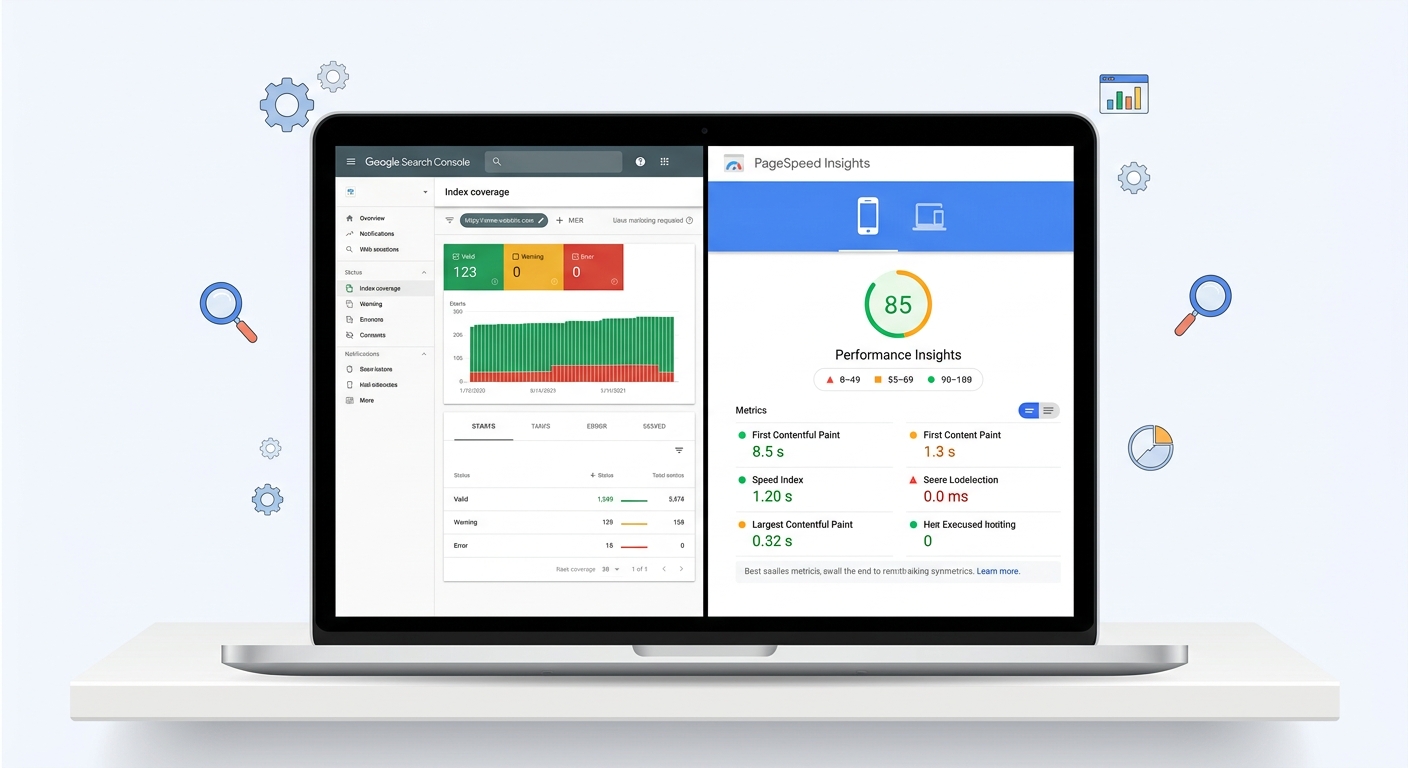
Technical SEO Audit Checklist for Small Business Websites
Run a complete technical SEO audit on your small business website with this step-by-step checklist. Covers crawl errors, indexing issues, page speed, schema markup, mobile usability, and more — with Google Search Console checks and developer handoff notes included.
Quick answer
A technical SEO audit for a small business website covers six core areas: crawlability (can Google find your pages?), indexing (are the right pages in Google's index?), page speed and Core Web Vitals, mobile usability, on-page technical signals (title tags, canonical tags, structured data), and HTTPS/security. Start in Google Search Console — it surfaces most critical issues for free before you touch any code.
Why Technical SEO Audits Matter for Small Business Sites
Most small business websites have at least one technical issue that is quietly costing them rankings. It is usually not something dramatic — it is a misconfigured robots.txt, a handful of pages blocked from indexing, or images that add three seconds to a page load on mobile. None of these show up in your analytics until traffic drops.
A technical SEO audit is a systematic check of the infrastructure that sits beneath your content. You can publish excellent service pages and still rank poorly if Google cannot crawl them, if they load too slowly on a phone, or if duplicate content is splitting your ranking signals. This checklist is designed for small business owners and the agencies or freelancers working with them. It is organized by symptom, cause, and fix, with risk levels noted for each area so you know what to prioritize.
Quick Answer: What Does a Technical SEO Audit Cover?
A technical SEO audit examines six areas: crawlability, indexing, page speed and Core Web Vitals, mobile usability, on-page technical signals, and site security. For most small business sites, a focused audit using Google Search Console, PageSpeed Insights, and a free crawl tool like Screaming Frog (up to 500 URLs free) is sufficient to identify the highest-impact problems.
“AI agents do in hours what teams used to do in weeks. The advantage compounds.”
Full Technical SEO Audit Checklist
Work through each section in order. Crawlability and indexing issues take priority because fixing them is a prerequisite for everything else working correctly.
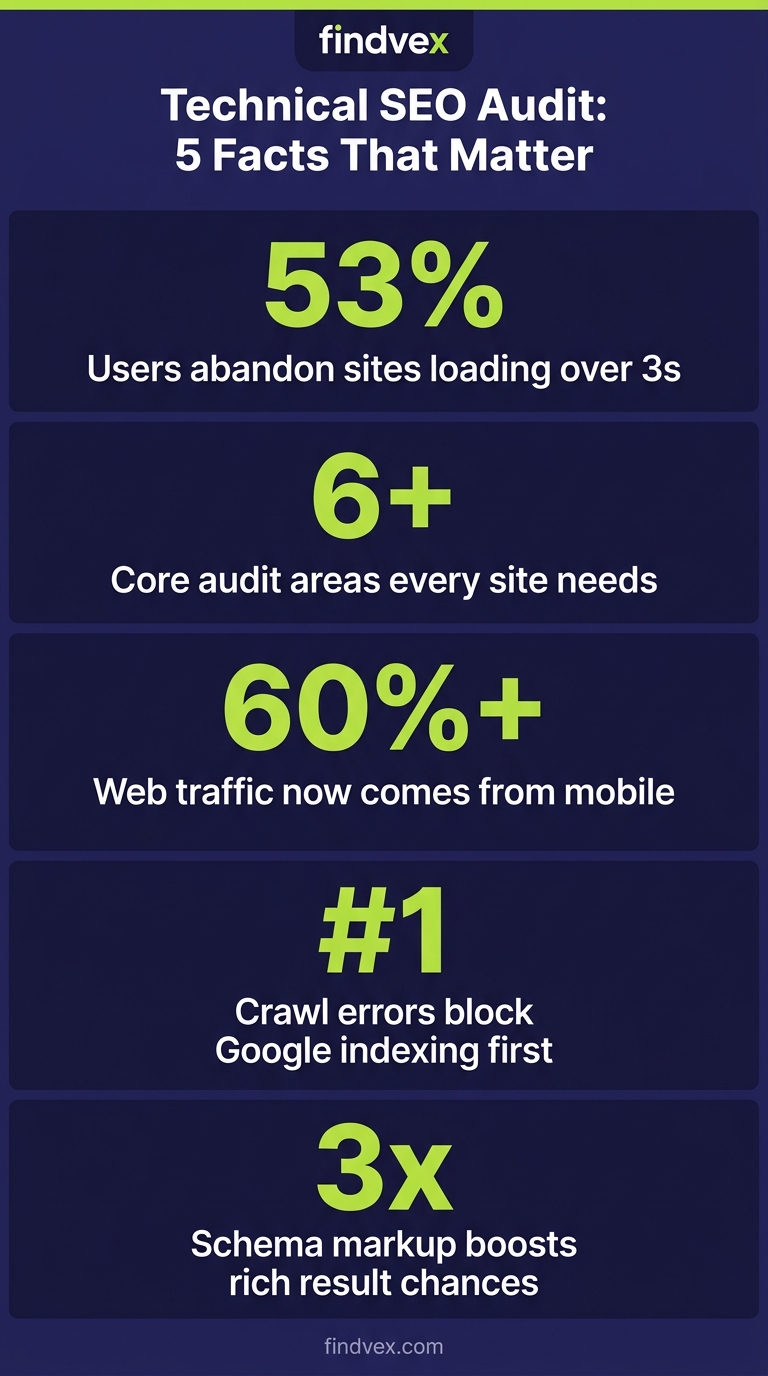
1. Crawlability — Can Google Actually Reach Your Pages?
Crawlability is the starting point. If Googlebot cannot access a page, nothing else matters for that URL.
Symptom: Pages you expect to rank are not appearing in Google search results at all.
Cause: Blocked resources in robots.txt, noindex tags left on from a staging environment, or pages behind login walls.
Fix: Audit your robots.txt file, check meta robots tags across your key pages, and verify that your CSS and JavaScript files are not disallowed (Google needs to render your pages to understand them).
- Check robots.txt at yourdomain.com/robots.txt — confirm it does not block /wp-admin, /wp-content, or your main content directories unintentionally
- Use the URL Inspection tool in Google Search Console to test individual important URLs
- Crawl your site with Screaming Frog and filter for pages returning noindex tags
- Confirm your XML sitemap exists, is submitted in Search Console, and does not include noindexed or redirected URLs
- Check that paginated pages, category pages, and service location pages are crawlable if you want them indexed
2. Indexing — Are the Right Pages in Google's Index?
Being crawlable does not guarantee being indexed. Google chooses which pages to include in its index based on quality signals, duplication, and canonicalization.
Symptom: You have 80 pages on your site but a site: search shows only 30 results. Or thin service-area pages you created are not showing up.
Cause: Duplicate content without canonical tags, thin or near-duplicate pages, canonicalization errors pointing to the wrong URL, or Google simply deciding a page does not add enough value to index.
Fix: Establish a clear canonical strategy, consolidate thin pages where possible, and use the Index Coverage report in Search Console to understand which pages are excluded and why.
- Open Search Console → Index → Pages and review all 'Not indexed' reasons — prioritize 'Crawled, currently not indexed' and 'Duplicate without user-selected canonical'
- Check that self-referencing canonical tags are present on all key pages
- Confirm www vs. non-www and HTTP vs. HTTPS resolve to a single canonical version
- If you have location pages (e.g., service-city pages), make sure each has genuinely unique content — not just swapped city names
- Review whether your blog archive pages, tag pages, or author pages are adding index bloat without ranking value — consider noindexing them
3. Core Web Vitals and Page Speed
Google uses Core Web Vitals as a ranking signal, and they also directly affect conversion rates. Slow pages lose visitors before they read a single word.
Symptom: Bounce rates are high on mobile, or Search Console shows 'Poor URL' flags in the Core Web Vitals report.
Cause: Unoptimized images, render-blocking JavaScript, slow server response times, excessive third-party scripts (chat widgets, tracking pixels), or no content delivery network (CDN).
Fix: Address the three Core Web Vitals metrics — LCP (Largest Contentful Paint), INP (Interaction to Next Paint), and CLS (Cumulative Layout Shift) — in that priority order for most small business sites.
- Run your homepage and top service pages through PageSpeed Insights (pagespeed.web.dev) — focus on the Mobile score and 'Opportunities' section
- Check Search Console → Experience → Core Web Vitals for field data across your entire site
- LCP fix: Convert images to WebP format, add explicit width/height attributes, and use loading='eager' on your hero image only
- CLS fix: Set explicit dimensions on all images, embeds, and ad slots — any element that shifts layout after load degrades CLS
- INP fix: Audit third-party scripts (Google Tag Manager, chat widgets, Facebook Pixel) — each one adds main-thread blocking time
- TTFB fix: If server response time exceeds 600ms, check hosting tier, enable caching, or consider a CDN like Cloudflare (free tier covers most small business needs)
4. Mobile Usability
Google indexes the mobile version of your site first. If your mobile experience is broken, your rankings are built on a broken foundation.
Symptom: Users complain about needing to zoom, or Search Console shows mobile usability errors.
Cause: Text too small to read, clickable elements too close together, content wider than the screen, or viewport meta tag missing.
Fix: These are mostly straightforward CSS and HTML fixes, but they need developer attention if you are on a custom-built site.
- Check Search Console → Experience → Mobile Usability for a list of affected URLs
- Test your contact page, homepage, and top service page in Google's Mobile-Friendly Test tool
- Confirm your viewport meta tag is set: <meta name='viewport' content='width=device-width, initial-scale=1'>
- Tap targets (buttons, nav links, phone numbers) should be at least 48x48 CSS pixels with 8px spacing between them
- Verify that popups or interstitials do not cover the main content on mobile — this is a direct ranking penalty trigger
5. On-Page Technical Signals
These are the HTML-level elements Google reads to understand what each page is about and how your site is structured.
Symptom: Pages rank for wrong queries, title tags are cut off in search results, or rich results are not appearing despite adding schema.
Cause: Duplicate or missing title tags, multiple H1s per page, broken internal links, or invalid structured data markup.
Fix: A crawl with Screaming Frog exports all of these in bulk so you can spot patterns across the entire site quickly.
- Title tags: Every page needs a unique title tag under 60 characters — use Screaming Frog to export and bulk-review them
- Meta descriptions: Not a ranking factor, but missing meta descriptions lead to Google pulling random page snippets — write them for every key page
- H1 tags: One H1 per page, matching the primary topic of the page — multiple H1s or missing H1s are common on older WordPress themes
- Internal links: Check for broken internal links (4xx errors) in Search Console → Links or via a crawl — broken links waste crawl budget and create bad user experiences
- Structured data: Validate all schema markup at schema.org/validator or Google's Rich Results Test — invalid schema produces no rich result, not a bad one
- Image alt text: Every meaningful image needs descriptive alt text — this serves accessibility and image search simultaneously
6. HTTPS and Site Security
HTTPS has been a confirmed ranking signal since 2014. Mixed content warnings and insecure pages also erode visitor trust.
Symptom: Browser shows 'Not Secure' warning, or some page assets (images, scripts) load over HTTP despite the site being on HTTPS.
Cause: SSL certificate expired or not installed, internal links hardcoded to HTTP, or third-party resources loading over HTTP.
Fix: Risk level is low for HTTPS itself (most hosts configure this automatically), but mixed content requires a developer or plugin to resolve systematically.
- Confirm your SSL certificate is valid and not expiring within 30 days — check at ssllabs.com/ssltest
- Run a crawl and filter for internal links and resources (images, scripts, stylesheets) using HTTP URLs — these cause mixed content warnings
- Confirm all HTTP traffic redirects to HTTPS via a 301, not a 302
- Check that your sitemap uses HTTPS URLs only
- If on WordPress, plugins like Really Simple SSL can resolve most mixed content issues without code changes — low risk, worth running
What to Check in Google Search Console First
If you only have 30 minutes for a technical audit, open Search Console and work through these reports in order. They surface real data from Google's crawl of your site — not simulated results from a third-party tool.
- Index → Pages: Review the 'Not indexed' tab — sort by volume and address the top reason first
- Experience → Core Web Vitals: Shows which URLs have 'Poor' or 'Needs Improvement' ratings based on real user data (field data), not just lab scores
- Experience → Mobile Usability: Lists specific errors with affected URL counts
- Security & Manual Actions: Check both — a manual action is a penalty that directly suppresses rankings until resolved
- Coverage → Submitted and indexed: Cross-reference your sitemap submission against what's actually indexed to find gaps
- Enhancements → Any schema type you've implemented (FAQ, LocalBusiness, etc.): Shows validity errors and eligible-but-invalid items
Developer Handoff Notes
If you are a business owner handing this to a developer or agency, here is how to frame the work. Not everything on this checklist requires a developer — but several items do, and it helps to set clear ownership upfront.
- Owner can handle independently: Submitting sitemap to Search Console, writing meta descriptions, verifying robots.txt, checking for manual actions
- WordPress plugin can handle: Mixed content (Really Simple SSL), image compression and WebP conversion (ShortPixel or Imagify), caching and basic speed improvements (WP Rocket or W3 Total Cache)
- Needs developer involvement: Fixing render-blocking JavaScript, resolving canonical conflicts from a theme or plugin, implementing schema markup from scratch, correcting CLS caused by layout shifts in custom CSS, migrating from HTTP to HTTPS on non-managed hosting
- Risk level — Low: Meta description updates, alt text additions, sitemap resubmission — no code changes, no ranking risk
- Risk level — Medium: Canonical tag changes, robots.txt edits, noindex tag additions — these affect what Google indexes, test in staging if possible
- Risk level — High: Changing URL structure, implementing hreflang, JavaScript rendering changes — always test thoroughly and maintain redirect mapping
Prioritizing the Audit for a Small Business Site
A 10-page plumbing website has different priorities than a 500-page e-commerce store. For most small business sites with under 100 pages, the highest-return audit items are indexing health, Core Web Vitals on mobile, and local schema markup.
If your site already passes Core Web Vitals and has clean indexing, the next layer is structured data. Adding LocalBusiness schema and FAQ schema to your key pages can unlock rich results in Google search — which increases click-through rates without changing your rankings directly. For guidance on building an SEO strategy around these technical foundations, see our breakdown of the small business SEO strategy for 2026.
If you run a service business like a dental practice or restaurant, technical SEO works alongside your local SEO. Clean technical foundations mean your Google Business Profile and local citations translate into actual rankings — not just signals that never surface because your site has crawl issues. Read more in our local SEO guide on how local SEO turns traffic into booked calls.
FAQs
How often should a small business run a technical SEO audit?
A full audit once or twice a year is reasonable for most small business sites. However, you should check Google Search Console's Core Web Vitals and Index Coverage reports monthly — these flag new issues as they appear, often before they cause a measurable traffic drop.
What free tools can I use for a technical SEO audit?
Google Search Console is the most important free tool — it shows real data from Google's crawl of your site. Screaming Frog's free plan crawls up to 500 URLs. PageSpeed Insights tests your Core Web Vitals. Google's Rich Results Test validates schema markup. Between these four, you can complete most of this checklist at no cost.
What is the most common technical SEO issue on small business websites?
Pages that are accidentally blocked from indexing or that load too slowly on mobile are the two most common issues. Both are fixable. Check the 'Not indexed' report in Google Search Console first, then run your main pages through PageSpeed Insights on the Mobile setting.
Do I need to know how to code to do a technical SEO audit?
No. You can complete most of the diagnostic work — checking Search Console reports, running PageSpeed Insights, reviewing robots.txt — without writing a line of code. Some fixes (fixing render-blocking scripts, resolving canonical conflicts) require developer involvement, but identifying the problem does not.
How long does a technical SEO audit take for a small business site?
For a site under 100 pages, a focused audit using Google Search Console and Screaming Frog takes two to four hours to complete the diagnostic work. Fixing the issues found adds time depending on severity — most small business sites have a handful of high-priority issues that a developer can resolve in a day.
What is the difference between technical SEO and on-page SEO?
Technical SEO covers the infrastructure that allows search engines to crawl, render, and index your site — things like robots.txt, page speed, canonical tags, and schema markup. On-page SEO covers the content signals on each page — keyword placement, heading structure, internal linking, and content depth. You need both working correctly for pages to rank.
Marcus Chen
Writing about AI, search, and what actually moves the needle for US small businesses.
Related reads
How AI is Transforming Local SEO in 2026
AI agents now do in hours what agencies used to take weeks for. Here is what changed and why it matters for your business.
Local SEO10 SEO Mistakes Killing Your Local Business Rankings
The vast majority of local sites we audit make the same ten mistakes. Avoid these and you will instantly out-rank most competitors.
AlgorithmGoogle's Latest Algorithm Update: What Small Businesses Need to Know
A practical breakdown of the latest Google update and the specific actions local businesses should take this week.