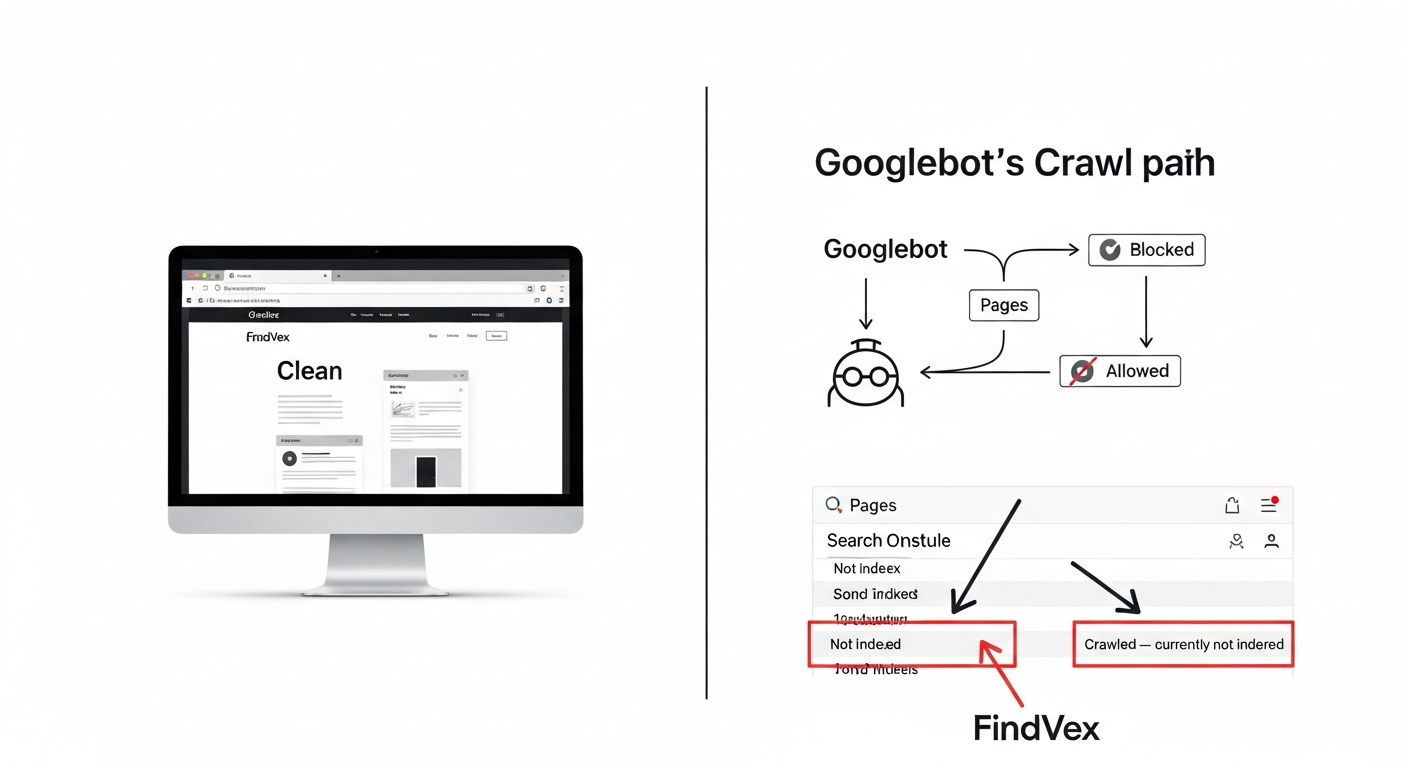
What Is a Technical SEO Audit? The 7 Areas That Actually Determine Whether Google Can Rank Your Site
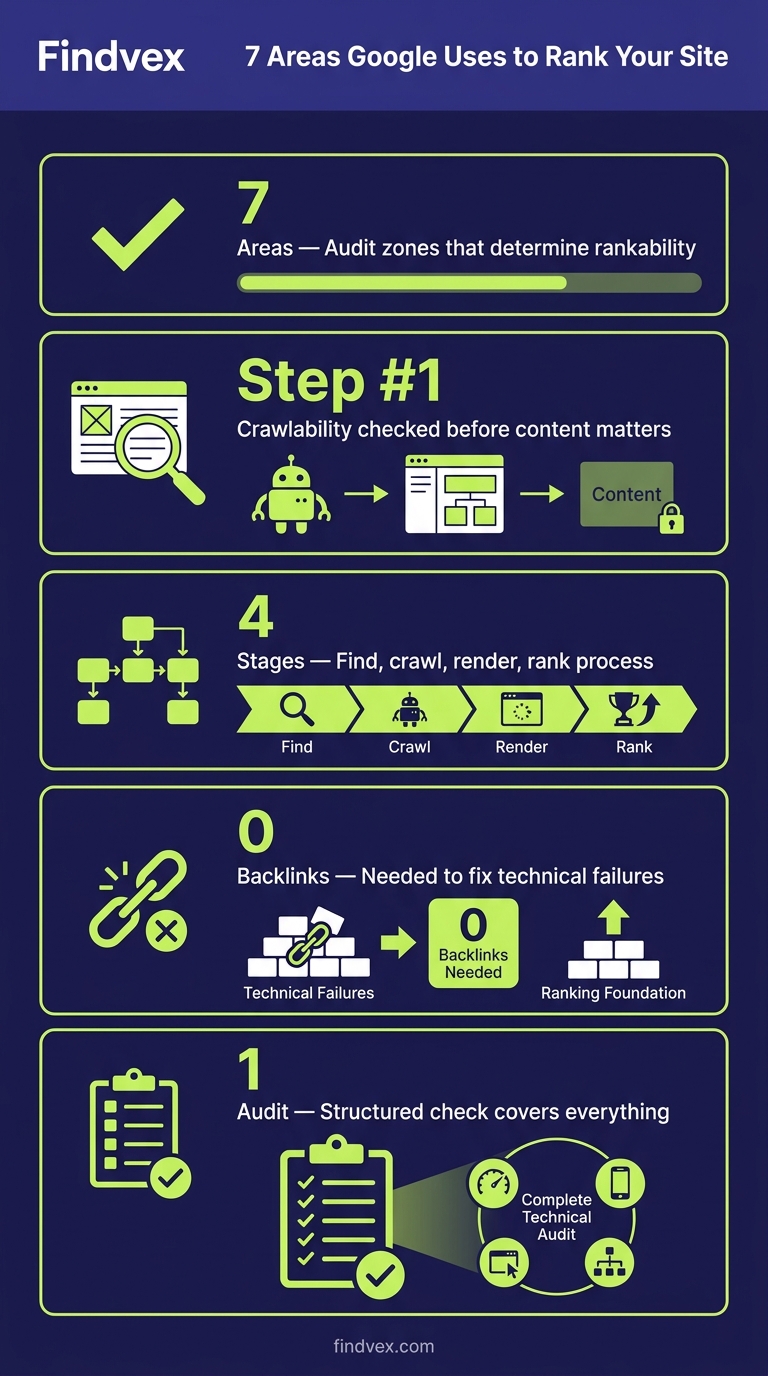
A technical SEO audit is a structured check of everything on your website that affects whether Google can find, crawl, render, and rank your pages — before content or backlinks even enter the picture. This guide explains each area in plain English, with specific things to look for and fix.
Quick answer
A technical SEO audit is a systematic review of your website's infrastructure — crawlability, indexing, site speed, mobile usability, URL structure, schema markup, and security — to identify anything preventing Google from ranking your pages. It's the foundation that determines whether your content and links can produce rankings at all. Most small business sites have between 3 and 8 fixable technical issues holding back organic traffic.
What a Technical SEO Audit Actually Checks
A technical SEO audit is a structured inspection of the systems underneath your website — the parts users rarely see but that Google's crawler evaluates on every visit. It answers one core question: can Google find, load, understand, and rank your pages without friction?
The distinction matters because content and backlinks get all the attention, but neither works if your technical foundation has cracks. A plumber's service page with a solid description and five genuine reviews will still underperform if Googlebot can't crawl it, if it loads in six seconds on mobile, or if a misconfigured canonical tag is telling Google to index a different version of the URL.
Technical SEO audits are not the same as content audits or backlink audits. They focus exclusively on infrastructure: the signals that tell Google how to access and interpret your site. This guide breaks down the seven areas a proper technical audit covers, what symptoms look like, and what you or your developer should actually fix.
Why Small Business Sites Fail Technically (When They Look Fine Visually)
A site can look polished to a visitor and still have serious technical problems. The most common scenario: a WordPress site built with a page builder, multiple plugins adding duplicate scripts, images never compressed, and a robots.txt file that was never touched after the site launched. Visually, it works. Technically, it's leaking crawl budget, loading slowly, and may have a staging version accidentally left indexable.
Small business owners typically discover technical issues one of three ways: rankings unexpectedly drop, an SEO consultant runs an audit before starting work, or they finally check Google Search Console and find hundreds of 'noindex' or 'not found' errors they didn't know existed.
The better approach is proactive: run or commission a technical audit before you invest in content or link building, because both efforts are wasted if the foundation is broken.
“AI agents do in hours what teams used to do in weeks. The advantage compounds.”
The 7 Areas a Technical SEO Audit Covers
A thorough technical audit examines seven distinct areas. Some you can check yourself in ten minutes using free tools. Others require a developer. Each is described below with symptoms, causes, and fixes.
1. Crawlability — Can Google Actually Get Into Your Site?
Crawlability is the starting point. If Googlebot can't access your pages, nothing else in SEO matters. Three things commonly block crawling on small business sites: a robots.txt file that accidentally disallows important directories, a noindex tag left on from a pre-launch development environment, or server errors (5xx responses) that make the page unreachable.
Symptom: pages you know exist aren't appearing in Google Search Console's index. Fix: check your robots.txt file at yourdomain.com/robots.txt and confirm it isn't blocking /wp-admin only — not your service pages, blog posts, or homepage. Then use GSC's URL Inspection tool on your most important pages and check the 'Coverage' status.
Risk level for fixes: Low. Editing robots.txt and removing stray noindex tags carries minimal risk if you verify each change before publishing. Our detailed guide to robots.txt for small business websites covers exactly what to allow and block.
- Check: yourdomain.com/robots.txt — confirm no important paths are blocked
- Check: GSC > Coverage > Excluded — look for 'Excluded by noindex tag' on important pages
- Check: GSC > Coverage > Error — 5xx server errors need hosting investigation
- Developer note: if your site uses authentication or IP-based access for a dev environment, confirm production has no access restrictions
2. Indexing — Which Pages Are Actually in Google's Database?
Crawling and indexing are different steps. Google can crawl a page and decide not to index it — either because it found duplicate content, the page has thin or low-quality content, or canonical signals are pointing elsewhere. The audit checks whether the pages you want indexed are indexed, and whether pages you don't want indexed (thank-you pages, parameter URLs, admin paths) are excluded.
The most common indexing problem on small business sites is canonical tag confusion: a page has a self-referencing canonical that's wrong, or no canonical at all, causing Google to choose its own preferred URL — which may not match what you intended.
Symptom: GSC shows a 'Crawled — currently not indexed' status on important service pages. This often means Google visited the page but judged it insufficient to index. The fix is usually content quality, not a technical one — but the audit surfaces it. For a deeper walkthrough, see our guide to diagnosing and fixing indexing issues in 30 minutes.
- Check: GSC > Pages report > 'Not indexed' tab — categorize by reason
- Check: site:yourdomain.com in Google Search — rough count of indexed pages
- Check: canonical tags on key pages using browser dev tools or Screaming Frog
- Developer note: if using a CMS, confirm pagination pages use rel='next'/'prev' or noindex appropriately
3. Site Speed and Core Web Vitals — Is the Page Experience Costing You Rankings?
Google uses Core Web Vitals — specifically LCP (Largest Contentful Paint), INP (Interaction to Next Paint), and CLS (Cumulative Layout Shift) — as ranking signals. A technical audit checks whether your pages pass the 'Good' threshold on these metrics using real-user data from the Chrome User Experience Report, not just lab scores from PageSpeed Insights.
The most common causes of failing Core Web Vitals on small business sites: unoptimized hero images (often a JPEG over 500KB loaded without width/height attributes), render-blocking JavaScript from third-party plugins, and layout shifts caused by fonts or ad slots loading after the page structure.
Symptom: PageSpeed Insights shows your LCP is 4+ seconds on mobile. The fix sequence matters. Start with image compression and proper dimensions before touching JavaScript — it's lower risk and often moves the needle more. For a sequenced fix guide, see our Core Web Vitals fix guide for small business sites.
- Check: PageSpeed Insights (pagespeed.web.dev) for both mobile and desktop
- Check: GSC > Core Web Vitals report — real-user data segmented by 'Poor', 'Needs improvement', 'Good'
- Check: Network tab in Chrome DevTools — look for images over 200KB and render-blocking resources
- Risk level: Medium. Removing or deferring scripts requires testing to confirm no functionality breaks
4. Mobile Usability — Google Indexes Your Mobile Version First
Google uses mobile-first indexing, meaning the mobile version of your page is what it uses to determine rankings. A technical audit checks whether your mobile and desktop versions render the same content, whether tap targets are sized correctly, and whether text is readable without zooming.
The most common mobile issue on small business sites built five or more years ago: content hidden in tabs or accordions on mobile that's fully visible on desktop. Google can crawl hidden content, but may weight it less. More critically, if your mobile page is missing navigation links or has different canonical tags than desktop, you're sending mixed signals.
Symptom: GSC > Mobile Usability shows 'Clickable elements too close together' or 'Text too small to read'. Both are fixable via CSS. Risk level: Low for CSS-only changes.
- Check: GSC > Mobile Usability report — review all error types
- Check: Google's Mobile-Friendly Test tool (search.google.com/test/mobile-friendly)
- Check: confirm your mobile version has the same H1, meta title, and canonical as desktop
- Developer note: if using separate mobile URLs (m. subdomain), ensure proper rel='alternate'/'canonical' cross-linking
5. URL Structure, Redirects, and Duplicate Content — Are You Splitting Your Own Authority?
URL structure problems silently dilute your rankings by splitting the same authority across multiple versions of a page. The most common culprits: HTTP vs. HTTPS versions both loading, www vs. non-www versions both accessible, trailing slash vs. no trailing slash inconsistency, and URL parameters creating duplicate pages (e.g., /services?ref=nav and /services being treated as two separate URLs).
A technical audit checks that all non-canonical URL variants return a 301 redirect to the canonical version. It also checks for redirect chains — three or more hops before reaching the final URL — and redirect loops, which cause crawl errors.
Symptom: entering 'http://yourdomain.com' in a browser doesn't automatically redirect to 'https://www.yourdomain.com' (or your preferred canonical form). This is a hosting/server configuration fix. Risk level: Medium — redirect changes should be tested on staging before deploying to production. If you're using UTM parameters in internal links, that creates a related but distinct problem covered in our article on tracking parameters hurting SEO.
- Check: test http://, https://, http://www., https://www. variants — all should redirect to one canonical form
- Check: use Screaming Frog (free up to 500 URLs) to find redirect chains and loops
- Check: GSC > URL Inspection — verify 'Google-selected canonical' matches 'User-declared canonical'
- Developer note: 301 redirects in .htaccess (Apache) or nginx config — document all changes for rollback
6. Structured Data and Schema Markup — Is Google Misreading What Your Business Does?
Schema markup is machine-readable metadata embedded in your page's HTML that tells Google exactly what type of content it's looking at — a local business, a service, a product, a review. Without it, Google infers context from your content alone, which is less reliable and misses opportunities for rich results (star ratings, FAQ dropdowns, business hours in the SERP).
A technical audit checks whether you have schema implemented, whether it validates without errors, and whether the schema type matches your business (LocalBusiness, Service, Product, etc.). It also flags conflicting signals — for example, having a LocalBusiness schema with one address while your NAP in the page footer shows another.
Symptom: your competitors show star ratings or FAQ dropdowns in Google results and yours doesn't. This is almost always a schema implementation issue, not a content quality issue. For which schema types matter most for small businesses, see our guide on schema markup for small business websites.
- Check: Google's Rich Results Test (search.google.com/test/rich-results) — paste your URL and see what schema Google detects
- Check: GSC > Enhancements — shows schema errors and warnings by type
- Check: confirm LocalBusiness schema NAP matches exactly what's in your Google Business Profile
- Developer note: JSON-LD in the <head> or at the end of <body> — avoid inline microdata which is harder to maintain
7. HTTPS and Security — The Baseline Google Requires
HTTPS is a confirmed ranking signal and a trust signal for visitors. A technical audit confirms that your SSL certificate is valid, not expiring within 30 days, and that all internal resources (images, scripts, stylesheets) load over HTTPS — not HTTP. Pages with mixed content (HTTPS page loading HTTP resources) display browser warnings that damage conversion rates as much as rankings.
Less commonly checked but worth including: HTTP security headers. Headers like X-Content-Type-Options and Referrer-Policy don't directly affect rankings but signal technical maturity, and some SEO tools flag their absence.
Symptom: browser shows a padlock with a warning, or an 'Insecure' label in the address bar. Fix: contact your hosting provider or check your SSL certificate status at sslshopper.com/ssl-checker.html. Risk level: Low for SSL renewal; Medium for mixed content fixes which require updating hardcoded HTTP URLs in your database or CMS.
- Check: SSL Labs (ssllabs.com/ssltest/) — should return an A or A+ rating
- Check: browser console for mixed content warnings (F12 > Console > look for 'blocked' or 'insecure' warnings)
- Check: certificate expiration date — set a calendar reminder 45 days before renewal
- Developer note: use a search-replace tool (like Better Search Replace for WordPress) to update hardcoded HTTP URLs in the database
Diagnosis Checklist: 15-Minute Self-Audit You Can Run Right Now
You don't need paid software to identify the most common technical SEO issues. Run through this checklist in Google Search Console and your browser before spending money on an audit service.
- 1. GSC > Pages > Not indexed — note the top exclusion reasons
- 2. GSC > Core Web Vitals — are any URLs in 'Poor' status?
- 3. GSC > Mobile Usability — any errors listed?
- 4. GSC > Enhancements — any schema errors?
- 5. Type 'site:yourdomain.com' in Google — does the count roughly match your expected page count?
- 6. Check yourdomain.com/robots.txt — are any critical paths accidentally blocked?
- 7. Enter your domain with http:// — does it redirect to https://?
- 8. Open PageSpeed Insights for your homepage and your most important service page — is mobile LCP under 2.5 seconds?
- 9. Run Google's Rich Results Test on your homepage — does schema appear and validate?
- 10. Check SSL Labs for your domain — is the certificate valid and not expiring soon?
- 11. Open your homepage in Chrome mobile (DevTools > Toggle device toolbar) — does the layout break?
- 12. Check for redirect chains: manually test your top 5 URLs with a redirect checker tool
- 13. Verify your XML sitemap at yourdomain.com/sitemap.xml — is it accessible and up to date?
- 14. Confirm your canonical tags: right-click > View Page Source, search 'canonical' — does the URL match what you expect?
- 15. Check GSC > Sitemaps — is your sitemap submitted and returning no errors?
What to Check in Google Search Console (in Order of Priority)
Google Search Console is the most authoritative source of technical SEO data for your specific site. Third-party crawl tools are useful, but GSC shows you what Google actually experienced — not a simulation. Here's the order to work through it.
- 1. Overview dashboard — check for any manual actions (a manual penalty will override all other improvements)
- 2. Pages report (Index > Pages) — click 'Not indexed' and triage by reason. 'Crawled — currently not indexed' on important pages is the highest-priority flag
- 3. Core Web Vitals — separate mobile and desktop reports. Note which URL groups are failing
- 4. Mobile Usability — fix any errors before other optimizations
- 5. Enhancements — check each schema type you've implemented for errors vs. valid items
- 6. Sitemaps — confirm your sitemap is submitted, last read recently, and returning 0 errors
- 7. URL Inspection — use on your 5 most important pages. Confirm 'Google-selected canonical' matches your intended URL
- 8. Security & Manual Actions — these are site-level blockers that override everything else
Developer Handoff Notes: How to Hand Off Technical Fixes Without Losing Information
If you're a business owner handing technical findings to a developer or web agency, the way you communicate issues determines how quickly and accurately they get fixed. Vague requests like 'fix the SEO' waste time and money. Specific handoffs get results.
For each issue found in the audit, document: the symptom (what GSC or the audit tool reported), the affected URL or URL pattern, the recommended fix with a specific technical description, the risk level, and how to verify the fix worked. A shared Google Doc or project management ticket works fine — no special software needed.
- Include the GSC screenshot or error message, not just a description
- Specify the URL pattern affected: e.g., 'all /blog/ URLs' not 'some pages'
- State the expected outcome: e.g., 'after adding the canonical tag, GSC URL Inspection should show user-declared canonical matches Google-selected canonical'
- Flag risk level explicitly: Low (CSS/content), Medium (redirects/server config), High (robots.txt/noindex changes site-wide)
- Request a staging environment test before production deployment for Medium and High risk changes
- Schedule a verification check 2–4 weeks after fixes to confirm GSC data has updated
Should You Run a Technical SEO Audit Yourself or Hire Someone?
The 15-minute self-audit above using Google Search Console is free and catches the most common issues. For a site under 50 pages, a business owner who's comfortable following technical instructions can handle most of what a basic paid audit covers.
The case for hiring: if your site has more than 100 pages, uses JavaScript-heavy frameworks, has undergone a migration in the past 12 months, or you've noticed a significant unexplained ranking drop, a professional audit is likely to find issues the self-audit misses — particularly JavaScript rendering problems, crawl budget waste, and hreflang errors on multi-location sites.
What a professional technical SEO audit typically delivers: a prioritized list of issues by impact, specific remediation instructions for your developer, a before-state baseline in GSC, and a follow-up verification process. If you're evaluating what this service actually costs and delivers, our guide on SEO audit services for small businesses covers what to ask for and what's typically included.
Technical SEO in 2026: Why AI Search Has Raised the Stakes
Technical SEO was already important for Google rankings. AI search has added a second layer of stakes: large language models and AI Overviews use crawled content to construct answers, which means sites that are crawlable and well-structured get cited more frequently than sites with technical barriers.
Specifically: if Googlebot or AI crawlers can't render your JavaScript-loaded content, that content doesn't exist in the model's training data or retrieval pool. If your pages have thin schema or contradictory structured data, AI systems have less reliable information to draw from when constructing answers about your business.
The technical foundation that helps you rank in traditional search is the same foundation that helps you get cited in AI Overviews and LLM responses. They aren't separate strategies. Our guide on why AI search skips your content explains the technical diagnosis framework specifically for AI visibility.
FAQs
How long does a technical SEO audit take?
A basic self-audit using Google Search Console takes 15–30 minutes and catches the most common issues. A professional audit of a small business site (under 200 pages) typically takes 4–8 hours to run and document. For larger or JavaScript-heavy sites, a comprehensive audit can take 1–2 days.
How often should I run a technical SEO audit?
For most small business sites, a full technical audit once per year is adequate, with a lighter check in Google Search Console every 1–2 months. Run a full audit immediately after any site migration, CMS upgrade, major redesign, or unexplained ranking drop.
What's the difference between a technical SEO audit and an SEO audit?
A technical SEO audit focuses exclusively on infrastructure: crawlability, indexing, speed, mobile usability, URL structure, schema, and security. A full SEO audit also covers content quality, keyword targeting, and backlink profile. Most agencies combine both, but they're distinct areas with different fixes and different people who typically implement them.
Do I need a developer to fix technical SEO issues?
Not always. Issues like adding schema markup in a CMS plugin, compressing images, submitting a sitemap in Google Search Console, or removing a noindex tag can be handled by a non-technical owner using plugin tools. Issues like redirect chain fixes, server configuration, JavaScript rendering problems, and database-level URL changes require developer involvement.
What's the most common technical SEO issue on small business websites?
The most common is a mix of slow mobile load times (usually caused by unoptimized images), missing or misconfigured canonical tags, and pages that are 'crawled but not indexed' in Google Search Console because of thin content. HTTPS mixed content warnings and missing schema markup are close behind.
Can I use free tools for a technical SEO audit?
Yes. Google Search Console, PageSpeed Insights, Google's Rich Results Test, and Chrome DevTools together cover the majority of technical issues on small business sites. Screaming Frog's free version (up to 500 URLs) adds redirect and canonical analysis. For larger sites, paid tools like Screaming Frog (paid), Sitebulb, or Ahrefs Site Audit provide more automation and reporting.
What happens if I ignore technical SEO issues?
Pages with technical barriers rank lower than they would without them, or don't rank at all. Content and backlink investments are wasted if the pages they're meant to support can't be crawled or indexed. In the case of a sitewide noindex tag or misconfigured robots.txt, an entire site can lose all organic traffic almost immediately.
Related reading
- technical seo audit checklist — Technical SEO Audit Checklist for Small Business Websites
- technical seo questions — Technical SEO FAQ: 35 Questions Small Business Owners Actually Ask (Answered Without Jargon)
- technical seo for small business — Technical SEO for Small Business: The 7 Foundations That Determine Whether Google Can Rank Your Site
- hreflang seo — Hreflang Is Not for You: Why US-Only Small Businesses Don't Need It (And What to Do Instead)
- technical seo for shopify — Technical SEO for Shopify Stores: A Practical Guide
- core web vitals seo — Core Web Vitals for SEO: What Business Owners Need to Fix First
- duplicate content seo — Duplicate Content SEO: What Google Actually Penalizes vs. What It Silently Handles
- mobile seo — Mobile SEO for Service Businesses: 7 Technical Reasons Your Site Ranks Lower on Phones (and How to Fix Each One)
- canonical tags seo — Canonical Tags SEO: How to Stop Google From Splitting Your Rankings Across Duplicate URLs
- crawl budget seo — Crawl Budget SEO: Why Google Skips Pages on Small Business Sites (and How to Fix It)
Research notes
Background claims used while researching this article. Verify with the cited authorities before quoting.
- Google uses Core Web Vitals as ranking signals — specifically LCP, INP, and CLS — verify via Google Search Central documentation on Page Experience ranking signals — link to developers.google.com/search/docs/appearance/page-experience for editorial confirmation
- Google uses mobile-first indexing — verify via Google Search Central documentation on mobile-first indexing — link to developers.google.com/search/docs/crawling-indexing/mobile/mobile-sites-mobile-first-indexing for editorial confirmation
Marcus Chen
Head of Technical SEO · Findvex
Marcus Chen heads technical SEO at Findvex. He writes about Core Web Vitals, indexing, schema, and JavaScript SEO — translating Google’s documentation into checklists small business owners can actually act on.
Expertise: Core Web Vitals · Indexing & crawlability · Schema / structured data · JavaScript SEO
Related reads
Answer Engine Optimization (AEO): The 2026 Guide for Small Businesses
Learn answer engine optimization (AEO) in 2026. This practical guide helps small businesses get found in AI search, voice assistants, and answer engines.
SEOGenerative Engine Optimization (GEO): The 2026 Guide for Small Businesses
Learn how generative engine optimization helps small businesses get found in AI search. Our 2026 GEO guide covers strategies, tactics, and tips to boost visibility.
SEOSEO Agency in USA: AI-Powered SEO for Small Businesses | Findvex
Findvex is a leading SEO agency in USA delivering AI-powered SEO strategies that help small businesses rank higher, drive traffic, and grow revenue. Get started today.