Indexing Issues: How to Diagnose and Fix Them in 30 Minutes
If Google can't index your pages, your content doesn't exist in search. This guide walks small business owners through the most common indexing issues in SEO — what causes them, how to find them fast, and which fixes move the needle on rankings and leads.
Quick answer
SEO indexing issues occur when Google can't discover, crawl, or save your pages in its index — meaning they won't appear in search results no matter how good the content is. The most common causes are robots.txt blocks, noindex tags, canonical conflicts, slow JavaScript rendering, and duplicate content. Fix them using Google Search Console's Pages report as your starting point, then address each exclusion reason systematically.
Why Indexing Is the First Thing to Audit — Not the Last
Most small business SEO conversations start with content, keywords, and backlinks. But there's a prerequisite none of that matters without: Google has to be able to find and save your pages in its index. If it can't, your pages don't exist in search — full stop.
Indexing issues are especially damaging because they're invisible to the naked eye. Your site looks fine in a browser. Your team spent money on content. But Google's crawler either never reached the page, got blocked, or decided not to store it. The result is zero rankings, zero traffic, and zero leads from that URL.
This guide covers the root causes of the most common indexing problems, how to surface them quickly using free tools, and the exact fixes to apply — in priority order, based on business impact.
What Actually Causes SEO Indexing Issues
Indexing failures fall into three categories: Google can't reach the page, Google reaches it but chooses not to index it, or Google indexes a version of the page you didn't intend. Each has a different fix.
- Crawl blocks (robots.txt or meta tags): A single misplaced
Disallowrule or a<meta name="robots" content="noindex">tag on the wrong page can silently remove it from search entirely. This is the most common cause of sudden ranking drops after a site migration or redesign. - Canonical tag conflicts: If your canonical tag points to a different URL — especially the homepage, a paginated page, or a staging domain — Google will index the canonical destination, not the intended page.
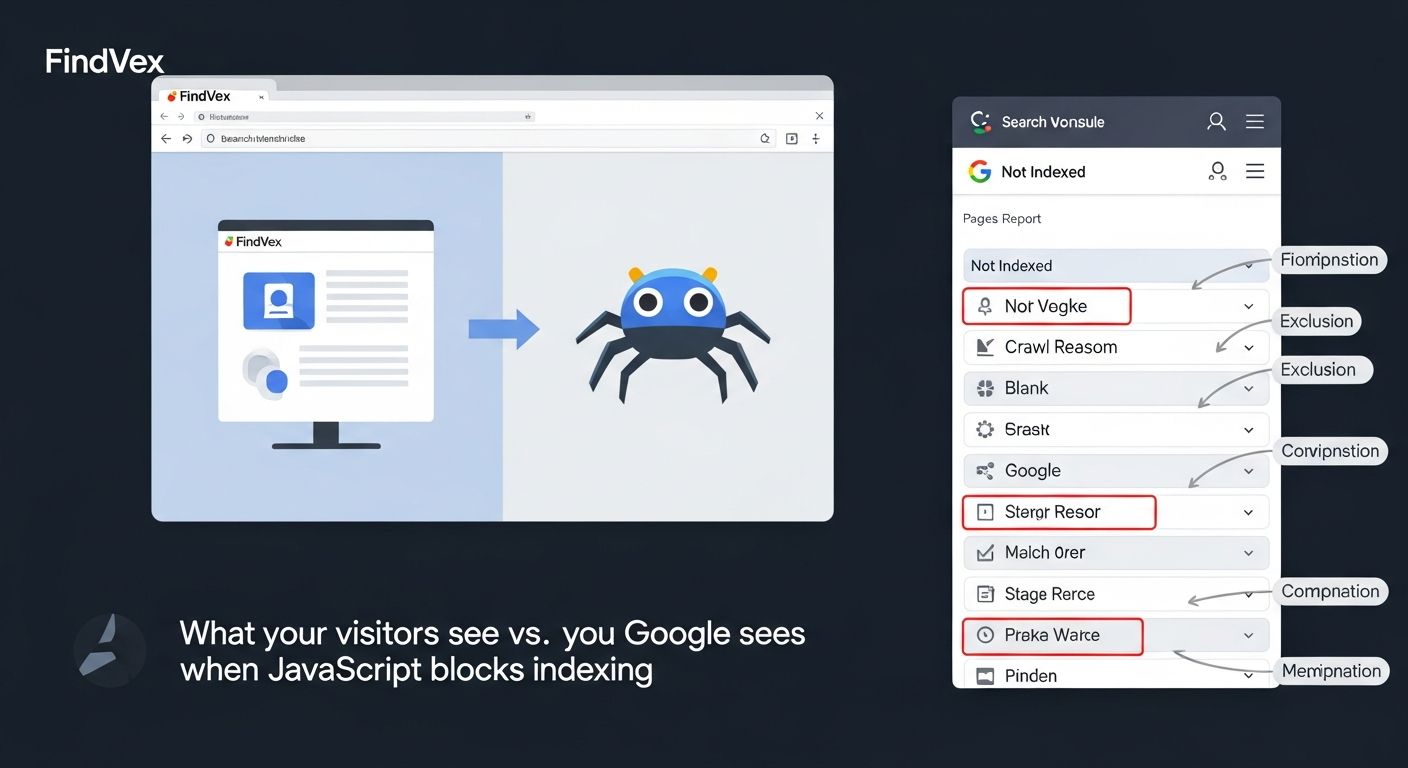
- JavaScript-dependent content: Pages that require JavaScript to render their main content are indexed later and less reliably. Google's rendering queue processes JavaScript separately from HTML, which means pages can go days or weeks without being indexed after publication.
- Duplicate content signals: If multiple URLs serve near-identical content (e.g.,
?utm_source=parameters, HTTP vs. HTTPS, www vs. non-www), Google's crawler has to choose which version to index. It doesn't always choose the one you want. - Slow or broken crawl paths: Orphan pages with no internal links, redirect chains longer than three hops, and 4xx or 5xx server errors all reduce crawl efficiency. Google's crawl budget — the number of pages it will crawl in a given time window — is finite for small sites.
- Thin or low-quality content signals: Since Google's helpful content system, pages with very little substantive content may be crawled but deliberately excluded from the index. This is less common for service pages but relevant for auto-generated or templated pages.
“AI agents do in hours what teams used to do in weeks. The advantage compounds.”
How to Find Indexing Issues Fast: Google Search Console First
Google Search Console (GSC) is your single best diagnostic tool — and it's free. Open the Pages report under Indexing in the left nav. You'll see two columns: indexed pages and non-indexed pages. Click into "Not Indexed" and sort by reason. Google groups exclusions into specific categories that each point to a different root cause.
Run this audit before touching anything else. You need to understand which pages are excluded and why before deciding what to fix.
- "Crawled — currently not indexed": Google visited the page but chose not to index it. Most common causes: thin content, low perceived value, or near-duplicate of a higher-authority page.
- "Discovered — currently not indexed": Google found the URL (usually via sitemap) but hasn't crawled it yet. Usually a crawl budget or server speed issue.
- "Excluded by 'noindex' tag": Clear-cut: a noindex directive is present. Check whether it's intentional.
- "Blocked by robots.txt": The URL is disallowed. May be intentional (admin pages) or a mistake (entire site blocked during dev).
- "Duplicate, Google chose different canonical than user": You specified a canonical; Google disagreed and picked a different one. Usually signals a content duplication or internal linking problem.
- "Alternate page with proper canonical tag": Google is respecting your canonical. These pages are intentionally not indexed — verify that's correct.
- "Page with redirect": These URLs redirect to another URL, so they're not indexed themselves. Make sure destination pages are indexed.
Priority Fixes by Business Impact
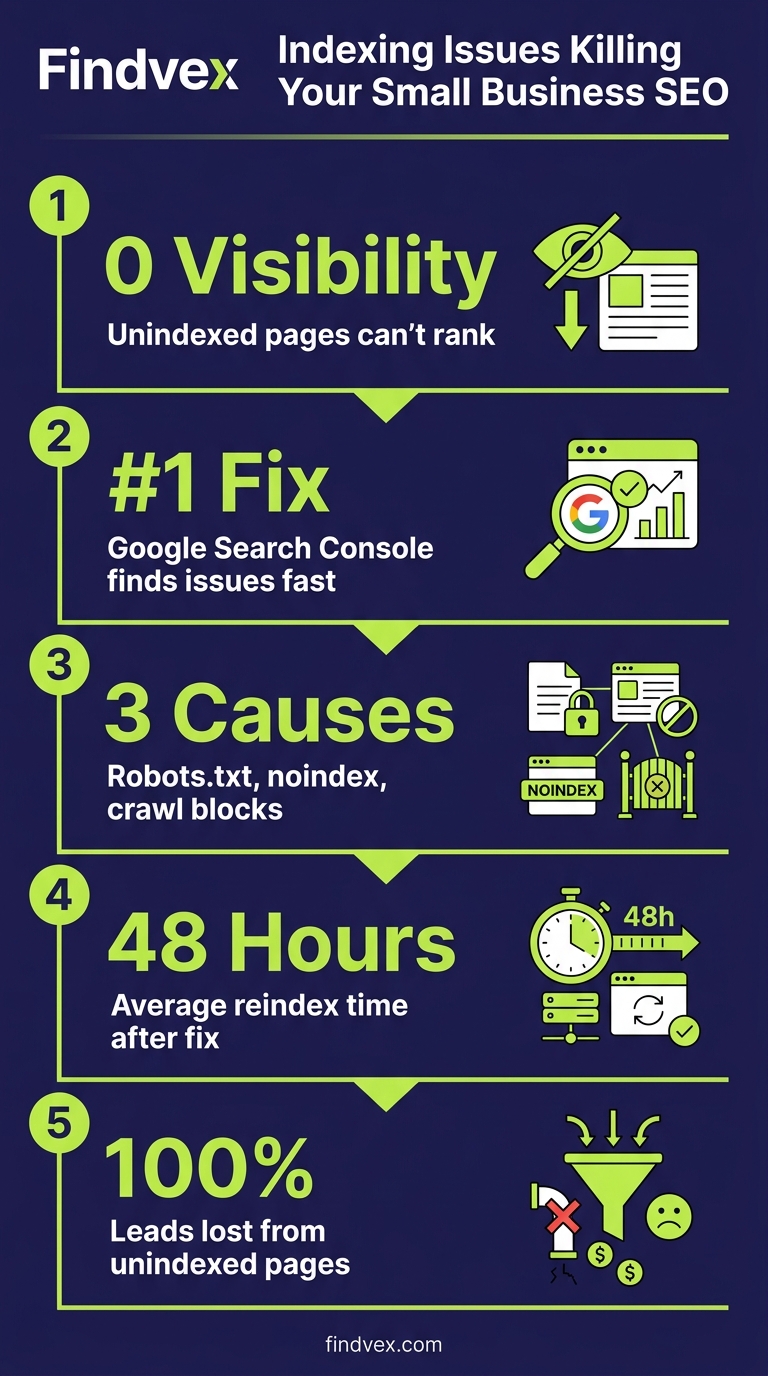
Not every indexing issue is equally damaging. Here's how to triage them based on what they cost you in leads and revenue.
Fix 1: Remove Accidental Crawl Blocks (Highest Impact)
Check your robots.txt file at yourdomain.com/robots.txt. Look for Disallow: / (blocks entire site) or any disallowed paths that match your service, product, or location pages. This is especially common after a WordPress theme update or site migration where a staging "block all" setting gets pushed to production.
Then audit your page-level noindex tags. Use Screaming Frog or a free tool like Sitebulb's free tier to crawl your site and filter for pages with noindex in the meta robots tag. Cross-reference those against your GSC Pages report. Any revenue-generating page on that list needs the tag removed today.
After removing a crawl block, submit the affected URLs via the URL Inspection tool in GSC and request indexing. Don't wait for the next crawl cycle.
Fix 2: Resolve Canonical Tag Conflicts
Canonical conflicts are subtle but costly. The most common scenario: your site has both https://www.domain.com/service/ and https://domain.com/service/ live, your sitemap lists one version, but your canonical tag points to the other. Google ends up indexing neither consistently.
Audit rule: every page's self-referencing canonical must exactly match the URL in your sitemap and the URL you expect to rank. Mismatches — even trailing slash differences — cause confusion.
For WordPress sites, the Yoast or Rank Math canonical field overrides the default. Check that no plugin is auto-generating canonicals that point to category pages, tag archives, or the homepage.
- Confirm HTTPS is the canonical protocol sitewide — not HTTP.
- Pick www or non-www and redirect the other version permanently (301).
- Ensure paginated pages (page-2, page-3) have their own self-referencing canonicals, not a canonical back to page-1.
- Check that no product or service page has a canonical pointing to a different page.
Fix 3: Address JavaScript Rendering for Key Pages
If your site is built on React, Vue, Angular, or a JavaScript-heavy page builder, your content may not be visible to Google's first-pass crawler. Google's two-wave crawling process means HTML is processed immediately, but JavaScript rendering is deferred — sometimes by days.
The fast diagnostic: use GSC's URL Inspection tool, click "Test Live URL," and open the rendered page screenshot. If the main content area is blank or shows a loading spinner, Google is not seeing your content reliably.
The fix depends on your stack. For most small business sites, the practical solution is server-side rendering (SSR) or static site generation (SSG) for your key pages — service pages, location pages, and the homepage. If a full rebuild isn't feasible, at minimum ensure your page title, H1, meta description, and primary service description are in the HTML source (viewable via browser "View Source"), not injected by JavaScript.
Fix 4: Consolidate Duplicate URLs and Thin Pages
Parameter-based duplicates are a common small business issue. If your site generates URLs like /services/?category=roofing and /services/?category=roofing&sort=price, each variation may be treated as a separate page. Google has to choose what to index, and it often chooses wrong.
In GSC, go to Settings > Legacy tools > URL Parameters (note: this tool has been deprecated in some GSC views — check your account). Better yet, audit your sitemap to ensure it only lists canonical, clean URLs.
For e-commerce or multi-location sites, make sure each location page has substantively different content. If five city pages share the same copy with only the city name swapped, Google may treat them as near-duplicates and index only the one with the most authority. Our guide on local landing pages that rank without sounding generic covers this in detail.
Fix 5: Improve Crawl Efficiency for Larger Sites
Crawl budget becomes a material concern once your site exceeds a few hundred pages or if you've seen GSC show many pages in "Discovered — currently not indexed" status. The crawler is finding URLs but not getting to them.
Clean up your sitemap first: remove 301 redirect URLs, 404 pages, noindex pages, and any URL with a parameter string. Your sitemap should be a curated list of pages you want indexed — not an auto-generated dump of every URL on the site.
Fix redirect chains. A chain of three or more hops (A → B → C → D) wastes crawl budget and dilutes link equity. Audit redirects with a tool like Screaming Frog and update all internal links and backlinks to point directly to the final destination URL.
Internal linking also drives crawl. An orphan page — one with no internal links pointing to it — may never be crawled at all. Every important page should be reachable within three clicks from the homepage, and ideally linked from at least one contextually relevant page in the same section of your site.
JavaScript SEO Audit: A Simple Workflow for Non-Developers
You don't need to be a developer to audit JavaScript indexing issues. Here's a practical workflow any business owner or marketer can run.
- Step 1 — View Source vs. Rendered comparison: Open a key page. Right-click > View Page Source. Search for your H1 text using Ctrl+F. If it's not there, your content is JavaScript-rendered and may not be reliably indexed.
- Step 2 — GSC URL Inspection: Paste the URL into the URL Inspection tool. Click "Test Live URL" and wait for it to render. Review the screenshot and the "Page is available to Google" status.
- Step 3 — Check rendering in search results: Do a Google search for
site:yourdomain.com/your-page-url. If the page appears, click the cached version (if available) and see what content Google has stored. Missing content means a rendering problem. - Step 4 — Audit your CMS settings: In WordPress, check Settings > Reading. Make sure "Discourage search engines" is unchecked — it's a one-click mistake that blocks your entire site.
- Step 5 — Schema and structured data validation: Use Google's Rich Results Test on your key pages. Structured data that depends on JavaScript to render won't be processed by Google. Move schema markup to the HTML source.
Schema Markup, Structured Data, and Indexing Visibility
Schema markup doesn't directly cause or prevent indexing, but it signals content quality and entity clarity — both of which influence how Google evaluates pages for inclusion. Pages with valid structured data that accurately describes their content tend to be crawled more frequently and indexed more reliably.
More practically: structured data is how you qualify for rich results — star ratings, FAQ dropdowns, event listings, product prices — that dramatically increase click-through rate in both traditional search and AI Overviews. A page that's indexed but has no schema is leaving visibility on the table.
Priority schema types for small businesses: LocalBusiness (including opening hours, address, and service areas), Service (for individual service pages), FAQPage (for pages with Q&A content), and BreadcrumbList (for site navigation). Validate any schema implementation using Google's Rich Results Test before publishing.
One critical rule: never mark up content that isn't visible on the page. Google will penalize hidden structured data.
Core Web Vitals and Page Experience as Indexing Signals
Core Web Vitals don't block indexing directly, but they affect it indirectly through two mechanisms. First, very slow pages that time out during Google's crawl may not be processed fully — particularly for JavaScript-heavy sites where rendering requires substantial compute time. Second, poor page experience scores reduce the likelihood of a page maintaining a strong position in the index over time, especially after algorithm updates that reward user experience.
The pages most vulnerable to performance-related indexing issues are those with unoptimized images above the fold, excessive third-party scripts (chat widgets, review plugins, tag manager containers), and layout shifts caused by late-loading elements.
If your Core Web Vitals are in the "Poor" range for LCP or INP, fixing those isn't just a UX task — it's a crawl reliability task. Our detailed breakdown of core web vitals for SEO explains which fixes have the highest ROI for small business sites specifically.
Strategic Takeaway: Indexing Is Revenue Infrastructure
Here's the business-level framing that often gets lost in technical checklists: every page that isn't indexed is a page that can't generate leads. If you have 50 service and location pages on your site and 15 of them have indexing issues, you may be operating at 70% of your potential organic reach — even if the content itself is excellent.
The ROI on fixing indexing issues is asymmetric. It's often the highest-leverage technical work available to a small business site — faster to implement than a content strategy, more durable than a paid search campaign, and often immediately measurable in GSC.
Prioritization framework: (1) Fix crawl blocks and noindex errors on revenue pages first. (2) Resolve canonical conflicts on any pages you've invested in building links to. (3) Address JavaScript rendering for high-value pages that show blank in GSC's render test. (4) Clean up duplicate URLs and orphan pages. (5) Validate and implement schema markup on service and location pages.
If you're running a broader audit alongside this work, our technical SEO audit checklist for small business websites covers the full scope — indexing is one layer of a complete technical health assessment.
Tradeoffs and What to Deprioritize
Not all indexing fixes are worth your time at the same stage of business. Here are the honest tradeoffs:
JavaScript rendering overhauls: If your site is a React SPA and a full SSR migration would take weeks of developer time, prioritize the quick wins first (noindex fixes, canonical cleanup). A rendering overhaul is a quarter-long project — don't let it block you from the 20% of fixes that deliver 80% of the benefit.
Crawl budget optimization: This matters significantly for sites with thousands of pages. If you have a 20-page service site, crawl budget is not your problem. Spend that time on content quality instead.
Hreflang and international indexing: Unless you're actively targeting multiple language markets, this is irrelevant to most US small businesses. Don't let comprehensive checklists distract you with inapplicable items.
Disavow files: Disavowing backlinks to influence indexing decisions is rarely necessary for small businesses and carries risk if done incorrectly. Leave this alone unless you have clear evidence of a manual penalty in GSC.
FAQs
How do I check if my pages are indexed by Google?
Open Google Search Console and go to Indexing > Pages. The report shows all indexed pages and lists non-indexed pages with a specific reason for each exclusion. You can also do a quick check using the URL Inspection tool — paste any URL and Google will tell you its current index status and when it was last crawled.
Why would Google crawl a page but not index it?
The most common reasons are thin or low-value content, near-duplicate content that Google prefers another version of, a noindex tag on the page, a canonical tag pointing elsewhere, or a server error encountered during crawling. In GSC, the "Crawled — currently not indexed" status usually signals a content quality signal rather than a technical block.
Does a slow website affect indexing?
Indirectly, yes. Very slow page load times can cause Google's crawler to time out before fully processing a page, especially for JavaScript-rendered content. This is a bigger concern for sites that rely heavily on client-side rendering. Core Web Vitals don't directly gate indexing, but consistent crawl timeouts can delay or prevent a page from entering the index.
How long does it take Google to index a new page?
It varies widely — from a few hours for well-established sites with frequent crawls, to several weeks for newer or lower-authority sites. You can speed this up by submitting the URL via the URL Inspection tool in GSC and requesting indexing, ensuring the page is linked from an already-indexed page on your site, and including it in your XML sitemap.
Can duplicate content prevent indexing?
Yes. When multiple URLs serve nearly identical content, Google typically indexes one and excludes the rest. It will usually choose the version with the most internal links and authority signals, which may not be the one you intended. Use canonical tags to explicitly declare your preferred URL, and where possible, differentiate content between pages rather than relying solely on canonical signals.
What's the difference between a crawl issue and an indexing issue?
Crawling is Google's process of visiting and downloading your page. Indexing is the decision to store that page in its search index. A crawl issue (blocked by robots.txt, server error) means Google never sees the content. An indexing issue means Google visited the page but chose not to include it. Both prevent ranking, but they have different fixes.
Do JavaScript-built websites have worse indexing?
They face more indexing challenges, yes. Google processes JavaScript in a deferred rendering queue, which means JavaScript-rendered content is indexed later and less reliably than HTML content. Service pages, location pages, and product descriptions that are injected by JavaScript — rather than present in the HTML source — are at highest risk. For small business sites, ensuring critical content is server-rendered is the most reliable fix.
Related reading
- technical seo audit checklist — Technical SEO Audit Checklist for Small Business Websites
- technical seo for small business — Technical SEO for Small Business: The 7 Foundations That Determine Whether Google Can Rank Your Site
- technical seo questions — Technical SEO FAQ: 35 Questions Small Business Owners Actually Ask (Answered Without Jargon)
- what is a technical seo audit — What Is a Technical SEO Audit? The 7 Areas That Actually Determine Whether Google Can Rank Your Site
- technical seo for shopify — Technical SEO for Shopify Stores: A Practical Guide
- crawl budget seo — Crawl Budget SEO: Why Google Skips Pages on Small Business Sites (and How to Fix It)
- javascript seo audit — JavaScript SEO Audit: Why Your Site Ranks Lower Than It Should (And How to Fix It)
- hreflang seo — Hreflang Is Not for You: Why US-Only Small Businesses Don't Need It (And What to Do Instead)
- core web vitals seo — Core Web Vitals for SEO: What Business Owners Need to Fix First
- page speed optimization — Page Speed Optimization for Small Business Websites: The Diagnostic Sequence That Fixes the Right Things First
Research notes
Background claims used while researching this article. Verify with the cited authorities before quoting.
- Google's two-wave crawling process defers JavaScript rendering — pages can go days or weeks without being indexed after publication. — verify via Official Google Search Central documentation on JavaScript SEO or Googlebot rendering — confirm current behavior and typical deferral timeframes.
- Google's crawl budget is finite for small sites. — verify via Google Search Central documentation on crawl budget management — confirm whether Google still uses this framing and what thresholds apply.
Alex Rivera
CEO & Editorial Strategist · Findvex
Alex Rivera leads editorial strategy at Findvex. He sets the weekly content plan, picks topical pillars, and decides what to publish — and what to skip — based on search intent, competitive data, and what genuinely helps US small businesses rank.
Expertise: Editorial strategy · Topical authority · Content prioritisation · Pillar planning
Related reads
Answer Engine Optimization (AEO): The 2026 Guide for Small Businesses
Learn answer engine optimization (AEO) in 2026. This practical guide helps small businesses get found in AI search, voice assistants, and answer engines.
SEOGenerative Engine Optimization (GEO): The 2026 Guide for Small Businesses
Learn how generative engine optimization helps small businesses get found in AI search. Our 2026 GEO guide covers strategies, tactics, and tips to boost visibility.
SEOSEO Agency in USA: AI-Powered SEO for Small Businesses | Findvex
Findvex is a leading SEO agency in USA delivering AI-powered SEO strategies that help small businesses rank higher, drive traffic, and grow revenue. Get started today.