How to Fix 404 Errors on Your Website: A Step-by-Step Diagnosis and Repair Guide
A 404 error means a page can't be found. The fix is almost always a 301 redirect — but which pages need one, how you set it up, and what you check afterward determines whether you actually solve the problem or create a new one. Here's the precise sequence.
Quick answer
To fix a 404 error on your website: (1) Identify the broken URL in Google Search Console under Pages > Not Found. (2) Decide whether the page should be restored, redirected, or left as a 404. (3) If the URL had inbound links or traffic, set up a 301 redirect to the most relevant live page. (4) If the URL was never live and has no link equity, leave it as a clean 404. (5) Update any internal links pointing to the broken URL. (6) Resubmit your sitemap and monitor coverage in GSC. Never redirect all 404s to your homepage — that creates soft 404s that confuse Google.
What a 404 Error Actually Means (and When It's a Real Problem)
A 404 is a standard HTTP status code meaning the server received the request but found no page at that URL. It's not inherently catastrophic — every site accumulates some 404s over time as pages are deleted, URLs change, or content gets restructured. The question isn't whether you have 404s, it's which ones matter.
A 404 becomes an SEO problem when: external sites link to that URL (lost link equity), Google has indexed the URL (wasted crawl budget), or internal pages still link to it (poor user experience and broken authority flow). A 404 on a URL that was never live, never linked to, and never indexed is generally harmless and requires no action.
The fix most people reach for — a 301 redirect to the homepage — is almost always wrong. Google treats this as a 'soft 404,' which is worse than a clean 404 because it wastes the redirect and doesn't pass link equity meaningfully. The correct fix is contextual and depends on what that URL was and what still exists.
Symptoms, Causes, and Fix Tiers
Before touching anything, you need to know what type of 404 you're dealing with. The appropriate fix differs significantly based on the cause.
- Symptom: Page was moved or renamed, old URL still gets traffic or links. Cause: URL change without a redirect. Fix: 301 redirect from old URL to new URL. Risk level: Low — standard, well-understood fix.
- Symptom: Product or service was removed permanently, no close equivalent exists. Cause: Content deletion. Fix: Let it return a clean 404. Consider adding a helpful custom 404 page. Risk level: None — correct behavior.
- Symptom: Internal links across your site point to deleted pages. Cause: Content reorganization without link updates. Fix: Find and update internal links. Then decide if a redirect is needed. Risk level: Low, but often overlooked.
- Symptom: 404 URLs appearing in your XML sitemap. Cause: Sitemap not updated after page deletion. Fix: Remove dead URLs from sitemap, resubmit. Risk level: Low, but wastes crawl quota.
- Symptom: External site links to a URL that no longer exists on your site. Cause: Old URL structure, domain migration, or content removal. Fix: 301 redirect to the most relevant live page. Risk level: Medium — wrong redirect destination dilutes the benefit.
- Symptom: Google reports a URL as '404' but the page is live. Cause: Incorrect robots.txt block, canonical issue, or JavaScript rendering problem. Fix: Audit robots.txt and canonical tags first before assuming the page is missing. Risk level: High if misdiagnosed — do not add a redirect to a page that is actually live.
“AI agents do in hours what teams used to do in weeks. The advantage compounds.”
Diagnosis Checklist: Find Every 404 That Needs Attention
Work through this checklist in order before making any changes. Skipping straight to redirects without a full picture leads to partial fixes and new errors.
- ☐ Open Google Search Console > Index > Pages. Filter by 'Not found (404)' to see all URLs Google has attempted to crawl and found missing.
- ☐ Sort by 'Discovered' date — URLs discovered recently with high crawl frequency are higher priority than URLs Google last crawled over a year ago.
- ☐ Check the 'Referring pages' for each 404 URL inside GSC. If internal pages link to it, flag it for internal link repair. If external domains link to it, flag it for a 301 redirect.
- ☐ Run a crawl with Screaming Frog (free up to 500 URLs) or Ahrefs Site Audit to find all internal links pointing to 404 pages across your entire site.
- ☐ Check your XML sitemap for dead URLs. Export the sitemap and compare URLs against your live pages.
- ☐ Check Google Analytics (or GA4) for 404 pages that received organic traffic in the past 6–12 months. These are high-priority for redirects.
- ☐ Run a backlink report in Ahrefs, Semrush, or Google Search Console (Links report) to identify any external domains linking to 404 URLs.
- ☐ Inspect the URL directly in GSC using the URL Inspection tool to confirm it returns a genuine 404 and is not a rendering or canonicalization issue.
What to Check in Google Search Console
Google Search Console is the authoritative source for how Google sees your 404 errors. It distinguishes between genuine 404s, soft 404s, and server errors — and that distinction changes your fix.
- Pages > Not found (404): Your primary list. Google has crawled these URLs and received a 404 response. Review each one before acting.
- Pages > Soft 404: Google received a 200 status code but assessed the content as essentially empty or unhelpful. This is the classic symptom of over-redirecting 404s to your homepage. If you see this, your existing redirects may need to be revisited.
- URL Inspection tool: Paste any 404 URL here. It will show you the last crawl date, the HTTP status code Google received, referring page (where Google found the link), and whether it's in the index. Use this before setting up a redirect to confirm what you're dealing with.
- Coverage trend over time: If your 404 count is growing rapidly, you likely have a structural issue — a URL pattern being generated by your CMS, a broken pagination scheme, or a recent site migration that didn't include redirects.
- After fixing: Use the 'Validate Fix' button in GSC once redirects are in place. Google will re-crawl a sample of the affected URLs and update the status. Full resolution typically takes days to a few weeks depending on how frequently Google crawls your site.
How to Set Up 301 Redirects by Platform
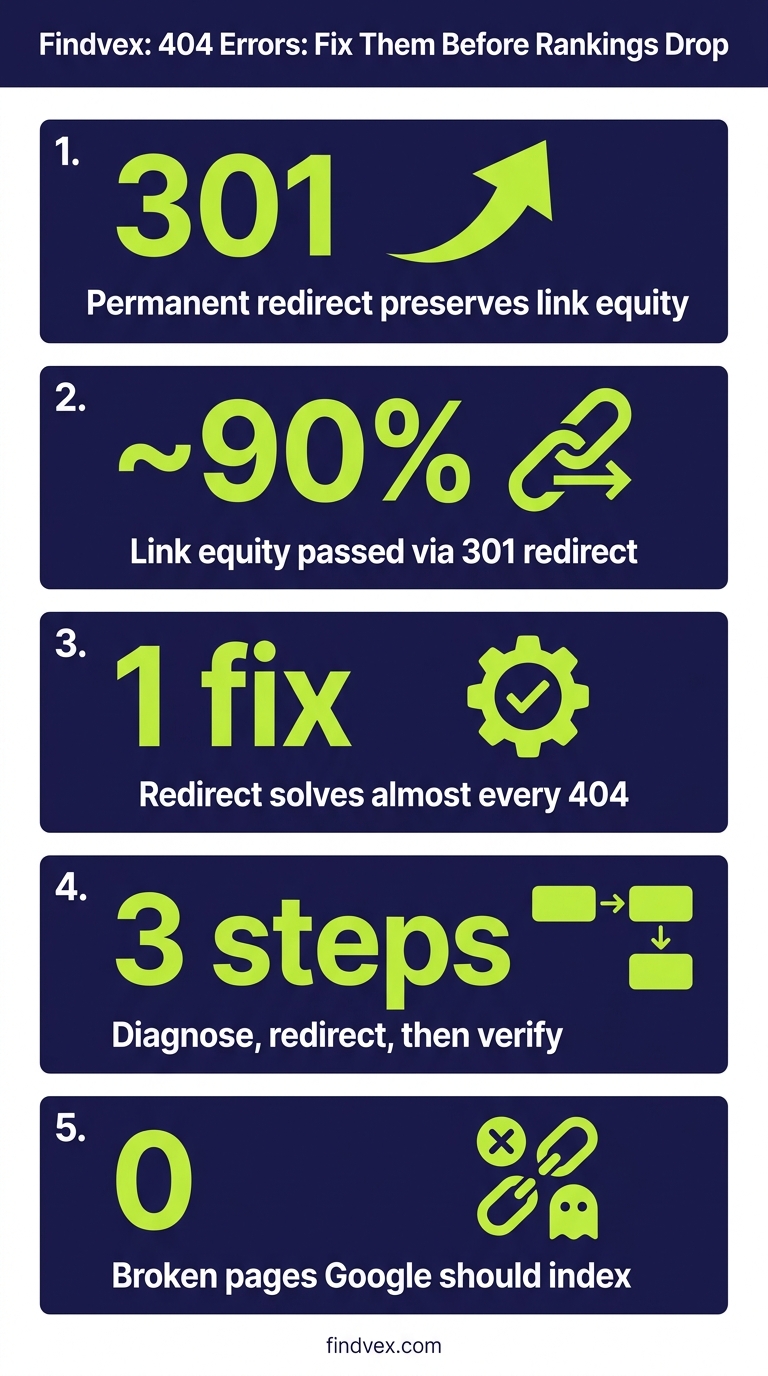
A 301 redirect tells Google and browsers that a URL has permanently moved. It passes the majority of link equity from the old URL to the new one. The method varies by platform.
- WordPress (.htaccess): Add
Redirect 301 /old-page/ https://yourdomain.com/new-page/to your .htaccess file. Or use a plugin like Redirection (free) to manage redirects via a UI without touching server files. If you use a caching plugin, flush the cache after adding redirects. - Squarespace: Go to Settings > Advanced > URL Mappings. Add
/old-page → /new-page 301(one per line). Squarespace does not support .htaccess directly. - Wix: Go to Settings > SEO > 301 Redirects in the Wix dashboard. Add the old path and destination URL.
- Shopify: Go to Online Store > Navigation > URL Redirects. Add old path (without domain) and destination URL. Shopify auto-generates redirects when you change product/page handles, but only for changes made within the platform.
- Custom / server-based sites: Add redirect rules in your nginx.conf or Apache .htaccess. For nginx:
return 301 https://yourdomain.com/new-page/;inside alocationblock. Assign to a developer if you're not comfortable editing server config files.
The 404 Decision Framework: Redirect, Restore, or Leave Alone
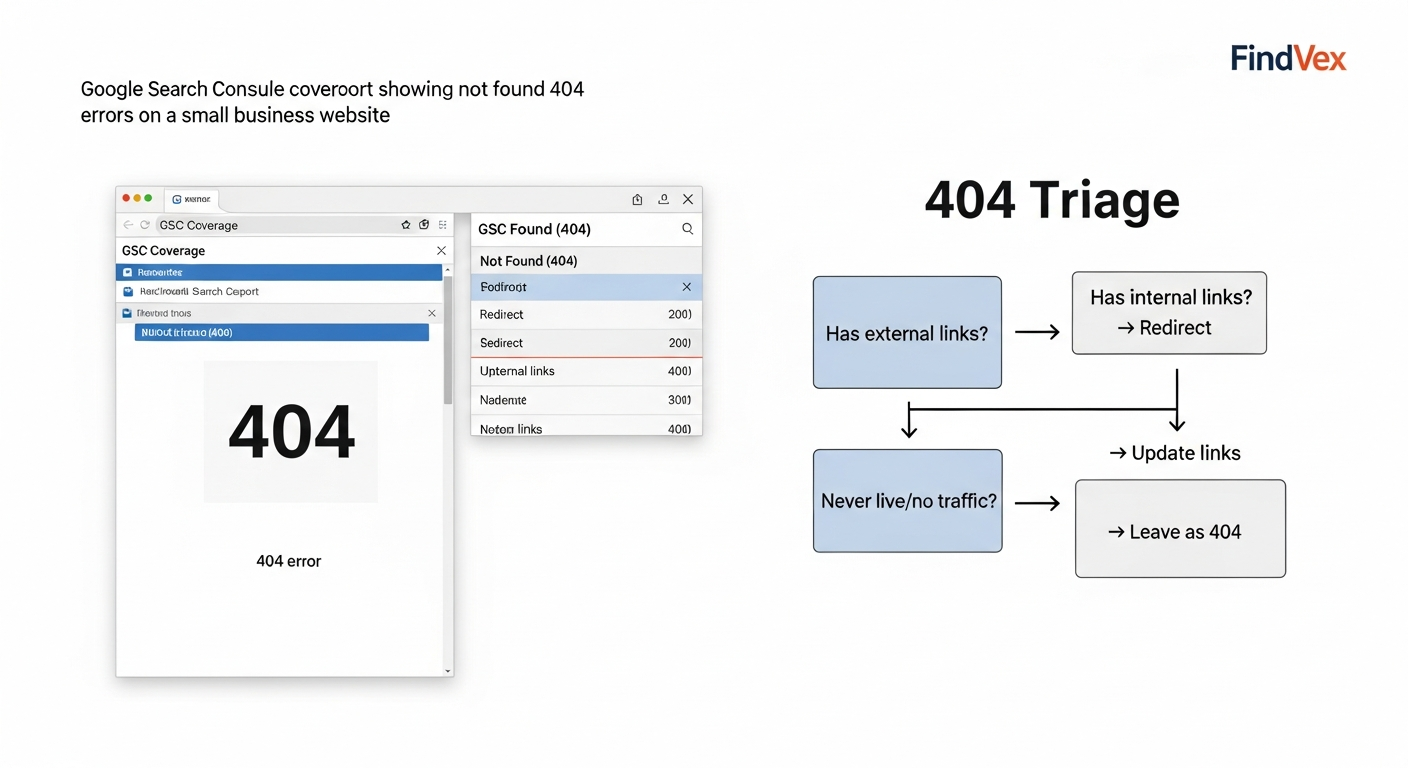
Not every 404 needs a redirect. Applying redirects indiscriminately creates redirect chains, soft 404s, and unnecessary maintenance overhead. Use this decision tree for each 404 URL you identify.
- Does the URL have external backlinks or indexed organic traffic? → Yes: Set a 301 redirect to the most topically relevant live page. If no single page is a good match, consider restoring the content.
- Does the URL have external backlinks or indexed organic traffic? → No: Proceed to next question.
- Is there a live page on your site that closely matches the topic or intent of the missing page? → Yes and the URL had some value: 301 redirect. → No clear match: leave as a clean 404.
- Is the content still relevant to your business? → Yes: Restore the page at the same URL (requires no redirect at all — cleanest solution). → No: Clean 404 is fine.
- Is the URL in your XML sitemap? → Yes: Remove it from the sitemap regardless of what you do with the URL itself.
- Are there internal links pointing to the URL? → Yes: Update the internal links to point to the correct destination, whether that's the redirected URL or a restored page.
- The one rule: Never create a redirect chain longer than two hops (A → B → C). Consolidate chains: A → C directly. Chains dilute equity and slow page load.
Custom 404 Pages: What They Should Contain
For URLs that legitimately return a 404 — products discontinued, campaigns ended, restructured content with no equivalent — a custom 404 page reduces bounce rate and preserves some user experience value. It does not recover SEO value (a 404 is a 404 regardless of how it's styled), but it can prevent a visitor from leaving your site entirely.
A functional custom 404 page for a small business website needs four elements: a clear explanation that the page isn't found (no jargon), a search box so users can find what they were looking for, links to your most important sections (homepage, services, contact), and optionally a message confirming you've been notified of the broken link if you have that infrastructure in place.
What to avoid: 404 pages with no navigation, no search, and no way forward. These are dead ends. Also avoid setting the HTTP status code to 200 on your 404 page — this creates a soft 404 that Google may index as a thin content page.
Fixing Internal Links After a 404 Redirect
Setting up a redirect handles external link equity and Google's crawl, but it does not fix internal links. Internal links pointing to the old URL now make one unnecessary hop before reaching the destination. Over a large site with many redirected URLs, this adds up to real crawl inefficiency.
After setting up redirects, run a Screaming Frog crawl (or use the internal links report in Ahrefs) and filter for URLs that respond with a 3xx redirect rather than a 200. Update the source pages to link directly to the final destination URL, bypassing the redirect entirely. This is the cleaner, lower-maintenance state.
Developer Handoff Notes
If you're handing this work to a developer or agency, here's what they need from you and what you should expect back from them.
- Provide: A spreadsheet with two columns — old URL (full path, e.g. /services/old-service/) and new destination URL (full path or absolute URL). Include a 'priority' column flagging URLs with external backlinks or organic traffic.
- Expect: Confirmation that each redirect returns a 301 (not 302) status code. They should test this using a tool like Redirect Checker or
curl -Iin the terminal. - Expect: Confirmation that no redirect chains exist — each old URL redirects directly to the final live destination, not through an intermediate URL.
- Expect: Confirmation that the XML sitemap has been updated to remove redirected and 404 URLs, and resubmitted to Google Search Console.
- Expect: Confirmation that the custom 404 page returns an HTTP 404 status code, not 200.
- Risk note: On WordPress with .htaccess-based redirects, some caching plugins (WP Rocket, W3 Total Cache) may serve a cached 200 response for old URLs until the cache is purged. Confirm cache has been cleared post-deployment.
- Risk note: If you're on a CDN (Cloudflare, Fastly), redirect rules may need to be implemented at the CDN layer or cache purged for redirect changes to take effect globally.
The SEO Impact of 404 Errors: What's Real, What's Overstated
Having 404 errors on your site is not a manual penalty trigger. Google's own documentation confirms that 404 errors are a normal part of the web and that they don't directly cause ranking drops. The real SEO impact is more specific and operational.
The genuine impacts: (1) Lost link equity — if external sites link to a 404 URL, that equity is being wasted rather than flowing to live pages on your site. (2) Crawl budget drain — Googlebot will continue attempting to crawl URLs it has found until it determines they're permanently gone. On small sites this is minor; on larger sites with hundreds of 404s it becomes meaningful. (3) Poor user experience — visitors who land on a 404 from organic search may immediately bounce, sending a negative engagement signal. (4) Sitemap cleanliness — having 404 URLs in your sitemap signals poor site maintenance to Google and wastes crawl allocation.
What's overstated: The idea that a handful of legitimate 404s causes your whole site to drop in rankings. A site with clean content, good backlinks, and strong technical fundamentals can carry some 404s without meaningful ranking impact. Prioritize 404s with external links or traffic history first, and don't spend hours on URLs that Google has never crawled.
Ongoing Monitoring: How to Catch 404 Errors Before They Compound
404 errors aren't a one-time cleanup project. They accumulate as your site evolves. The goal is to catch new ones quickly, before they get crawled repeatedly or accumulate referral traffic to dead pages.
- Set up a Google Search Console email alert for crawl errors — GSC will notify you when it detects new coverage issues, including 404 spikes.
- Run a site crawl monthly using Screaming Frog, Ahrefs Site Audit, or Semrush Site Audit. Set the crawl to flag internal links returning non-200 status codes.
- If you're on WordPress, the Redirection plugin logs 404 hits in real time. Check it after any content change or CMS migration.
- Whenever you delete a page, rename a URL, or restructure a section of your site, add redirect creation to your pre-launch checklist. This prevents 404s from forming in the first place.
- After any site migration (new CMS, new domain, new URL structure), audit 404 coverage in GSC within the first two weeks. Migrations are the most common source of large-scale 404 events.
FAQs
Do 404 errors hurt my Google rankings?
Not directly. Google does not penalize sites for having 404 errors. The real impact is indirect: 404 URLs with external backlinks waste link equity, repeated crawling of dead URLs consumes crawl budget, and users who land on broken pages may bounce, creating a poor engagement signal. Prioritize 404s that had traffic or inbound links, and ignore 404s on URLs that were never live or never linked to.
Should I redirect all 404 pages to my homepage?
No. Redirecting all 404s to your homepage creates what Google calls a 'soft 404' — the server returns a 200 response, but Google identifies the destination as irrelevant to the original URL and treats it as a 404 anyway. Link equity is not passed, and the redirect wastes a slot in your redirect budget. Only redirect a 404 URL to a destination that is genuinely topically relevant to what was at the original URL.
What is the difference between a 301 and a 302 redirect for a 404 page?
A 301 is permanent — it tells Google the page has moved forever, passes link equity to the new URL, and eventually removes the old URL from the index. A 302 is temporary — Google may continue crawling and indexing the old URL and does not reliably pass link equity. For fixing 404 errors where you're moving or replacing content, always use a 301 redirect.
How do I find all the 404 errors on my site?
Start with Google Search Console > Pages > Not Found (404) for errors Google has discovered. Then run a crawl with Screaming Frog or Ahrefs Site Audit to find internal links pointing to 404 pages. Cross-reference with your backlink report to find external links to dead URLs. For live traffic data, check GA4 for pages returning 404 status codes with session data.
Does a custom 404 page help with SEO?
A custom 404 page improves user experience — it gives visitors a way to navigate your site rather than bouncing — but it doesn't recover SEO value. A 404 page still returns a 404 HTTP status code (as it should) and won't be indexed or pass link equity. The SEO fix is a 301 redirect to a relevant live page, not a better-designed 404 page. The 404 page is there for human visitors, not search engines.
How long does it take Google to stop showing a 404 in Search Console after I fix it?
After you set up a valid 301 redirect and request validation in Google Search Console (Pages > Not Found > Validate Fix), Google re-crawls a sample of the affected URLs. This typically takes between a few days and two to three weeks depending on how frequently Googlebot crawls your site. High-traffic sites with high crawl frequency see faster resolution than low-frequency sites.
Is it okay to have some 404 errors on a small business website?
Yes. A small number of 404 errors is normal and expected. Google's own guidance confirms that 404 errors don't inherently harm your site. The ones that warrant action are 404s that have external backlinks pointing to them, 404s that appear in your XML sitemap, 404s that appear in your internal navigation, and 404s on URLs that received organic traffic. Everything else can be monitored but doesn't require immediate action.
Research notes
Background claims used while researching this article. Verify with the cited authorities before quoting.
- Google's own documentation confirms that 404 errors don't directly cause ranking drops and are a normal part of the web.
- 301 redirects pass the majority of link equity from the old URL to the new one.
Marcus Chen
Head of Technical SEO · Findvex
Marcus Chen heads technical SEO at Findvex. He writes about Core Web Vitals, indexing, schema, and JavaScript SEO — translating Google’s documentation into checklists small business owners can actually act on.
Expertise: Core Web Vitals · Indexing & crawlability · Schema / structured data · JavaScript SEO
Related reads
Internal Linking Strategy: How to Route Authority to the Pages That Drive Revenue
Internal linking is the most underused lever in small business SEO. A deliberate linking system routes PageRank from content pages to the service and location pages that actually generate leads — and most sites have it entirely backwards.
Strategic Technical SEOTechnical SEO for Small Business: The 7 Foundations That Determine Whether Google Can Rank Your Site
Technical SEO is the infrastructure layer of your search presence. If Google can't crawl, render, and index your pages correctly, no amount of content or link building will move the needle. This guide covers the seven foundations that matter most for small business websites—and the order in which to fix them.
Strategic Technical SEOHreflang Is Not for You: Why US-Only Small Businesses Don't Need It (And What to Do Instead)
If your small business only serves US customers in English, hreflang tags are not on your to-do list. This article explains what hreflang actually does, which businesses genuinely need it, and what technical SEO work actually moves the needle for a US-only site.