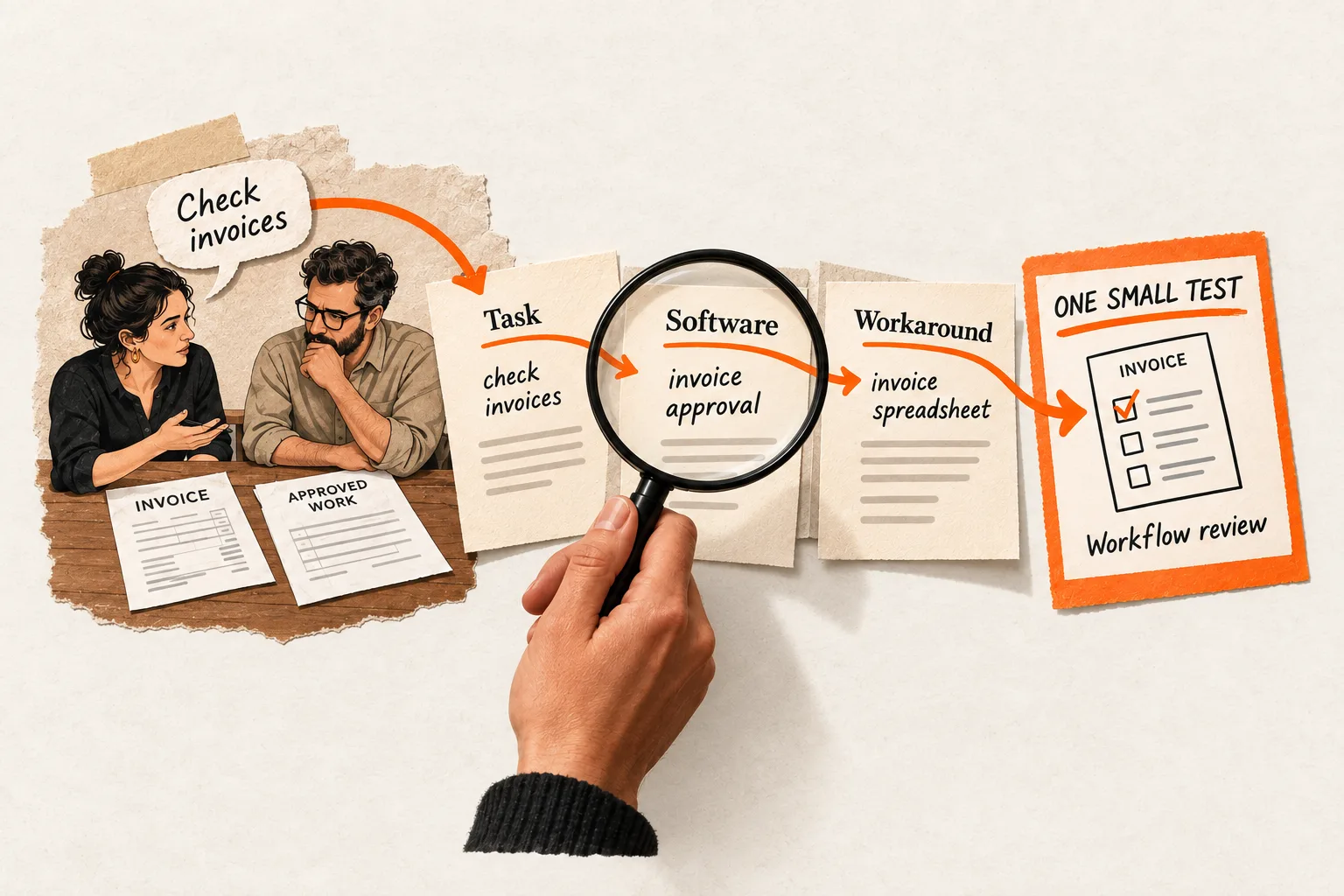
Give your SaaS welcome email one job: help a new user reach a useful result. Name that result, explain what they need, and point them to the next action.
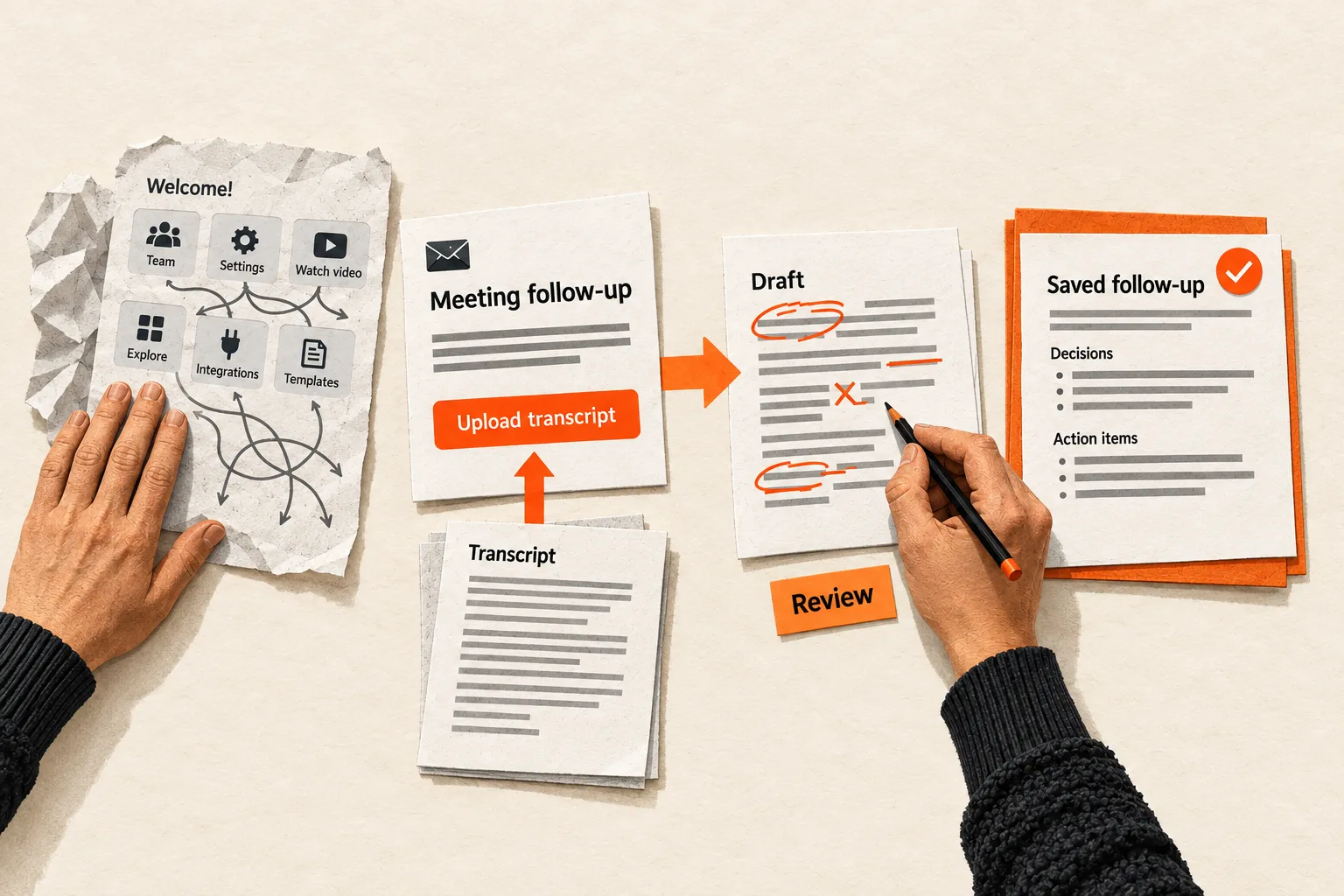
An email that asks someone to connect an integration, invite teammates, customize a dashboard, watch a tutorial, explore templates, and book a call leaves them to choose where to begin. Choose a starting point for the audience you are writing to. Move the rest of the introduction to places where users will need it.
Choose a result the user can recognize
For this exercise, first value means the earliest result that helps someone do the job they came to your product to do. Creating an account or completing a tour may be necessary progress, but neither establishes that the user received something useful.
For a reporting tool, the result might be answering a business question. For an AI writing tool, it might be saving a draft the user has reviewed and can use. For a scheduling product, it might be receiving a first booking.
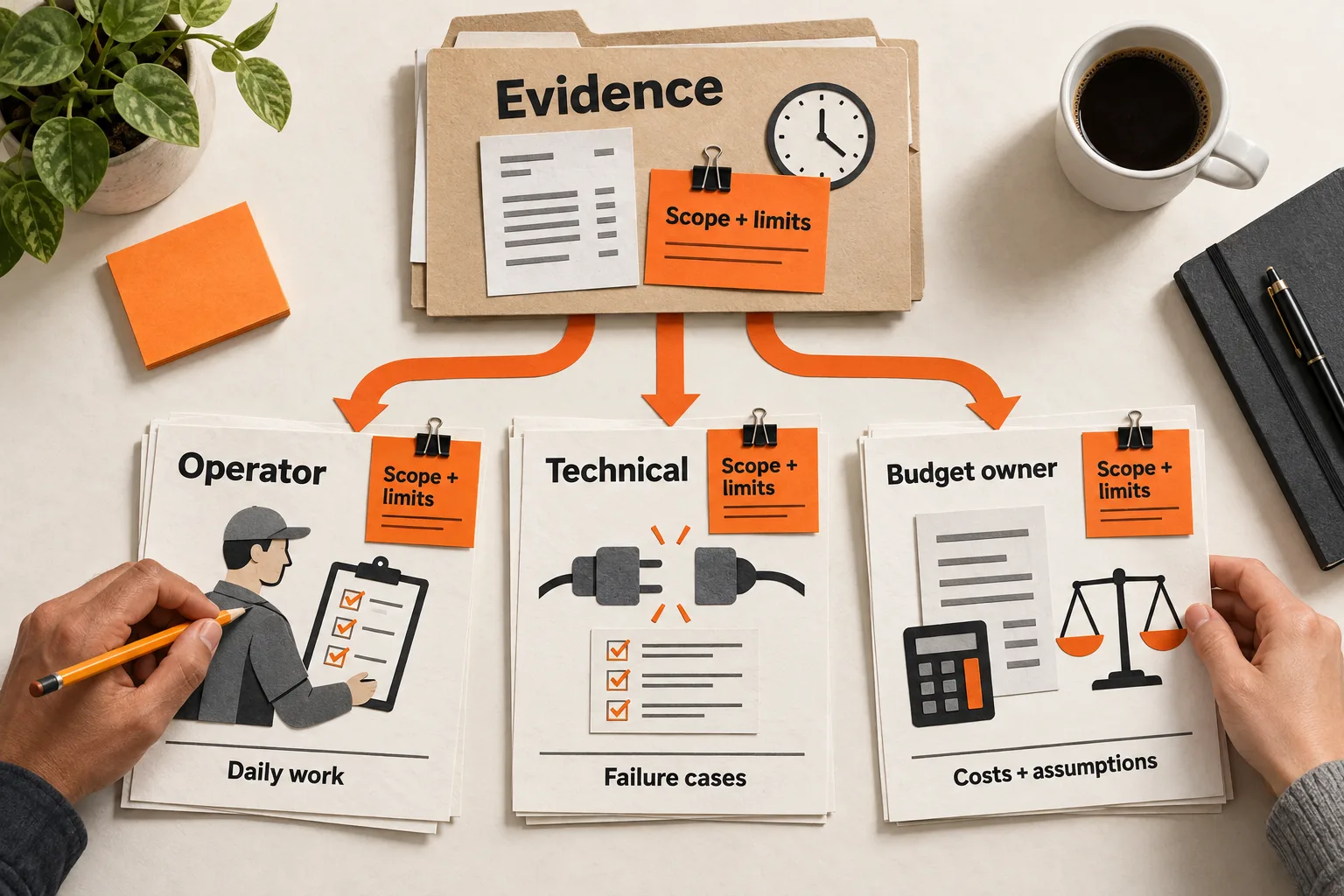
Choose one audience before choosing the result. An account administrator and an invited contributor may need different starting points. Review recent signup answers, support conversations, or interviews for what that audience hoped to accomplish and what stopped them.
Keep the original customer wording beside its source and your interpretation. One person’s frustration can suggest an email angle; it cannot establish how common that problem is. If you lack customer evidence, record your choice as a hypothesis and test whether users understand it.
Complete this sentence before drafting:
For [specific user], this email helps them [useful result] by [next action], provided they already have [necessary prerequisite].
If the prerequisite requires an administrator, a data migration, or several days of processing, say so. Choose an achievable milestone and explain the later payoff. Describe the work involved before calling it a quick win.
Make each sentence support the next action
Name the task or result in the subject line and opening. Then explain what to do, what the user needs, and what they should see afterward.
Intercom recommends defining an email’s objective before writing and tracking the action customers should take. It supports goals based on tracked behavior. Intercom’s email guidance
Review the current email sentence by sentence. Keep material that helps the reader understand the result, complete the action, or resolve an immediate obstacle. Move unrelated feature descriptions to contextual help or later messages.
Use one prominent call to action with a descriptive label. “Create your first summary” tells someone more than “Get started.” A support link or reply option can remain available without competing visually with the main action. Keep required footer and preference links intact.
Include a time estimate only if you have checked the complete path with representative users. Upload time, sign-in, permissions, and review all count. If you cannot support a duration, describe the required input: “Start with one completed meeting transcript.”
Avoid assuming motives you did not collect. “You signed up to save ten hours a week” invents both an intention and a benefit. “Turn one meeting transcript into a follow-up draft” describes a task.
Worked example: rewrite an AI meeting tool’s welcome email
Imagine a fictional product called BriefNest. It accepts a meeting transcript and generates a draft containing decisions and action items. Assume users can edit and save that draft, and the team monitors support replies. These are assumptions for the example, not claims about an existing product.
Its feature-heavy welcome email reads:
Subject: Welcome to BriefNest!
Thanks for joining. BriefNest includes AI summaries, shared workspaces, searchable transcripts, custom templates, and team integrations.
Explore your dashboard, invite your team, connect your tools, and watch our getting-started video to discover everything you can do.
Button: Explore BriefNest
The reader must decide which feature matters and how to get something useful from it. The rewrite addresses new users who have a transcript available but have not yet saved a summary:
Subject: Turn one transcript into a meeting follow-up
Hi [first name],
Create a follow-up draft with decisions and action items from a completed meeting transcript.
Have a transcript file ready that you’re authorized to use. Upload it, then choose “Generate summary.” Check the draft against the transcript, correct the details, and save it for your follow-up.
Button: Upload my first transcript
You’ll land on the upload screen after signing in.
Trouble uploading? Reply with the step where you got stuck.
The BriefNest team
The rewrite identifies the input, the path, and the expected output. Review is part of the task, so the message does not imply that generated text is ready to send unchecked.
The intended outcome is a reviewed summary that helps the user prepare a follow-up. The measurable event might be the first summary saved. Keep those definitions separate: a save event alone cannot establish that the user checked the details or found the draft useful. Use observed sessions or user feedback to check those conditions, and label the event accurately in your report.
If users commonly arrive without transcripts, this email has an audience mismatch. A sample transcript could demonstrate the workflow, but track sample use separately from work with the user’s own material.
Match the email’s promise to its destination
Follow the button from a fresh account. Check that it reaches the promised screen, including after sign-in, and that the recipient’s role can perform the action. Match the email’s instructions to the labels on that screen.
A short message cannot compensate for an upload screen that requires three unexplained configuration steps. Use the FindVex onboarding friction audit to identify steps that delay the result.
Exclude users who have already completed the task. Send the message when the recipient can act, and configure reminders to stop when the relevant completion state is recorded.
Customer.io, for example, documents automation exit conditions based on profile attributes, events, and segment membership. Choose a condition that matches your completion definition, then test whether a completed account exits as intended. Customer.io’s exit-condition documentation
Keep the first rewrite focused on the message. For the broader automation design, use the guide to triggering an onboarding email from a missing activation step.
Test completed actions and check whether they were useful
Write the test question before looking at performance: does the revised email help more eligible users complete the defined task within a chosen window?
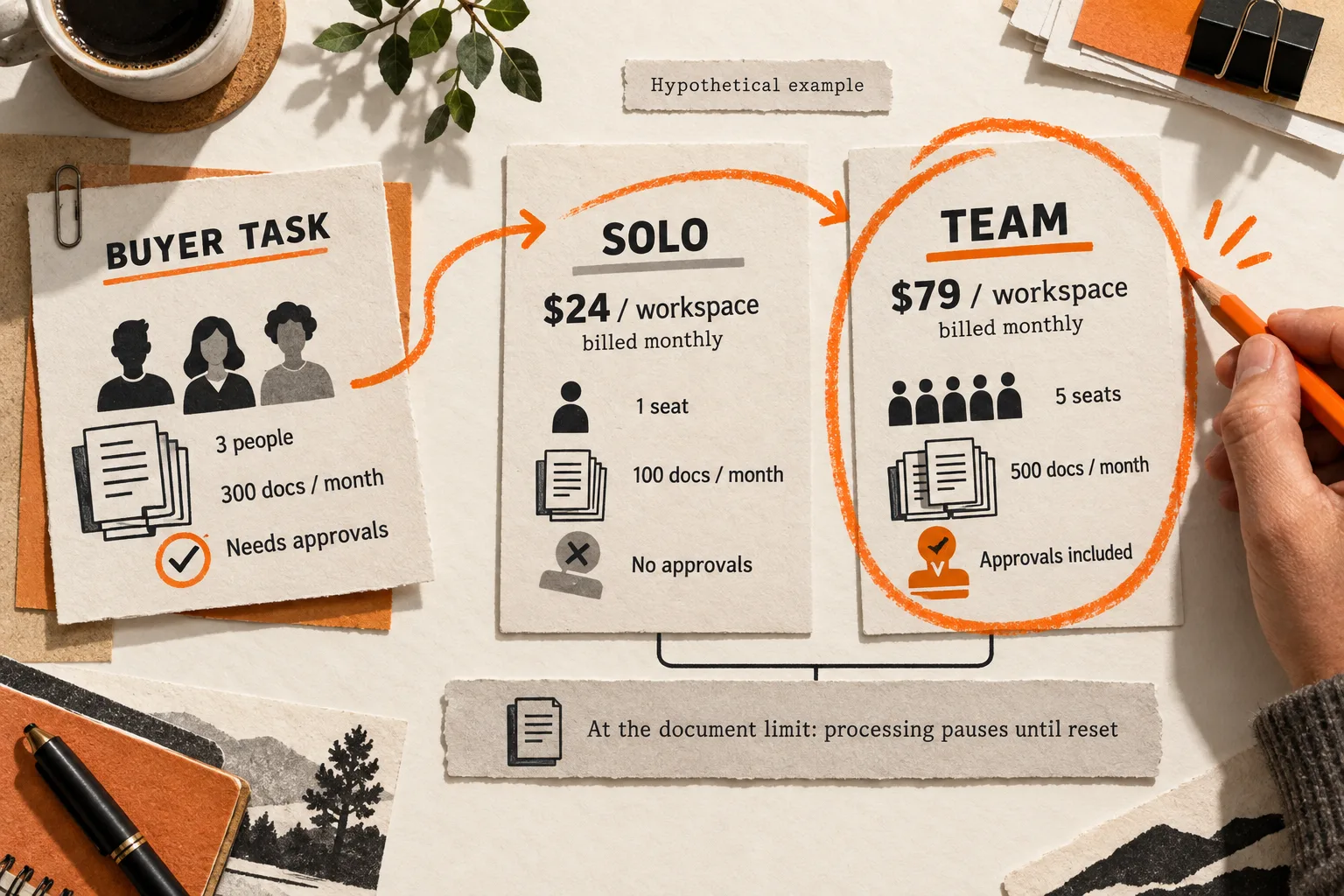
If you have enough eligible users for a meaningful comparison, randomly assign them to the current email or the rewrite. Keep timing, eligibility, and the product experience consistent. For a shared workspace, consider assigning at the workspace level so teammates receive the same variant.
Choose the observation window based on how long the task reasonably takes. Record the assignment time, variant, and completion event. Compare groups only after each assigned user or workspace has had the full window to finish.
Calculate completion rate as:
Assigned eligible users who complete the task within the window ÷ all eligible users assigned to that variant.
Include people who never click the email. If you assign and measure by workspace, use workspaces in both parts of the calculation. Report the counts alongside the rate.
For BriefNest, this would measure first summaries saved within the window. Report observations about review and usefulness separately; do not rename every save a successful outcome.
Opens and clicks can help diagnose attention, but they are weak substitutes for product use. Mailchimp notes that automated activity can inflate those metrics and that image-based open tracking has limitations. Mailchimp’s open-tracking documentation
Use the results to choose what to inspect:
| Observed pattern | What to check next |
|---|---|
| More clicks without more completions | Destination, prerequisites, errors, and audience fit |
| More completions without later useful activity | Whether the chosen task produces a meaningful result |
| Little observable difference | Sample size, delivery, audience fit, and completion without email |
A comparison of two complete messages estimates the effect of the rewrite as a whole. It does not identify which sentence caused a difference. A completion recorded after an email, without a valid comparison, does not establish that the email caused it.
With few signups, observe users following the message and document where they hesitate. Those sessions can uncover comprehension problems, but they cannot establish a reliable conversion lift. Avoid declaring a winner from a handful of completions.
Draft your email with this worksheet and template
Complete these fields beside your current message:
Recipient and exclusions:
Useful result:
Customer evidence, or hypothesis to test:
Required input, access, or permission:
Shortest complete path:
Button label and destination:
Help route:
Completion event and reminder stop condition:
How review or usefulness will be checked:
Evaluation unit, denominator, and observation window:
Then turn the answers into an email:
Subject: [Specific task or result]
Hi [first name],
Use [required input] to create or reach [useful result].
[Necessary preparation.] [Shortest complete instructions, including review when needed.]
Button: [Action at the destination]
[Where the button leads and any sign-in requirement.]
If [immediate obstacle], [available help route].
[Sender]
Replace every bracketed field with a verified detail and remove any line the user does not need. Offer replies only if someone monitors them. Retain your required footer and preference links.
Your next task: check one rewritten email
Rewrite one welcome email for one audience. Read it on a phone, follow its link from a fresh account, and complete the promised task. Correct any mismatch between the message and the screen. Verify that the completion event records and that a completed account stops receiving reminders. Keep the resulting email, worksheet, and test question together for review.