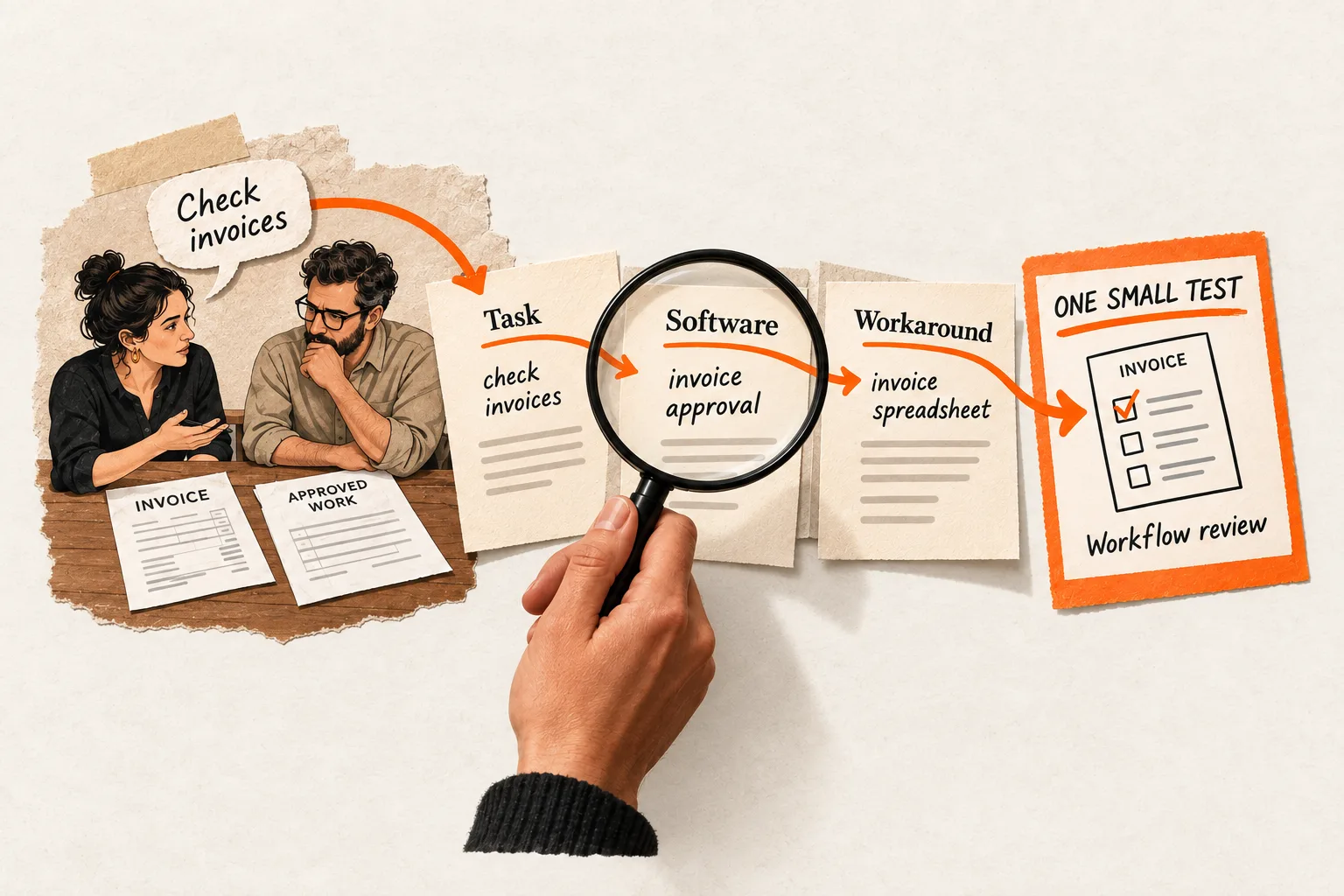
A trial user uploads a document but never generates a result. Your scheduled day-two email asks them to upload a document. They have already done that, and the email offers no help with the unfinished step.
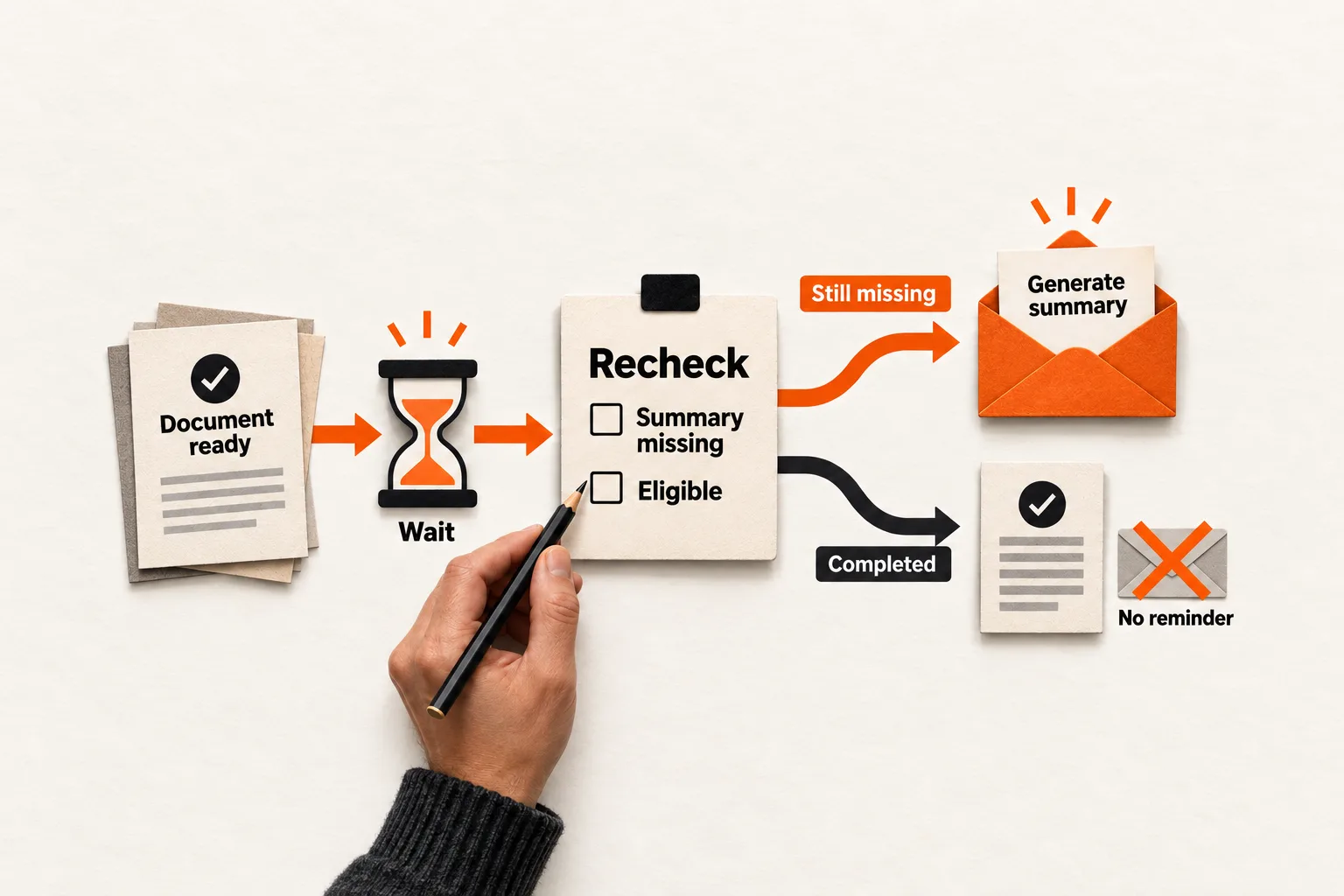
Behavioral onboarding email triggers connect a message to what someone has done and what remains incomplete. Start with one workflow: confirm that a prerequisite succeeded, allow time for the next step, then check whether the user still needs help before sending.
Choose a missing step that email can help resolve
Write the user’s intended outcome in ordinary language. For an AI document tool, it might be: “Get a useful summary of my first document.” Uploading a file is a prerequisite. Generating and reviewing a summary are later steps toward that outcome.
Choose one gap between those steps. A broad segment such as “inactive trial users” could include people who never uploaded anything, people waiting for processing, and people who already finished their work.
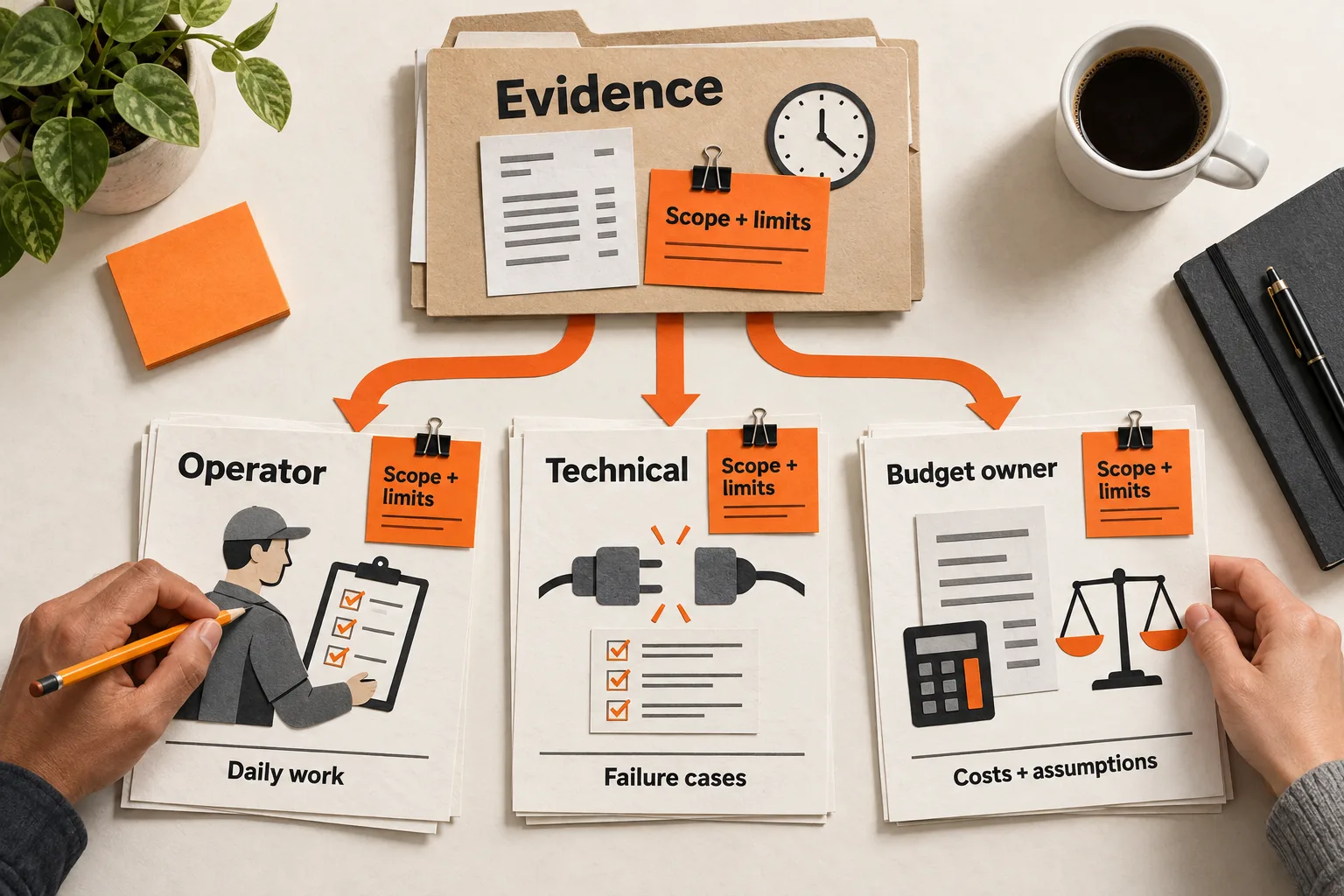
Inspect relevant support conversations or onboarding interviews before drafting. Record the workflow, the person’s role, and the obstacle they described. Keep their actual words separate from your interpretation. One complaint can suggest useful copy; it cannot establish how common the obstacle is.
If processing is broken, fix or explain the failure. If users are unsure which option to choose, an email with a concrete instruction may help. A missing completion event alone cannot tell you which response they need.
Define the prerequisite, completion, and waiting period
“Has never generated a summary” could describe an account created seconds ago. Give the missing action a reference point:
The workspace has a document ready for summarization, enough time has passed to try the feature, and the workspace has never successfully generated a summary.
Record the prerequisite and completion signals, the user and workspace identifiers connecting them, and the timestamp that starts the waiting period. Name the recipient who has permission to perform the missing step.
Use successful completion as the signal. Clicking “Generate” records an attempt; the success signal should confirm that a result is available. Even that measures only one step toward the user’s goal. It does not establish that they reviewed the summary or found it useful.
For a shared workspace, decide whether any teammate’s completion satisfies the condition. If it does, checking only the recipient’s activity would produce unnecessary reminders.
Userlist supports user-level and company-level event triggers. For company triggers, it lets you select which members enter the workflow. Check whether your setup can represent the same workspace and recipient boundaries. Userlist trigger documentation
Choose the delay from the task’s expected pace and observed completion times. A simple self-service task and a setup requiring administrator approval need different waiting periods. Treat your initial choice as a hypothesis to review.
Check eligibility again before sending
A prerequisite starts the workflow. After the delay, check current state before sending; completion or another disqualifying condition should end the reminder.
Entry alone does not guarantee continued relevance. Userlist documents that users keep moving through a workflow even if they no longer meet its original trigger criteria. Userlist trigger behavior
Customer.io distinguishes triggers from filters. For most automation types, it checks filters before workflow actions when those filters are included in exit conditions. Legacy segment triggers have separate behavior, so check your automation type and configuration. Customer.io filter documentation
Immediately before sending, confirm that the step remains incomplete, the recipient still has access, and the message remains appropriate. Apply subscription preferences, delivery suppressions, and your team’s limits on overlapping onboarding messages.
Configure an exit for completed work. Customer.io supports exit conditions based on profile attributes, events, and segment membership; the available options depend on the trigger type. Verify that your workflow includes the relevant condition. Customer.io exit conditions
If your event feed is unhealthy or workspace state cannot be confirmed, pause the reminder. Put the final check as close to dispatch as your setup allows, and test what happens when someone completes the task while the message is queued.
Worked example: a document without a first summary
Suppose a fictional AI document product lets trial users upload a file and generate a summary. Its team wants to help workspace owners who have a ready document but have never generated a successful summary.
For this example, the team chooses a 24-hour delay and a seven-day expiration. These are illustrative settings, not benchmarks.
The workflow starts when the workspace’s first document becomes ready for summarization. It selects one owner who can use the feature and receive onboarding messages. After 24 hours, it checks the workspace again.
Send only if all of these remain true:
- At least one usable document is available.
- The workspace has never successfully generated a summary.
- No summary job is running.
- The trial and the recipient’s access are active.
- The recipient is eligible for this email and has not received another onboarding message within the team’s chosen cooldown.
- The workspace has not already received this reminder.
Record the first successful summary as a milestone. Deleting that summary later should not make the workspace eligible for a first-summary reminder again. Completion by any teammate cancels the reminder.
If no usable document remains or the trial ends, cancel it too. If a cooldown delays sending, check every condition again at the next permitted time. Expire the reminder seven days after the prerequisite so it cannot wait indefinitely.
Record one send against the workspace, missing step, and onboarding episode. Replayed events or another uploaded file should not restart this reminder. If delivery status is uncertain after a timeout, reconcile the original send before retrying.
The hypothetical message could read:
Subject: Turn your document into a first summary
Your workspace has a document ready to summarize. Open Documents, select the file, and choose Generate summary to review its main points.
Button: Open my documents
If you’re unsure which summary option to choose, reply with what you need from the document. We can help you pick a starting point.
Use the reply invitation only if someone monitors the inbox. The button should open the relevant workspace after authentication, with a useful fallback if the document is no longer available. Keep sensitive document details out of the email.
If the obstacle needs a demonstration, FindVex’s guide to sending a short onboarding help video explains how to show the confusing step and give users a route back to their work.
Test when the email should stay unsent
Test both the message preview and the recipient rules. Walk test accounts through these cases before enabling delivery:
| Test case | Expected behavior |
|---|---|
| Prerequisite complete, next step missing | One reminder becomes eligible after the delay. |
| Completion during the delay | Cancel the reminder. |
| Completion by a teammate | Cancel when success belongs to the workspace. |
| Successful summary later deleted | Keep the first-summary reminder canceled. |
| Duplicate prerequisite events | Keep one workflow and prevent duplicate sends. |
| Missing identifiers or delayed data | Pause until state can be confirmed. |
| Summary job still running | Hold the reminder and recheck before expiration. |
| Unsubscribed recipient, revoked access, no usable document, or ended trial | Do not send. |
| Cooldown postpones delivery | Recheck all conditions and expiration before sending. |
Keep a readable decision log with the workspace, evaluated conditions, workflow version, and send or suppression reason. Someone reviewing a mistaken reminder should be able to see why it went out.
Measure completion with a defined denominator
Choose the outcome and observation window before launch. For this example, define eligibility as the first check at or after the 24-hour delay when all sending conditions are satisfied. Record that timestamp once.
A proposed completion measure is:
Eligible workspaces that generate their first successful summary within seven days of that check ÷ all eligible workspaces in the measured group.
The measurement window starts at eligibility. The reminder’s expiration remains seven days after the document became ready. Record both timestamps so delivery rules and measurement use their intended clocks.
Track delivery failures, unsubscribes, and mistaken reminders alongside completion. Opens are an imperfect diagnostic: Apple’s Protect Mail Activity can download remote content in the background regardless of whether the recipient engages with the message. An apparent open therefore does not establish that someone read the help. Apple’s Mail Privacy Protection explanation
Completion after an email does not prove the email caused it. If volume permits, randomly assign eligible workspaces at that first qualifying check to receive the reminder or enter a holdout that receives no reminder. Keep other treatment consistent and compare completion over the same window. Count every assigned workspace in its group, including those whose email is never delivered or opened.
With a small sample, report assigned and completed counts with uncertainty. Use replies and individual workflow traces to diagnose problems without claiming a reliable lift.
Complete one trigger worksheet
Copy this specification for one unfinished task:
User outcome and missing step:
Evidence that email could help:
Prerequisite signal and the state it confirms:
Completion signal and the state it confirms:
User or workspace scope, with identifiers:
Recipient and required permissions:
Waiting period and starting timestamp:
Expiration and starting timestamp:
Conditions checked immediately before sending:
Exit, suppression, and cooldown rules:
Duplicate-send and uncertain-delivery rules:
One instruction and its tested destination:
Eligibility timestamp and comparison groups:
Completion numerator, denominator, and observation window:
Workflow version and review owner:
Fill it out, then trace a completed workspace and an incomplete workspace through every rule. Add a teammate completion and a duplicate event. Record the expected decision beside the actual decision, and resolve mismatches before enabling the email.