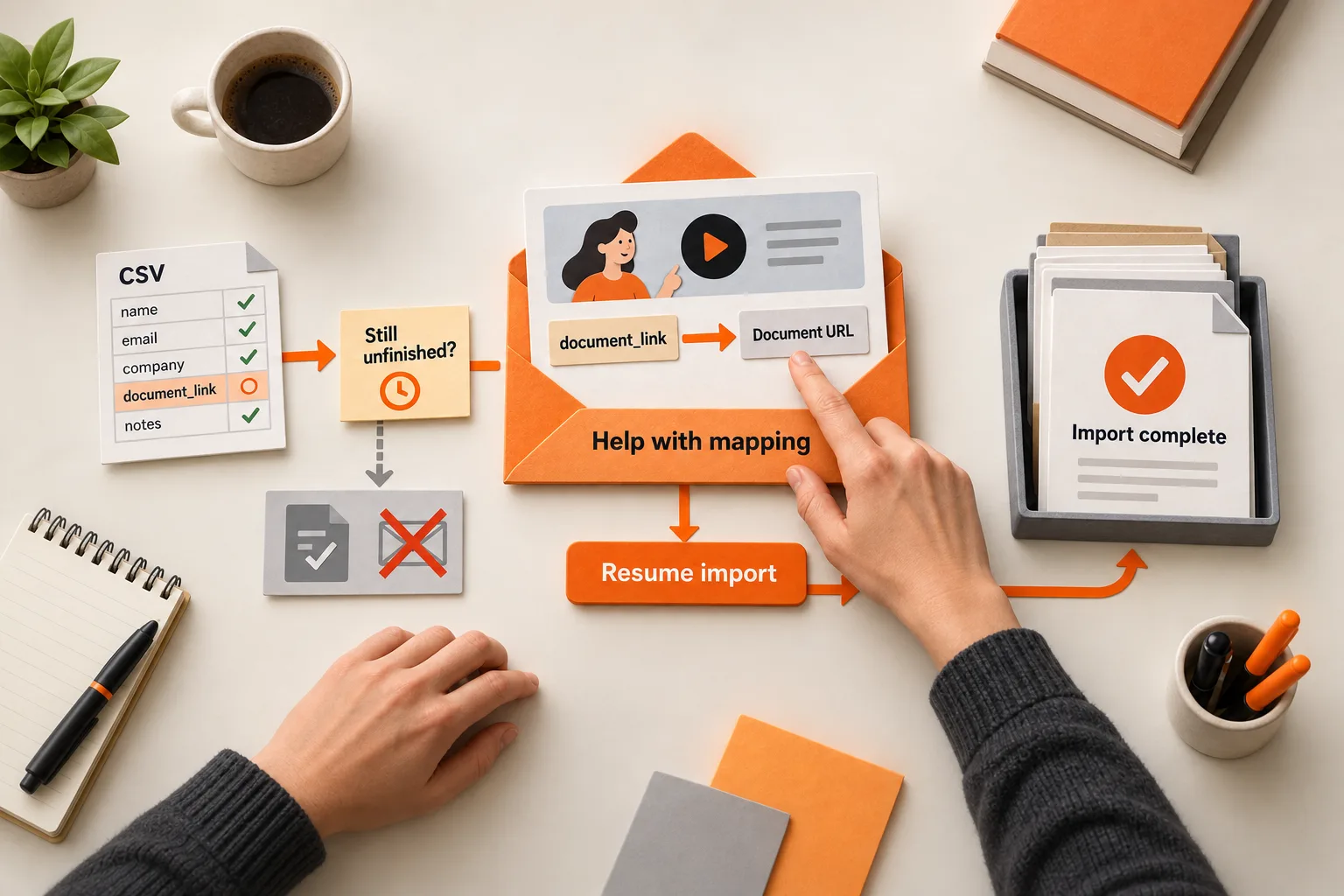
A trial user uploads a file, reaches the field-mapping screen, and leaves without completing the import. Tomorrow’s scheduled email introduces your dashboard. It offers little help with the unfinished task.
Build the help email around that mapping step: explain the choice, link to a short recording, and give the user a way back to their saved import. Before sending, confirm that the task is still unfinished. Judge the pilot by completed imports across the comparison groups.
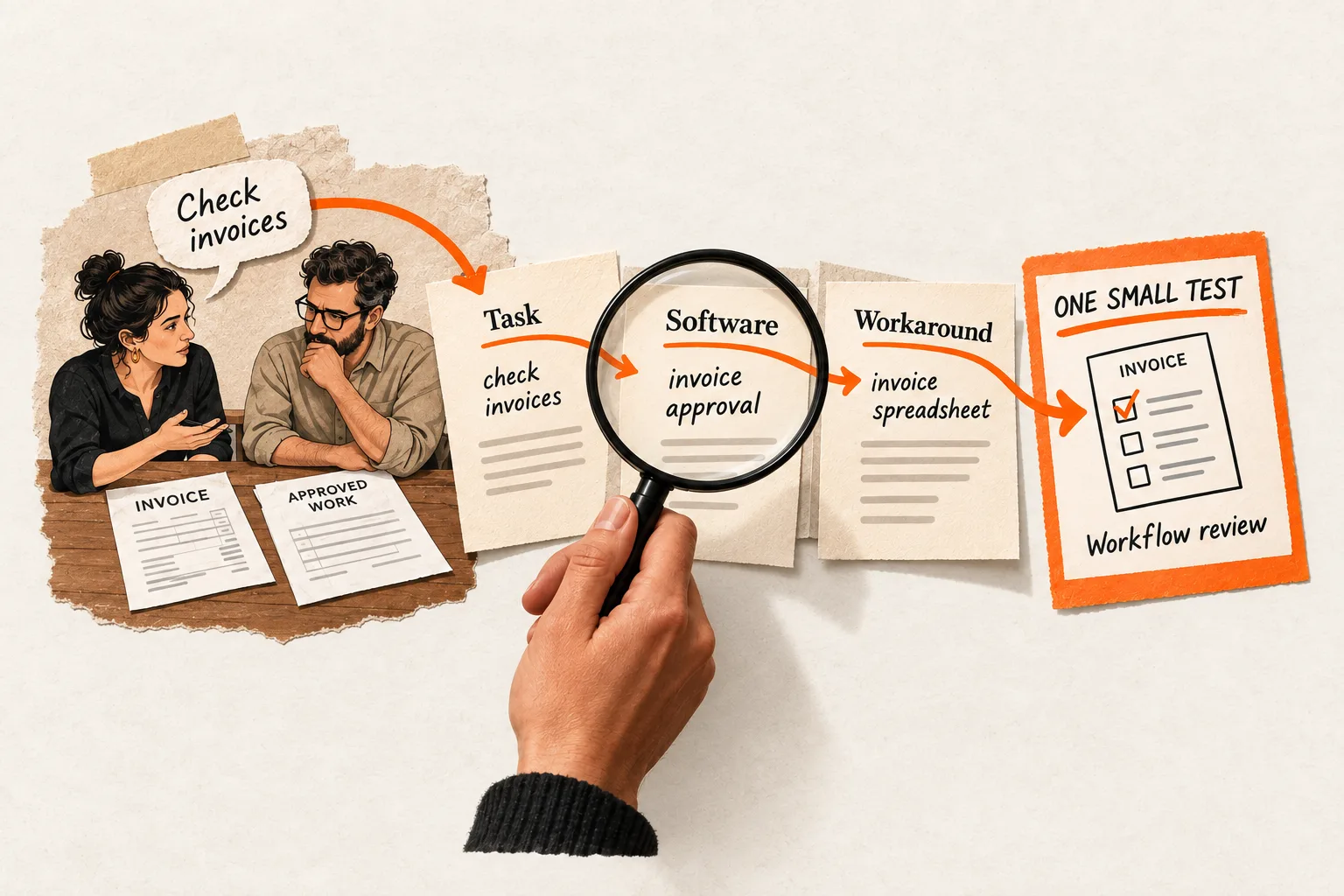
Start with one step where you have evidence that clearer instructions could help.
Find a stalled step that instruction can resolve
Look for a transition you can observe: a user begins an import but never finishes it, creates an assistant but never runs a test, or opens an integration setup without completing the connection.
Missing activity does not explain why someone stopped. They may be confused, waiting for an administrator, missing required data, or simply done for the day.
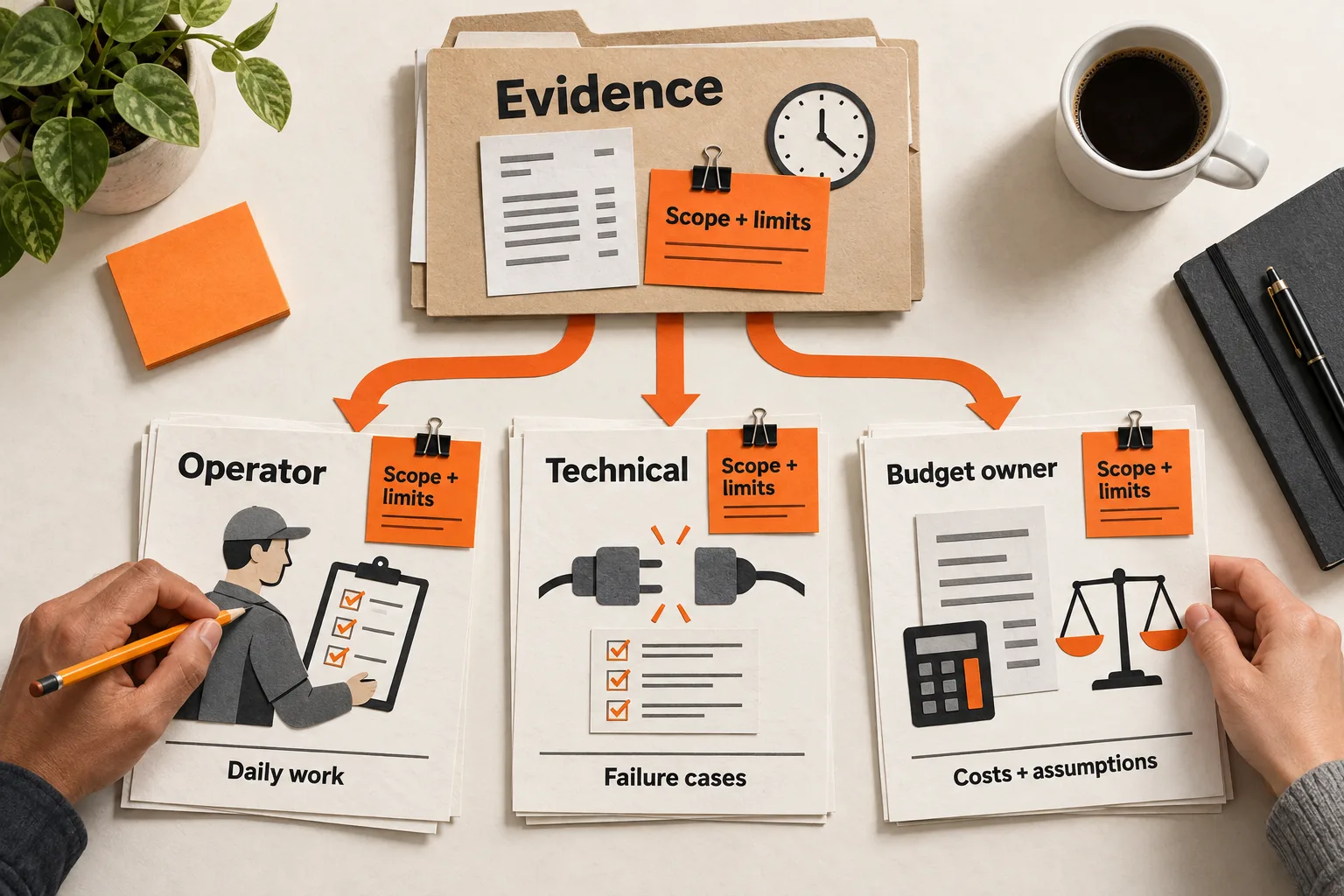
Review relevant support conversations alongside product event histories. Where possible, ask users what they were trying to accomplish and what prevented the next action. Keep their actual words separate from your interpretation. FindVex’s pain-point evidence sheet guide provides a way to organize observations without treating every complaint as a widespread problem.
Write a diagnosis narrow enough to check: “Users reach field mapping but cannot tell which source column belongs in the required field.” Look for evidence that supports or contradicts it.
A recording can demonstrate a confusing choice or sequence. A permissions error needs the right access; a broken import needs a product fix. If the interface is misleading, assign someone to improve it even if a video provides temporary help.
Define who gets the email and when
Write the sending rule in plain English:
A user attempted this step, enough time has passed to make help reasonable, the task remains incomplete, and this user can take the next action.
Translate that into a start event, a completion event, a waiting period, and exclusions. The completion event should confirm that the product finished the task. Clicking Import or accepting a job into a processing queue is insufficient.
Choose the waiting period from how your users work. A task that usually takes minutes needs different timing from one that requires a colleague’s approval. Treat your initial delay as a hypothesis to review.
Check the current state again before sending. Someone may finish while the email waits in a queue, or a teammate may complete the task for the whole workspace. If completion belongs to the workspace, use workspace state to suppress the message.
Your automation settings determine whether that check happens. Customer.io, for example, documents that most automation types evaluate filters before workflow actions when those filters are included in the exit conditions. Legacy segment automations have separate behavior. Check the rules for your automation type. Customer.io’s filter documentation
Choose a recipient who can act. The person who attempted setup may be more appropriate than the billing owner. Set a repeat-send limit, respect subscription preferences, and suppress messages when an active support conversation is already handling the issue.
Before enabling delivery, inspect whom the rule selects. Test an unfinished task, a completed task, duplicate start events, and completion by a teammate. Check the selected users against actual product state: a missing success event can make working users look stuck.
Record the decision the user needs to make
Open on the screen where the difficulty occurs. Name the task, show the confusing choice with realistic sample data, and explain why you select that option. Finish the action, show its confirmation, and point the viewer back to their own task. Cut the company introduction and unrelated feature tour.
Try 60 to 90 seconds as an initial production constraint. That is a scope limit to test, not an established ideal duration. Keep any explanation the user needs, even if it makes the recording longer.
Use a demo account without customer information. Make interface labels readable on a small screen and say their names aloud instead of relying on cursor movement alone.
Provide corrected captions and a written version of the steps near the video. Include visual details needed to follow the task, such as the selected field and the confirmation message. W3C distinguishes basic transcripts from descriptive transcripts, which also convey necessary visual information. W3C transcript guidance
Assign an owner to check the recording and written instructions whenever the workflow or labels change.
Give the email a direct path back to work
Use a subject that names the task, such as “Help mapping your CSV columns.” Avoid claiming to know the user’s feelings or the reason they paused.
Make the message useful without playback. Offer a brief instruction, link to the focused recording, and label the route back to the saved task.
Plan for the video to open outside the inbox. Mailchimp explains that most email clients cannot display embedded video; its video content block uses a thumbnail that opens the video in a browser. A linked preview plus a plain text link is a practical starting point. Mailchimp’s video email documentation
Place the recording, written steps, and return link together on one help page. Test the return link while signed out: after authentication, the user should reach the intended task.
Keep a reply option for problems the recording cannot resolve. Someone who lacks access needs a way to explain that without repeatedly attempting the same instructions.
Worked example: help with an unfinished CSV import
Suppose a fictional AI research tool lets users import source documents through a CSV file. Its team suspects that required field mapping is confusing. The events, timings, and copy below are illustrative choices, not observed customer results.
The team defines mapping_opened as the start event and import_completed as the success event. Both carry the workspace and import identifiers. In this example, success means processing has finished and the imported documents are available in the workspace. A queued or processing job does not count as complete.
For the pilot, the team considers an email two hours after mapping opens. Immediately before sending, it checks that the same import remains unfinished, no import job is processing, the recipient can edit it, and help has not already been sent for that import. Subscription preferences and active support conversations are also part of the check. The two-hour delay remains provisional until the team understands normal completion time.
The recording shows how to map a sample column named document_link to the required Document URL field. It explains the expected value, runs the import, and shows the documents available afterward.
The email could read:
Subject: Help mapping your CSV columns
If you’re still working on your import, match the column containing each document’s web address to Document URL, then select Import.
The 75-second walkthrough shows the mapping and how to check that your documents have imported.
Watch the mapping walkthrough: [help-page link]
Continue your import: [saved-import link]
If a different issue is blocking you, reply with the step you’re on.
Replace the bracketed placeholders with tested links and use the recording’s actual duration.
Measure completed tasks across everyone assigned
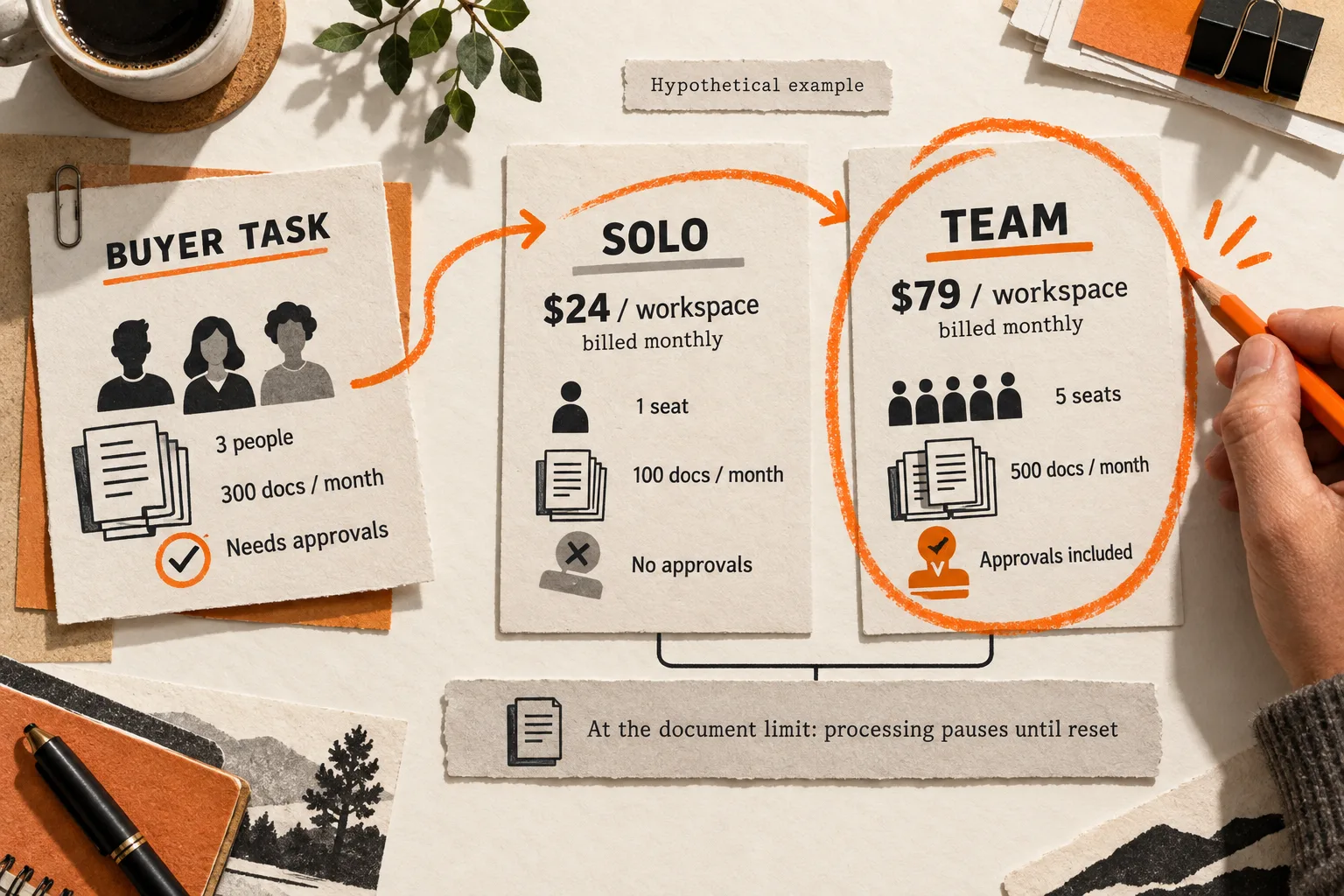
Choose the question before setting up the pilot. Comparing the help email with no additional reminder tests the whole intervention. Comparing written instructions with the same instructions plus a video tests the recording’s added value more directly. For that comparison, keep the recipient rule, timing, written guidance, and return path the same.
Randomly assign eligible users, or whole workspaces when teammates share the task, before delivery. Use the same outcome window for both groups. Count completion among everyone assigned, including people who never click.
For the hypothetical import pilot, choose the target import before assignment and count each workspace once. The primary measure could be:
Workspaces that complete their target import within 48 hours of assignment ÷ all workspaces assigned to that group.
Calculate this separately for each group. The 48-hour window is an example; choose a window that fits the real task.
Record deliveries, help-page visits, playback, replies, and repeat errors to diagnose what happened. Comparing viewers with nonviewers does not isolate the video’s effect because people choose whether to watch.
Few page visits may point to timing, delivery, or unclear copy. Visits followed by repeated mapping failures may point to inadequate instructions or a product defect. Successful imports followed by immediate abandonment may mean that completing this step is too limited a measure of useful activation.
With a small audience, use the pilot to find failures and refine the intervention. Report the number assigned and the number completing in each group, along with uncertainty. A handful of completions cannot establish a reliable lift.
Complete one worksheet and test the sending rule
Copy this worksheet for a single unfinished task:
Task and intended user:
Evidence of the obstacle, with source and date:
Observed behavior:
Suspected explanation:
Start event:
Success event and the finished product state it confirms:
User, workspace, and task identifiers:
Waiting period and reason:
Final eligibility check and exclusions:
Repeat-send limit:
Video starting screen, confusing choice, and success state:
Written instructions and tested return link:
Comparison groups and what differs between them:
Assignment unit, target task, and completion window:
Completion numerator and denominator:
Recording owner and review trigger:
Before recording, trace several attempted completions through your proposed sending rule. Include an unfinished task, a finished task, duplicate starts, and a task completed by a teammate. Record whether each should receive the email and whether the rule agrees. Resolve mismatches before enabling delivery.