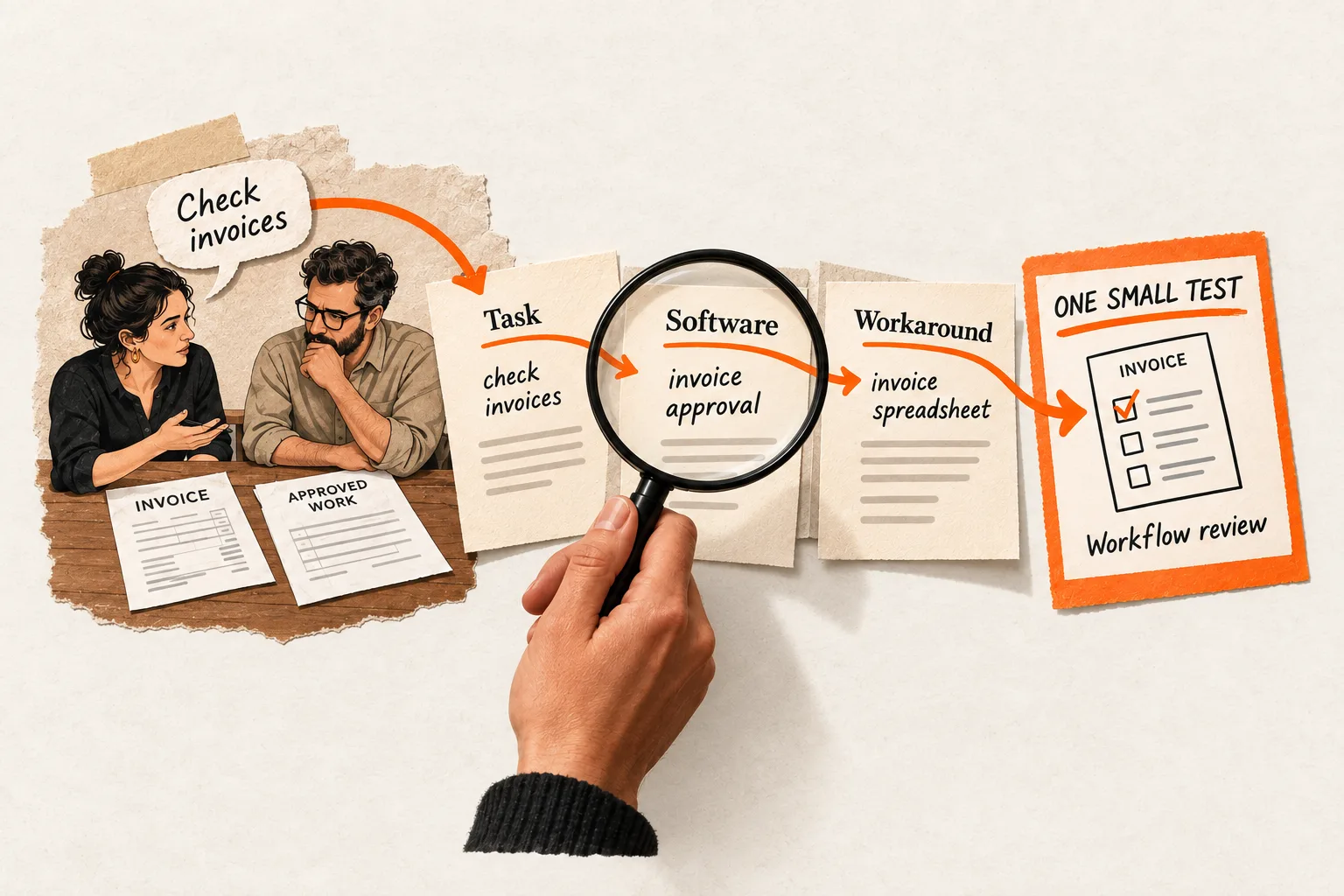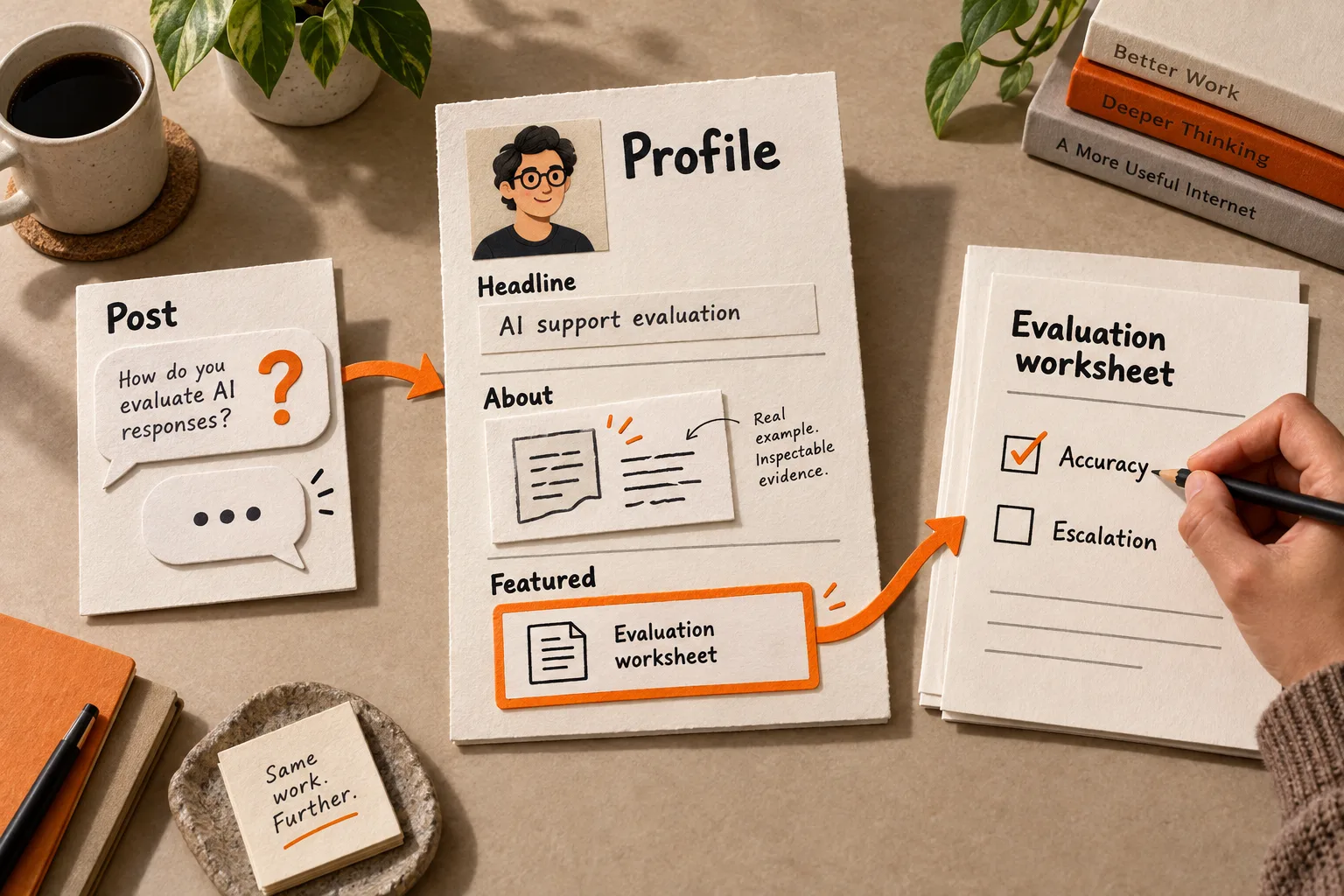
Someone reads your post about evaluating AI support tools, opens your profile, and finds “Founder | Builder | AI enthusiast.” Your About section recounts your career. Your first Featured item is an old launch announcement. Where should they go to learn more about the evaluation method?
Audit your profile against that question. Start with one representative post, explain the work behind it, and point readers to a resource that helps them continue. You need your profile, a document for drafting, and one useful resource you already have.
Start with the question the post leaves unanswered
Choose a post that represents the work you want people to associate with you. Avoid choosing solely by reactions: a popular hiring announcement may attract a different audience from a technical walkthrough.
Write down who the post helps, what they learned, and what they might want to understand next. For a post about failed AI support answers, that next question could be how to assemble a test set or recognize answers that require human review.
Use actual reader questions, customer conversations, or relevant public discussions when you have them. Keep the original wording and its source separate from your interpretation. One comment can suggest a useful question without proving that everyone shares it.
Read the profile with three questions in mind:
- What does this founder work on, and for whom?
- What can I inspect to judge their knowledge?
- Where can I continue the task that brought me here?
Your profile may also serve candidates, investors, and partners. Give your priority reader a clear opening while preserving relevant background further down.
Make the headline explain your area of work
LinkedIn’s introduction sits at the top of your profile. On desktop, open Me → View Profile → the introduction’s edit icon to revise it. LinkedIn’s introduction editing guide documents this path.
Draft a headline that connects the selected post to your work:
[Your role or company] | [Specific work] for [Relevant audience]
Use the structure if it helps; the test is whether a stranger can explain your focus after reading it. For example:
Founder at ExampleCo | Building AI support evaluation tools for small SaaS teams
This describes the work and audience without claiming an unproven result. If your product is an early prototype, keep that distinction clear. A promised percentage improvement needs evidence; a description of what you are developing needs accuracy.
Read the headline alongside your selected post. If they describe unrelated interests, decide whether the headline is too broad or the post falls outside your intended focus. You do not need to rewrite your profile for every topic you discuss.
Connect your About section to evidence readers can inspect
Explain the problem you work on, your role in addressing it, and what informs your perspective. Then point to something readers can examine.
That evidence can be modest: a prototype, a documented evaluation process, or a technical comparison. Name what exists. A demonstration can show how something works without establishing customer outcomes.
For example, “I publish walkthroughs of support-answer evaluation using synthetic tickets” tells readers what they can inspect and discloses a limitation. “I help companies transform customer experience” leaves the work unclear.
Arrange the section around the reader’s situation, your work, the evidence, and a next step. Relevant career details can support that explanation, but readers should not need your entire history to understand the resource you recommend.
End with a specific direction, such as “Start with the support-answer evaluation worksheet in Featured.” Use the same resource name in both places so readers can find it.
If describing the benefit is difficult, work through FindVex’s guide to turning SaaS features into specific, defensible benefits before compressing the message into profile copy.
Give Featured a clear first destination
LinkedIn’s Featured section supports authored posts, LinkedIn articles, documents, and external links. You can reorder items to put your current priority first. Viewers must be logged in to LinkedIn, and existing content visibility settings still apply. LinkedIn’s Featured FAQ explains these capabilities and restrictions.
Choose the first resource by the question it answers. A worksheet helps readers apply a method; an annotated demonstration shows the steps; a detailed article gives you room to explain a difficult point.
Name what readers will receive. “Support-answer evaluation worksheet” is easier to assess than “Start here” alone. Use the description to explain who it is for and what they can complete with it.
One useful item is enough to begin. Add another when it serves a distinct need, such as a completed example beside a blank worksheet. Remove stale items that compete with your current direction.
Open the resource from your profile and follow the task through. Check whether the destination delivers what the card promises, works on a phone, and requires an account or email address. State any access requirement before the click. An email request adds a step for someone who has only just encountered your work.
Keep essential resources accessible on your website if people outside LinkedIn need them, too.
Worked example: an AI post leads to a worksheet
Imagine Maya, a fictional founder building an AI support evaluation tool. Her post shows how an answer can sound plausible while missing an escalation requirement. She wants to help support leads at small SaaS companies.
Her headline is “Founder | AI enthusiast | Building in public.” Her About section lists previous roles, and her first Featured item is a launch announcement. None tells a reader where to try the evaluation method.
Assume Maya has created a worksheet and a demonstration using synthetic tickets. These fictional materials support the following proposed copy; the example reports no conversion results.
Headline
Founder at ExampleCo | Building AI support evaluation tools for small SaaS teams
About
I’m building tools for support teams that need to check AI answers before using them with customers.
My current work focuses on factual accuracy, escalation decisions, and cases that need human review. I publish evaluation walkthroughs using synthetic support tickets so readers can inspect the method.
Start with the support-answer evaluation worksheet in Featured. It includes a blank scoring sheet and a completed synthetic example. The example illustrates the process; it does not demonstrate performance on your company’s tickets.
First Featured item
Support-answer evaluation worksheet
Score a small set of answers for accuracy and escalation handling. Includes a blank sheet and one completed example; no email required.
The headline identifies Maya’s work, the About section explains what supports her perspective, and the Featured item gives the interested reader a task. Use this sequence with materials you can actually provide. Only promise “no email required” if that is how your resource works.
Measure an action you can observe
Choose the outcome before changing your profile. For Maya, that might be a visit to the worksheet page or a specific question from someone who used it. Record those separately: opening a resource and using it are different actions.
For a website resource you control, tag the Featured link consistently. Google Analytics supports campaign parameters including utm_source, utm_medium, utm_campaign, and utm_content, with campaign information available in acquisition reporting. Google’s URL tagging documentation explains how these parameters work.
For example, use linkedin as the source, social as the medium, founder_profile as the campaign, and featured_worksheet as the content value. Reserve that tagged link for the profile placement. Test it using the social referral tracking checklist before relying on the reports.
Treat a recorded tagged visit as evidence that someone used the labeled link. It does not establish which post persuaded them to open your profile, and someone may forward the link with its tags intact. Repeat visits and incomplete tracking also limit interpretation.
If you want to know whether someone completed the worksheet, decide what evidence you can collect, such as a voluntarily shared completed copy. Record completion as unknown when you cannot observe it. Do not infer it from a page visit.
Save your profile copy and change date, then choose a review date appropriate to your traffic. Record relevant posts and changes in audience alongside the outcomes. A before-and-after comparison can suggest what to investigate, but those changing conditions prevent you from attributing every difference to the profile rewrite. Dividing website sessions by LinkedIn profile views does not create a verified visitor-level conversion rate.
Copy the profile audit worksheet
Complete this before revising your profile:
Representative post:
Intended reader:
Question the reader may have next:
Exact reader wording and source, if available:
My interpretation of that wording:

Headline draft:
About section claim and supporting evidence:
First Featured resource:
Task the resource helps the reader complete:
Access requirements and evidence limitations:

Action I want to observe:
How I will observe it:
What will remain unknown:
Profile change date and saved copy:
Review date:
Relevant posts or audience changes to record:
Test the route with one reader
Choose one post and complete the worksheet. Revise the headline, About section, and first Featured item so each helps the reader answer the next question.
Then ask someone unfamiliar with your company to read the post and profile. Have them explain what you work on, what evidence they found, and what they would open next. Let them answer before explaining your intent.
Use the first specific gap they identify to choose your next edit. If they cannot find the worksheet, fix its name or placement. If they find it but cannot explain its purpose, revise the description before adding more content.